
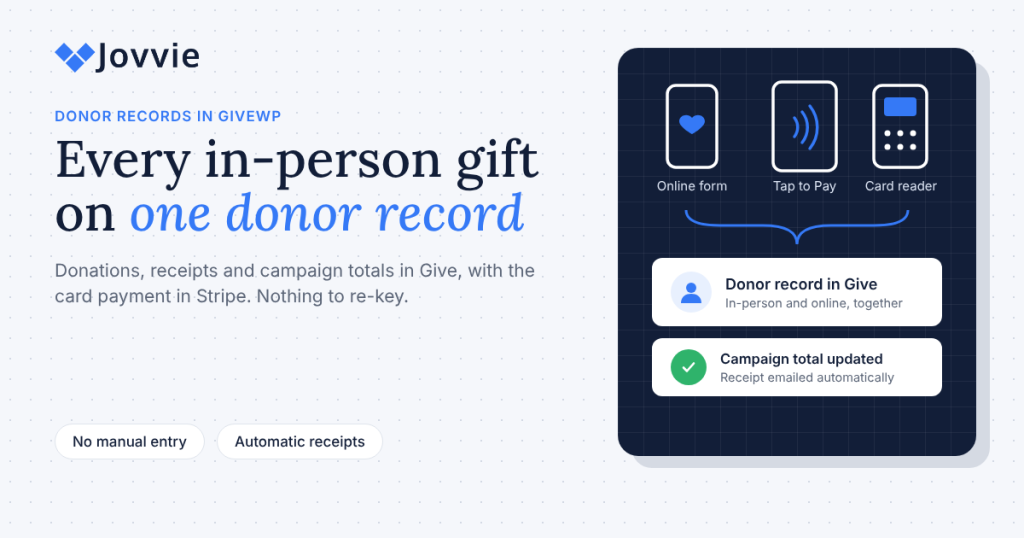
In-person donations show up in GiveWP exactly like online ones. When you take a card gift with Tap To Donate for Give by Jovvie, it is recorded automatically as a Give donation, on the donor’s record, in the campaign total and in your reports, and the payment appears in your Stripe dashboard. Nobody re-keys anything after the event.
That matters for your GiveWP donor records. Before card-present giving, a gift at a gala or a church welcome table usually became a manual “offline donation” typed in on Monday, or a charge in a separate giving app whose donors never reached Give (formerly GiveWP). This guide walks through where each part of an in-person gift lives, how receipts and campaign totals work, how to refund one, and the short post-event checklist that keeps your records clean before GivingTuesday on December 1.
Key Takeaways
- One record, no re-entry. In-person gifts taken with Jovvie appear in Give alongside online donations, with the same donor and reporting tools, and in your Stripe dashboard.
- The donor record comes from the form. The name and email entered on the Give form create or update the donor profile, so the gift adds to that donor’s donation count and total donated.
- Receipts follow your Give settings. Give’s donation receipt email goes out automatically when a donation completes, to the email entered on the form.
- Campaign goals count in-person gifts. Gifts made on a campaign’s form count toward that campaign’s goal and revenue, whether the donor tapped a card or gave online.
- Refunds happen in Stripe. In-person refunds are issued from your Stripe dashboard, not inside Give, so check the donation’s status in Give afterward.
- Exports include everything. Give’s donation export produces one CSV with in-person and online gifts, with the payment gateway on every row.
How do in-person donations show up in GiveWP?
In-person donations show up in GiveWP as ordinary completed donations, listed alongside your online gifts with the same donor and reporting tools, and in your Stripe dashboard (WordPress.org listing). There’s no separate import, spreadsheet or end-of-night data entry.
That works because Jovvie isn’t a separate giving platform. It’s a payment gateway inside Give. The volunteer opens your Give form on a phone, tablet or reader, enters or hands over the form for the donor’s details, chooses the in-person option and the donor taps, inserts or swipes. When the payment is approved, the browser returns to your normal Give confirmation page (Jovvie setup documentation). From that point, the gift is a Give donation like any other.
The Jovvie for Give page puts it simply: in-person gifts show up in Give and Stripe, and reports in both “include them automatically” (Jovvie for Give). The platform owner’s own explainer, How Tap to Donate Technology Works (Liquid Web), describes the same three parts from Give’s side: the form, the payment processor and the bridge between them.
Where does each part of an in-person gift live?
Each part of an in-person gift lives where the same part of an online gift does, plus the card-present payment record in Stripe.
| What you’re looking for | Where it lives | What you’ll see |
|---|---|---|
| The donation | Give › Donations (Donation Details screen) | Form, amount, date, status, donor, notes |
| The donor | Give › Donors (donor profile) | Name, email, number of donations, total donated, notes |
| The campaign total | Give › Campaigns (campaign overview) | Progress toward the goal and revenue over time |
| Reports | Give › Reports | Income, donors and average donation for any date range |
| The receipt | The donor’s inbox, and Give’s Donor Dashboard | Give’s donation receipt email, sent on completion |
| The card payment | Your Stripe dashboard | The card-present charge, payout and any refund |
If you’re used to card gifts living only in Stripe, the change is that Stripe stops being where you look up donors. Stripe is where money moves. Give is where your donors live.
What does a donor record look like after an in-person gift?
After an in-person gift, the donor’s record in Give looks the same as after an online gift: the donation is attached to their profile, and their donation count and total donated update. Give’s donor list shows each donor’s email, number of donations, total donated and the date the donor was created (Give: Donors).
What ends up on the record depends on your form, not on Jovvie. Give asks for a first name and email by default, and anything else your form collects (last name, address, phone, an opt-in) is saved with the donation. If a returning supporter uses the same email they use online, the gift lands on their existing profile. If they use a different email, Give creates a second donor profile, which you’ll want to merge (see below).
Our guide to capturing donor information at events covers which fields to collect at a busy table and how to get the email right the first time.
Do I still need Give’s Offline Donations for in-person gifts?
No, not for card gifts. Give’s Offline Donations gateway records gifts paid by check, cash or another non-digital method; it doesn’t charge a card (Give: offline donations). A card tapped on a phone or reader through Jovvie is a real card-present payment, so it’s recorded automatically. Keep Offline Donations, or manual entry, for the cash box and the checks.
For a full comparison of the two, see GiveWP offline donations explained.
Do donors get a receipt for an in-person donation?
Yes. In-person donations taken through Jovvie are completed Give donations, so Give sends its donation receipt email automatically to the email entered on the form, as long as that email is enabled in your settings (Give: donation receipt email).
Three things decide whether the receipt arrives:
- The receipt email is turned on under Give’s email settings, and the template reads well for an event (consider a line such as “Thank you for giving with us in person”).
- The donor’s email is right. Have the volunteer turn the screen toward the donor to check it before the tap.
- You’ve tested it. Run one gift in Test Mode with a Stripe test card and your own email, and confirm the receipt arrives (Jovvie setup documentation).
Donors can also find the gift later in Give’s Donor Dashboard, where they can view their giving history and download receipts.
Do in-person gifts appear on annual giving statements?
Yes, if you use Give’s Annual Receipts add-on (included in Give’s paid plans). In-person gifts are Give donations, so they appear in the donor’s history and on their annual receipt alongside online gifts; donors can download yearly receipts from the Donor Annual Receipt page. If you also use Give’s Fee Recovery add-on, in-person donors can cover the processing fee too. Tap To Donate itself works with the free Give plugin; no paid Give plan is required (Give by Liquid Web).
For churches, this is what makes church tap-to-give with GiveWP work at year-end: a tithe tapped in the lobby appears on the same giving statement as the one given online.
How do in-person gifts count toward campaign goals and reports?
In-person gifts count toward campaign goals and reports the same way online gifts do, because they’re made on the campaign’s own donation form. In Give, a campaign is the top level of your fundraising and its forms sit inside it; each campaign has a goal (amount raised, number of donations or number of donors) and an overview that tracks progress over Today, the last 7, 30 or 90 days, or all time (Give: Campaigns).
For reports, Give’s Overview tab shows income, number of donors and average donation for any timeframe you choose, from a single day to a custom range (Give: Reports). The Legacy Reports tab adds a per-form breakdown and a Donation Methods view that lists totals by payment gateway. Because in-person gifts run through the Jovvie Payments gateway rather than your online gateway, that view is a quick way to see how much came in at the table versus the website.
| Question | Where to answer it in Give |
|---|---|
| How much did the campaign raise in total? | Campaign overview (all time) |
| How much came in today? | Campaign overview set to Today, or Reports set to a one-day range |
| How much came in at the event table? | Your dedicated event form in Legacy Reports › Form, or Legacy Reports › Donation Methods |
| How many new donors did we meet? | Give › Donors, sorted by date created |
| Which donors gave in person? | Donations filtered by the event form, or the donation export filtered by form |
Be ready for GivingTuesday (December 1). Add in-person giving to the Give forms you already have — free, about five minutes to set up — and every gift at the table lands in the same campaign total as your online gifts.
How do you total a GivingTuesday event in GiveWP?
You total a GivingTuesday event by opening the GivingTuesday campaign in Give, setting the overview to Today (or the event date in Reports), and reading the combined online and in-person total. No spreadsheet merge is needed, because gifts from the table and the website are already in the same place.
A simple end-of-day routine for December 1:
- Read the campaign total. Open the campaign overview set to Today. This is the number to share on social media and at the evening wrap-up.
- Split table and online gifts if you want the story. Use a dedicated event form, or the Donation Methods view, to show what came in person.
- Count new donors. Sort Give › Donors by date created to see who gave for the first time.
- Add cash and checks. Enter them as offline donations on the same campaign so the total is complete.
- Compare with Stripe the next day. Stripe pays out on its own schedule, so match the Give total against the Stripe payments for the day, not the bank deposit that evening.
For the full day plan, see the GivingTuesday in-person donations playbook, and for event logistics the event fundraising guide for GiveWP.
How do you refund an in-person donation?
You refund an in-person donation from your Stripe dashboard, not from inside Give. The WordPress.org listing’s FAQ is explicit that Give doesn’t process these refunds (WordPress.org listing); the Jovvie for Give page says the same (Jovvie for Give).
- Find the payment in Stripe by amount, date or the last four digits of the card.
- Issue a full or partial refund from the payment’s page. Stripe returns the money to the donor’s card.
- Check the donation in Give. Open it in Give › Donations. If its status doesn’t already read Refunded, update it in the Donation Details screen. Give notes that edits there are for record-keeping and don’t change anything at the payment gateway (Give: Donation Details).
- Add a donation note with the reason (for example, “Typed $500 instead of $50; refunded in Stripe”), so whoever reconciles later knows what happened.
Keeping the Give status accurate matters because campaign totals, the donor’s total donated and annual receipts are all built from Give’s records. For more on card-present refunds, including partial refunds and timing, see our guide to refunds via Stripe Terminal.
The best refund is the one you never need. Ask volunteers to have donors check the amount and your organization’s name on the screen before they tap.
How do you merge duplicate donors after an event?
You merge duplicate donors by moving the donations from the duplicate profile to the main one, then recalculating the donor’s statistics, following Give’s merge steps (Give: how to merge donors). Duplicates usually appear when a donor uses a different email at the event than online.
- Do it within a week, before the thank-you emails go out, so each donor gets one message.
- Look for the same name with two emails. Sort Give › Donors by name after a big event.
- Know the limit. Give doesn’t support merging two profiles that both hold recurring subscriptions, so get the email right for monthly sign-ups at the table.
- Fix a typo on one gift by changing the donor on that donation in the Donation Details screen, rather than merging whole profiles (Give: Donation Details).
How do you export in-person donations for your CRM or accountant?
You export in-person donations with Give’s donation history export, which downloads every donation, in-person and online, to a CSV (Give: export donation history). You can filter by form, date range and status, and choose which columns to include.
Useful columns for in-person gifts:
- Payment gateway, so your accountant can separate card-present gifts from online gifts.
- Status, so refunded gifts are excluded or shown separately.
- Donor fields (name, email, address if collected) for your CRM import.
- Form ID and title, to tie gifts to an event or campaign.
- Add-on fields such as Fee Recovery, Fund or Tribute, where those add-ons are active.
For finance teams, BizSwoop’s guide to nonprofit payment processing fees explains how Stripe and platform fees show up between the gift amount and the payout. A detailed walkthrough of reconciling in-person and online donations against Stripe payouts and your accounting system is planned as part of this series.
What should you check after every in-person event?
After every in-person event, check five things in Give within a few days: the campaign total, receipts, duplicates, refunds and the cash box. It takes about 20 minutes and keeps your donor records reliable for year-end.
- Confirm the campaign total in the campaign overview and note it for your team.
- Spot-check receipts. Open two or three event donations and confirm each has a real email; follow up personally with any donor who gave without one.
- Merge duplicates using Give’s merge steps.
- Record any refunds made in Stripe by checking each refunded gift’s status in Give and adding a note.
- Enter cash and check gifts as offline donations on the same campaign, using names from your sign-up cards.
- Add donor notes for anyone who mentioned volunteering, a matching gift or a planned gift.
- Export for your CRM or accountant if your records also live outside Give.
When is a different approach a better fit?
A different approach is a better fit if your donor records don’t live in Give. If your organization runs online giving through Zeffy, Givebutter or Donorbox, use that platform’s in-person tools so donors stay in one database. And if you need a full donor CRM with wealth screening, moves management and grant tracking, keep Give as your giving engine and export into that CRM, rather than expecting Give to replace it.
Frequently asked questions
How do in-person donations show up in GiveWP?
They show up as ordinary completed Give donations, alongside your online gifts, with the same donor and reporting tools, and in your Stripe dashboard. Tap To Donate for Give by Jovvie records them automatically; there’s no manual entry after the event.
How do you record a donation received in person?
For a card gift, take it on your Give form with Jovvie and it’s recorded automatically. For cash or a check, add it in Give as an offline or manual donation on the right campaign, using the donor’s name and email so it lands on their record.
How do you track your donations in GiveWP?
Use Give › Donations for individual gifts, Give › Donors for each supporter’s history and total donated, the campaign overview for progress toward a goal, and Give › Reports for income over any date range. In-person and online gifts appear together in all four.
How do I refund an in-person donation?
Issue the refund from your Stripe dashboard; Give doesn’t process refunds for in-person gifts. Then open the donation in Give, make sure its status shows Refunded, and add a note with the reason.
Do in-person donations get a receipt?
Yes, if Give’s donation receipt email is enabled and the donor enters an email on the form. Give sends it automatically when the donation completes. With the Annual Receipts add-on, in-person gifts also appear on annual giving statements.
How much does GiveWP cost?
The Give plugin is free, with paid plans for add-ons such as Recurring Donations, Fee Recovery and Annual Receipts (Give by Liquid Web). Tap To Donate for Give by Jovvie is free with a free Jovvie account and no monthly fees; a platform fee of 0.5% to 2% applies to in-person donations only, depending on your donation volume, in addition to Stripe’s processing rate (WordPress.org listing).
Is GiveWP legit?
Yes. Give is a long-running WordPress donation plugin, now part of Liquid Web, used by nonprofits and churches to run donation forms, campaigns and donor records on their own websites. Payments go through established processors such as Stripe, and funds settle into the organization’s own account.
Are donor lists public record?
Generally not in the U.S. Most public charities report major donors to the IRS on Schedule B of Form 990, but donor names and addresses are not part of the copy made available for public inspection, with exceptions for private foundations and some political organizations. Rules differ by country and state, so check with your advisor; this isn’t legal advice.
What is the best donor database for nonprofits?
The best donor database is the one where all of your gifts actually land. If your website runs on Give, keeping in-person and online gifts in Give gives you one donor record per supporter; larger organizations often export from Give into a dedicated CRM for major-gift work.
Keep every gift on one donor record before GivingTuesday
GivingTuesday is December 1. If your campaign already runs in Give, the gift at your event table can land on the same donor record, receipt and campaign total as the gift on your website, with nothing to re-enter on Wednesday morning. Tap To Donate for Give by Jovvie adds Tap to Pay, card readers and kiosk mode to the forms you already have — free, about five minutes to set up. The plugin and Jovvie account are free with no monthly fees; a platform fee of 0.5% to 2% applies to in-person donations only, depending on your donation volume, in addition to Stripe’s processing rate.
Run one test gift in Test Mode, find it on your own donor record, and you’ll know exactly how your GivingTuesday gifts will look.
Sources and primary documentation: Tap To Donate for Give by Jovvie on WordPress.org, Jovvie for Give, Jovvie setup documentation, In-person donations with Jovvie (Give docs, Nexcess), How Tap to Donate Technology Works and What It Costs (Liquid Web), Give by Liquid Web, Give: Donors, Give: Donation Details, Give: Campaigns, Give: Reports, Give: donation receipt email, Give: Donor Dashboard, Give: Donor Annual Receipt page, Give: offline donations, Give: how to merge donors, Give: export donation history.
