
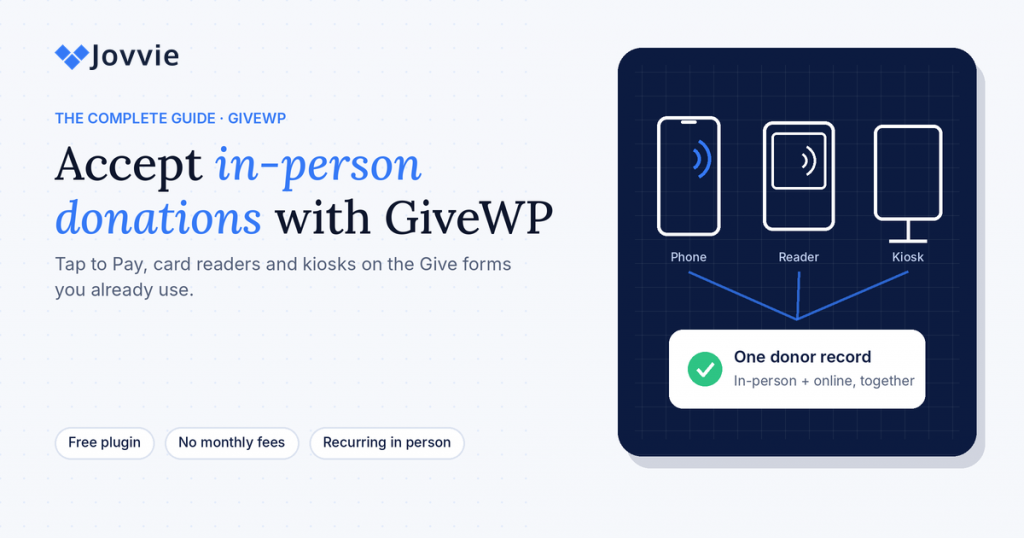
You accept in-person donations with GiveWP by adding Tap To Donate for Give by Jovvie, a free add-on that lets the Give (formerly GiveWP) donation forms you already use take card payments through Tap to Pay on a phone, a Stripe Terminal card reader, or a self-serve kiosk. Every in-person gift runs through your own Stripe account and lands in Give next to your online donations, with the donor record intact, so there is no second giving app, no separate donor list and no manual “offline donation” entry after the event.
Give is built for online giving, and it does that very well. But plenty of generosity still happens face to face: at a gala table, in a church lobby, at a school carnival, at a 5K finish line, on a doorstep. Until recently, a Give organization had three choices in those moments: pass a cash jar, use a separate tap-to-give app whose donors never reach the Give database, or write card details down and key them in later. None of those is great for donors, for staff, or for the data.
This guide covers how in-person giving with Give works end to end, which device to use for which situation, which card readers are supported, what it costs, how donations show up in your reports, and what to watch out for. If you are planning for GivingTuesday on Tuesday, December 1, 2026, there is a readiness checklist near the end. Setup takes about five minutes, so there is still plenty of time to test before the day.
Key Takeaways
- Tap To Donate adds in-person giving to the Give forms you already have. It is a free add-on from Jovvie, an official Give partner, and it doesn’t change how your online donations work.
- You can start with no hardware at all. Tap to Pay turns a supported iPhone or Android phone into a contactless reader; Stripe Reader M2, BBPOS WisePad 3, Stripe Reader S700 and BBPOS WisePOS E are supported when you want a dedicated device.
- Every gift lands in Give with the donor record intact. In-person and online donations appear together in Give and in Stripe, so campaign totals, receipts and reports stay in one place.
- Donors can start a recurring gift at the event table. Monthly, quarterly and annual recurring donations are supported on in-person transactions.
- The pricing is simple. The plugin and Jovvie account are free with no monthly fees; a platform fee of 0.5% to 2% applies to in-person donations only, depending on donation volume, in addition to Stripe’s processing rate.
- Plan for connectivity. There is no offline mode: the device taking the donation needs Wi-Fi or mobile data so Stripe can authorize the payment.
What does “in-person donations with GiveWP” actually mean?
In-person donations with GiveWP means a donor pays with a physical card, phone or watch in front of you, and the gift is recorded in Give exactly like an online donation. The donor taps or inserts their card (or holds up Apple Pay or Google Pay), Stripe authorizes the payment, and Give records the donation against the form and campaign you chose.
That last part is what makes it different from a standalone giving app. Plenty of tools can take a card at an event. The difference is where the record ends up. With Tap To Donate for Give by Jovvie, the record ends up in the same Give database your website already feeds, under the same campaign, with the same receipt flow.
Is in-person giving built into Give?
No. Give’s built-in payment gateways, including its Stripe gateway, handle online donations. Card-present giving (tapping or inserting a card at a physical device) requires an add-on. Tap To Donate for Give by Jovvie is that add-on: it adds a “Jovvie Payments” gateway to Give that talks to Stripe Terminal readers and to Tap to Pay on phones. The two run side by side, and installing Jovvie doesn’t change how your online donations work.
What about Give’s “offline donations”?
Offline donations in Give are a way to record a gift that was paid some other way, such as a check or cash, by entering it manually. That is useful for checks, but it’s the wrong tool for cards: someone has to process the card somewhere else and then type the donation in, which means double work and room for error. With card-present giving through Jovvie, the card is charged and the donation is recorded in one step.
What do you need to accept in-person donations with GiveWP?
You need four things: the Give plugin, the free Tap To Donate for Give by Jovvie plugin, a Stripe account, and a device with an internet connection. Everything else is optional.
The full list, from the official WordPress.org listing:
- WordPress 4.4 or newer and PHP 8.0 or newer. Most managed WordPress hosts already meet this.
- Give, installed and active. Your existing forms, campaigns and donor data stay as they are.
- Tap To Donate for Give by Jovvie. Free from WordPress.org.
- A free Jovvie account. You create it during setup; it securely links your WordPress site to Stripe.
- A Stripe account. New or existing. In-person donations deposit to the same Stripe account and bank as everything else.
- A device to take the donation. A supported iPhone or Android phone for Tap to Pay, or a Stripe Terminal reader.
- Internet on that device. Wi-Fi or mobile data. There is no offline mode.
If you already accept online donations with Give and Stripe, you have most of this today. The new pieces are the add-on, the free Jovvie account and, optionally, a reader.
How does Tap To Donate work, from tap to donor record?
A donation moves through five steps, and it takes a few seconds from the donor’s side.
- A volunteer opens your Give donation form on a phone, tablet or at a kiosk, chooses the amount (or lets the donor choose) and selects the in-person payment option (“Donate with Swipe, Insert, or Tap”).
- The reader wakes up. On Tap to Pay, the phone shows a tap prompt. On a Stripe reader, the screen prompts the donor to tap, insert or swipe.
- The donor taps their card, phone or watch. Contactless cards, Apple Pay and Google Pay all work. Some larger amounts or certain cards may prompt for a PIN.
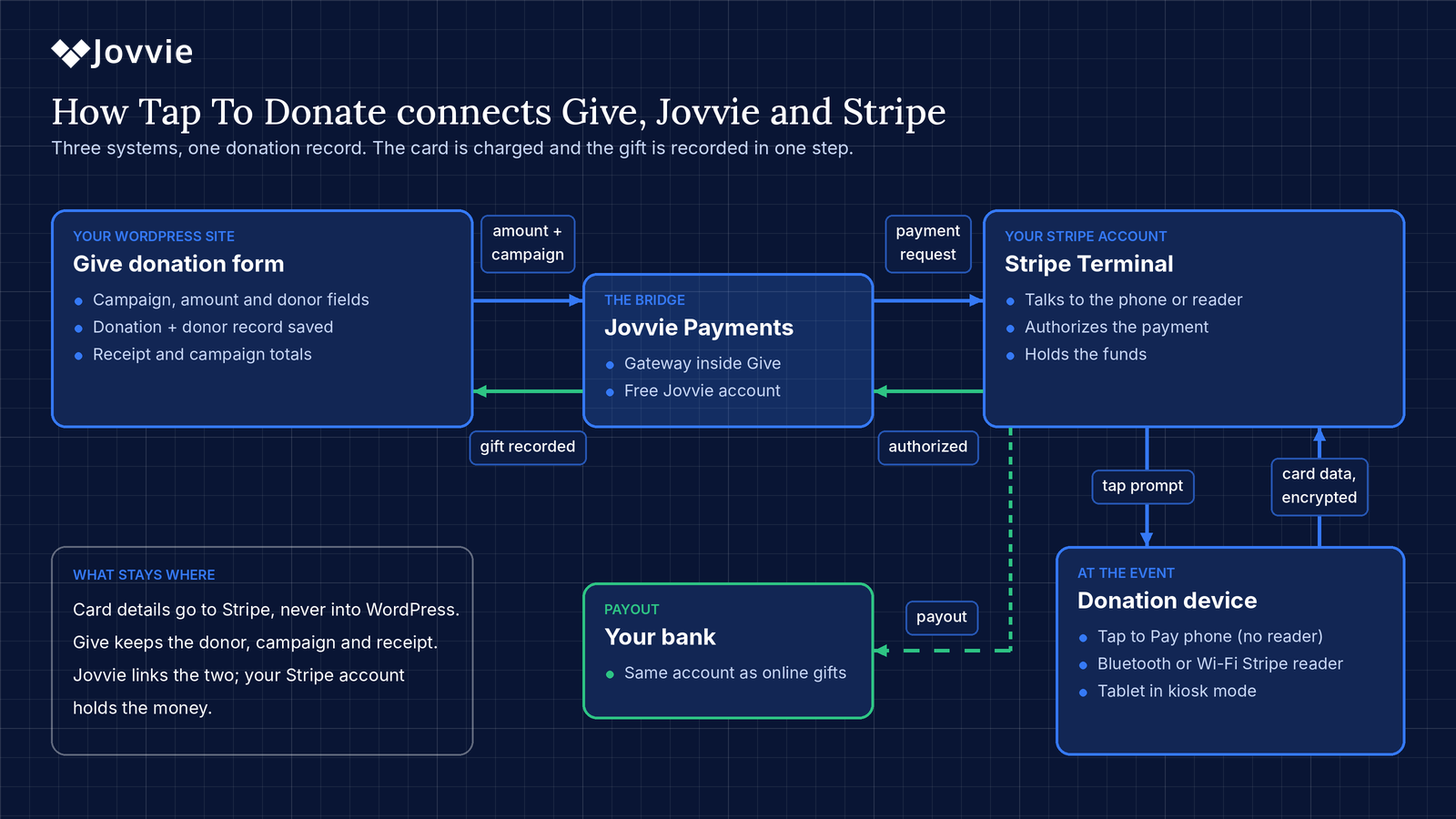
- Stripe authorizes the payment. The card details go to Stripe through its certified reader software, not into WordPress.
- Give records the donation. The donor sees your confirmation page, the donation appears in Give with the donor record, and the form resets for the next person.
Behind the scenes, the Jovvie gateway is the bridge between three systems: your Give form (which knows the campaign, amount and donor fields), Stripe Terminal (which talks to the reader and moves the money), and your Jovvie account (which securely links the two). The Liquid Web partner post on how tap to donate works describes the same three-part setup from Give’s side: a form, a payment processor and the bridge software in between.
Which way should you take in-person donations: phone, card reader or kiosk?
Use Tap to Pay on a phone if you want to start this week with no hardware, a Bluetooth reader if volunteers move around, a Wi-Fi countertop reader for a fixed table or front desk, and kiosk mode when a device needs to collect gifts unattended.
| Setup | What you use | Best for | Staffed? | Hardware cost |
|---|---|---|---|---|
| Tap to Pay | A supported iPhone or Android phone with the Jovvie app | Mobile events, walks and runs, door-to-door, pop-ups, a first test | Yes | $0 if you have a compatible phone |
| Bluetooth reader | Stripe Reader M2 or BBPOS WisePad 3 paired to a phone or tablet | Volunteers moving around a gala or festival; donors who want to insert a chip card | Yes | M2 listed at $59 by Stripe (US) |
| Wi-Fi countertop reader | Stripe Reader S700 or BBPOS WisePOS E | Front desks, church welcome tables, gift-shop counters | Yes | S700 listed at $299 by Stripe (US) |
| Kiosk | A tablet or device running your form in kiosk mode, with Tap to Pay or a reader | Lobbies, museums, high-traffic events where no one staffs the station | No | The device plus an optional reader |
Hardware prices are from Stripe’s pricing page in October 2026 and vary by country. All Stripe Terminal readers are bought directly from your own Stripe account, so you aren’t locked into a reseller or lease.
How do you choose?
A simple rule works for most organizations:
- Start with Tap to Pay. It costs nothing extra, it lets you test with a real event, and it’s the fastest way to be ready for a deadline like GivingTuesday.
- Add a reader where phones fall short. Some donors prefer to insert a chip card, and in some regions certain cards require insertion for a PIN. A $59 M2 paired to a volunteer’s phone covers that.
- Use a countertop reader for anything fixed. If donations happen at the same desk every week, an S700 or WisePOS E on Wi-Fi or Ethernet is the most reliable setup.
- Use kiosk mode when nobody is staffing the station. It’s built to be left alone, and it resets after each gift.
Which card readers work with GiveWP?
Tap To Donate supports Tap to Pay on iPhone and Android, Stripe Reader M2, BBPOS WisePad 3, Stripe Reader S700 and BBPOS WisePOS E. How you connect each one depends on the type.
| Device | Connection | How you register it | Where it shines |
|---|---|---|---|
| Tap to Pay on iPhone | Built into the phone (NFC) | In the free Jovvie app | Any volunteer with a compatible iPhone |
| Tap to Pay on Android | Built into the phone (NFC) | In the free Jovvie app | Any volunteer with a compatible Android phone |
| Stripe Reader M2 | Bluetooth | Paired in the Jovvie app on iOS or Android | Low-cost chip, swipe and tap for mobile volunteers |
| BBPOS WisePad 3 | Bluetooth | Paired in the Jovvie app on iOS or Android | Mobile volunteers who want a keypad for PIN entry |
| Stripe Reader S700 | Wi-Fi / Ethernet | One-time registration code entered in your Jovvie dashboard | Fixed desks, counters and kiosks |
| BBPOS WisePOS E | Wi-Fi / Ethernet | One-time registration code entered in your Jovvie dashboard | Fixed desks and counters |
Which phones support Tap to Pay?
According to Stripe’s Tap to Pay documentation, Tap to Pay on iPhone needs an iPhone XS or later on a current iOS version (not a beta). Tap to Pay on Android needs a phone with working NFC running Android 13 or later, a security update from the past 12 months, Google Mobile Services and the Play Store, and an unmodified, unrooted operating system. Stripe updates these requirements over time, so check the current list before an event.
Do you need to buy a card reader?
No. Tap to Pay on a supported phone is enough to start. Readers are worth adding for chip-card insertion, for PIN-heavy regions, or for a fixed station where a phone isn’t practical. Stripe notes that in Canada and Finland, many cards require a PIN entered by inserting the card, which Tap to Pay can’t do, so a reader is a good backup there.
How do you set up in-person donations in GiveWP?
Setup takes about five minutes and follows six steps. The Jovvie setup documentation walks through each screen; here is the overview.
- Install and activate Tap To Donate for Give by Jovvie from WordPress.org (Plugins › Add New Plugin).
- Open the gateway settings at Give › Settings › Payment Gateways › Jovvie Payments and select Connect with Jovvie Payments.
- Create your free Jovvie account and link Stripe. Choose your Stripe account and select Connect My Site; your API keys are filled in for you.
- Add a location (Location Management › Create Location) with the address where you’ll take donations, and choose Test Mode or Live Mode.
- Register your reader. For an S700 or WisePOS E, enter the one-time code shown on the reader. For Tap to Pay, an M2 or a WisePad 3, install the Jovvie app on iOS or Android, sign in, and add the reader there.
- Enable the gateway on your forms and test. Run a few donations in Test Mode with Stripe test cards (test donations don’t move real money), then switch to Live Mode.
Our step-by-step GiveWP Tap to Donate setup guide covers every screen, the Jovvie app settings and troubleshooting in detail.
Be ready for GivingTuesday (December 1). Install Tap To Donate free, connect Stripe and run a test donation today, so your volunteers can take in-person gifts on the Give forms you already use.
Can donors start a recurring donation in person?
Yes. Tap To Donate supports monthly, quarterly and annual recurring donations on in-person transactions, so a donor can start an ongoing gift right at your event table. The recurring options come from the Give form you use, the same way they do online. Our guide to recurring donations in person covers form setup, volunteer scripts and follow-up.
This matters more than it might seem. A one-time gift at an event is a moment; a monthly gift is a relationship. Events are often where people feel most connected to your mission, which makes them a good time to ask. Liquid Web’s guide to in-person donation best practices makes the same point: the follow-up and the recurring ask are where in-person giving pays off over time.
Practical tips:
- Set up a dedicated “event” form with the recurring option visible and a sensible default amount.
- Give volunteers one sentence to say. For example: “Would you like to make that monthly? It helps us plan the whole year.”
- Thank recurring donors separately in your follow-up so the commitment feels noticed.
Where do in-person donations show up in GiveWP?
In-person donations show up in Give and in Stripe next to your online donations, with the donor record intact. There’s no export, import or manual entry step.
That has a few practical effects:
- Campaign totals are real-time and complete. Your GivingTuesday total includes the gala table, the lobby kiosk and the website, without someone adding spreadsheets together at midnight.
- Receipts and thank-you emails follow your existing Give settings. Donors who give in person get the same receipt experience as online donors, provided the form collects an email address.
- Donor history stays in one place. If someone gives online in March and in person in December, both gifts are part of the same donor’s history.
- Payouts reconcile normally. In-person donations go to the same Stripe balance and bank account as your online gifts.
Which donor details are captured?
In-person gifts run through your Give form, so the details captured are the fields your form asks for (name, email, address, and any custom fields). If you want to send receipts and follow up later, make sure the form you use in person asks for an email address, and keep the rest short so the line keeps moving.
How do you refund an in-person donation?
Because every in-person gift is a normal Stripe payment linked to a Give donation, it can be refunded rather than written off. The WordPress.org listing’s FAQ (“How do I refund an in-person donation?”) has the current steps. For background on how card-present refunds work with Stripe Terminal, see our guide to refunds via Stripe Terminal.
How much does it cost to accept in-person donations with GiveWP?
The plugin, the Jovvie account and the Stripe account are free, and there are no monthly fees or contracts. Jovvie charges a platform fee of 0.5% to 2% on in-person donations only, depending on your donation volume, in addition to Stripe’s processing rate. Your online Give donations are not affected.
There are three possible cost layers:
| Cost layer | What it is | Amount |
|---|---|---|
| Jovvie platform fee | Applies to in-person donations only | 0.5% to 2%, depending on donation volume |
| Stripe processing | Stripe’s standard card-present rate | 2.7% + 5¢ per successful US domestic card transaction (Stripe pricing); varies by country |
| Hardware (optional) | Readers bought from your Stripe account | $0 with Tap to Pay; M2 $59; S700 $299 (US list prices) |
| Plugin, Jovvie account, monthly fees | — | $0 |
What does a $50 in-person donation cost to process?
At US rates, Stripe’s card-present fee on a $50 gift is $1.40 (2.7% plus 5¢). The Jovvie platform fee adds between $0.25 and $1.00, depending on your volume tier. That’s a total of roughly $1.65 to $2.40 on a $50 gift, with no monthly fee on top. For comparison, Stripe’s standard US online card rate is 2.9% + 30¢, or $1.75 on the same gift before any online platform fees.
How does that compare to “zero-fee” giving apps?
Some giving platforms advertise zero fees and fund themselves by prompting donors to add an optional tip. That can work well, but it means donors see an extra ask at checkout, and the platform, not you, owns the donor relationship and data. Tap To Donate takes the opposite approach: a clearly stated fee on in-person gifts, no tip prompt, and donor data that stays in your own Give database. Which trade-off is right depends on your organization; the important thing is to compare the full picture rather than the headline. For every fee layer, from Stripe’s rates to donor-covered fees, see our guide to nonprofit payment processing fees on BizSwoop.
Where does in-person giving fit for a GiveWP organization?
In-person giving fits anywhere supporters gather: events, services, counters and doorsteps. The table below maps common situations to the simplest setup.
| Situation | Recommended setup | Tip |
|---|---|---|
| Gala, auction or dinner | Tap to Pay on volunteer phones, plus one or two M2 readers | Use a dedicated event form and campaign so totals are clean |
| GivingTuesday open house or watch party | Tap to Pay plus a kiosk by the entrance | Lead with the recurring ask |
| Church service, offering or building fund | Kiosk or S700 in the lobby; Tap to Pay for ushers | Use separate forms or designations per fund |
| School carnival, PTA or booster event | Tap to Pay on parent volunteers’ phones | One campaign per event makes treasurer reporting easy |
| Walk, run or festival booth | Tap to Pay or M2 on mobile data | Test signal at the venue beforehand |
| Door-to-door or street fundraising | Tap to Pay on canvassers’ phones | Keep the form short; collect email for receipts |
| Museum, shelter or nonprofit gift-shop counter | S700 or WisePOS E at the desk; kiosk for unattended giving | If you also sell merchandise, Jovvie POS can run sales on the same Stripe account |
How do you get ready for GivingTuesday on December 1?
Install and test now, choose your devices, and give volunteers a two-minute briefing. GivingTuesday falls on Tuesday, December 1, 2026, and the organizations that do well in person are the ones that tested before the day, not on it.
A simple readiness checklist:
- This week: install Tap To Donate, connect Stripe, add a location and run a test donation in Test Mode.
- Decide your devices: which volunteers will use Tap to Pay, and whether you need an M2 or a countertop reader. Order readers from your Stripe Dashboard early.
- Build a GivingTuesday form: short, mobile-friendly, with preset amounts, an email field and the recurring option.
- Brief volunteers: how to open the form, select the in-person option and hand the device to the donor. Two minutes is enough.
- Check connectivity at the venue: Wi-Fi or mobile data on every device, plus a hotspot as a backup.
- Switch to Live Mode the day before and run one real low-value donation to confirm everything works.
- After the day: thank donors, especially new monthly givers, and roll the momentum into your year-end appeal.
What do volunteers need to know to take in-person donations?
Volunteers need to know three things: how to open the form, how to choose the in-person option, and what to do if a card doesn’t go through. Most people are comfortable after one practice donation.
A one-page volunteer card works well. Keep it to:
- Open the donation form (bookmark it on the phone’s home screen, or use the Jovvie app’s home screen, which loads your form).
- Enter or confirm the amount and any designation, then choose “Donate with Swipe, Insert, or Tap”.
- Hand the device to the donor, or hold it out, and let them tap their card, phone or watch.
- Wait for the confirmation screen. The form resets for the next donor.
- If a card is declined, ask for another card or a digital wallet, or offer the online form link. Never write card details down.
Two more tips. First, assign one person as the “device lead” who knows the setup and can help others, so you aren’t troubleshooting from the stage. Second, keep phones charged: a few power banks at the donation table prevent the most common failure of the night, which has nothing to do with payments at all.
What are the limitations of in-person donations with GiveWP?
Tap To Donate covers most in-person situations, but there are a few limits worth planning around.
- No offline mode. The device needs Wi-Fi or mobile data so Stripe can authorize each payment. For outdoor events with weak signal, bring a hotspot or a second device on a different carrier.
- Stripe availability. Stripe Terminal and Tap to Pay are available in supported countries (the listing covers 25+ Stripe-supported countries, including the US, UK, Canada, Australia and most of Europe). Check Stripe’s current list for yours.
- Phone compatibility. Tap to Pay needs a supported iPhone or Android phone (see the requirements above). Older phones need a Bluetooth reader instead.
- PIN-only cards in some regions. In Canada and Finland, many cards require a PIN via card insertion, which Tap to Pay can’t do. A reader handles those.
- One reader connection at a time per device. Plan one phone or tablet per reader for busy events.
- Unattended kiosks need physical security. Kiosk mode handles the software side; a secure stand and a sensible location handle the rest.
When is a different tool a better fit?
Tap To Donate is built for organizations that already use Give on their WordPress site. If that’s not you, another tool may be simpler.
- No website, or not on WordPress: an all-in-one giving platform such as Zeffy or Givebutter may be easier to start with.
- Already all-in on another ecosystem: if your organization runs everything on Square, its hardware and donation tools may fit your existing workflow.
- Cash-heavy events: Tap To Donate handles cards and digital wallets; keep a donation box for donors who prefer cash.
For a Give organization, though, the main reason to choose Jovvie is that it keeps your donors, campaigns and reports in the system you already run, rather than adding a second one. For a strategy view across giving apps, bundled platforms and Stripe plus WordPress, see BizSwoop’s nonprofit in-person payments strategy guide.
Is tap to donate secure?
Yes. Contactless payments use tokenization, so the donor’s actual card number isn’t shared with your organization, and payments run through Stripe’s PCI-compliant readers and Tap to Pay software rather than through WordPress. Your site never stores card details.
A few good habits on top of that:
- Show the donor the amount and your organization’s name before they tap.
- Offer a receipt by email so donors have a record.
- Never write card numbers down. If a payment won’t go through, use another card or point the donor to your online form.
Frequently asked questions
Can GiveWP accept in-person donations?
Yes, with the free Tap To Donate for Give by Jovvie add-on. It lets your existing Give forms take card-present donations through Tap to Pay on a phone, a Stripe Terminal reader or a self-serve kiosk, and records each gift in Give next to your online donations.
Do I need a card reader to accept in-person donations with GiveWP?
No. Tap to Pay on a supported iPhone (XS or later) or Android phone (Android 13 or later, with NFC) works as the reader. You can add a Stripe Reader M2, BBPOS WisePad 3, Stripe Reader S700 or BBPOS WisePOS E later for chip insertion or fixed stations.
How much does Tap To Donate for GiveWP cost?
The plugin and Jovvie account are free, with no monthly fees or contracts. A platform fee of 0.5% to 2% applies to in-person donations only, depending on donation volume, in addition to Stripe’s processing rate (2.7% + 5¢ for US card-present payments). Online donations are unaffected.
Will Tap To Donate change how my online donations work?
No. It adds an in-person payment option alongside your existing gateways. Your online donation forms, gateways and settings keep working as they do today.
Can donors set up recurring donations in person?
Yes. Monthly, quarterly and annual recurring donations are supported on in-person transactions, using the recurring options on your Give form.
Does in-person giving work offline?
No. The device taking the donation needs an internet connection (Wi-Fi or mobile data) so Stripe can authorize the payment. Bring a hotspot for venues with weak signal.
Can I test it before an event?
Yes. Create your location and register readers in Test Mode, then run donations with Stripe test cards. Test donations don’t move real money. Switch to Live Mode when you’re ready.
Where do in-person donations show up?
In Give and in Stripe, alongside your online donations, with donor records intact. Campaign totals, receipts and reports include in-person gifts automatically.
Start accepting in-person donations with Give
If your organization already raises money online with Give, in-person giving shouldn’t mean a second platform, a second donor list or a second monthly bill. Tap To Donate for Give by Jovvie adds Tap to Pay, card readers and kiosk mode to the forms you already have, so every gift at your next event, service or GivingTuesday table lands in the same place as your online donations.
Setup takes about five minutes, and you can run test donations today. If you’d like help planning devices for a specific event, talk to a Jovvie advisor.
Sources and primary documentation: Tap To Donate for Give by Jovvie on WordPress.org, Jovvie for Give, Jovvie setup documentation, How Tap to Donate Technology Works and What It Costs (Liquid Web), In-Person Donations Best Practices (Liquid Web), Stripe Tap to Pay documentation, Stripe Terminal documentation, Stripe pricing.
