
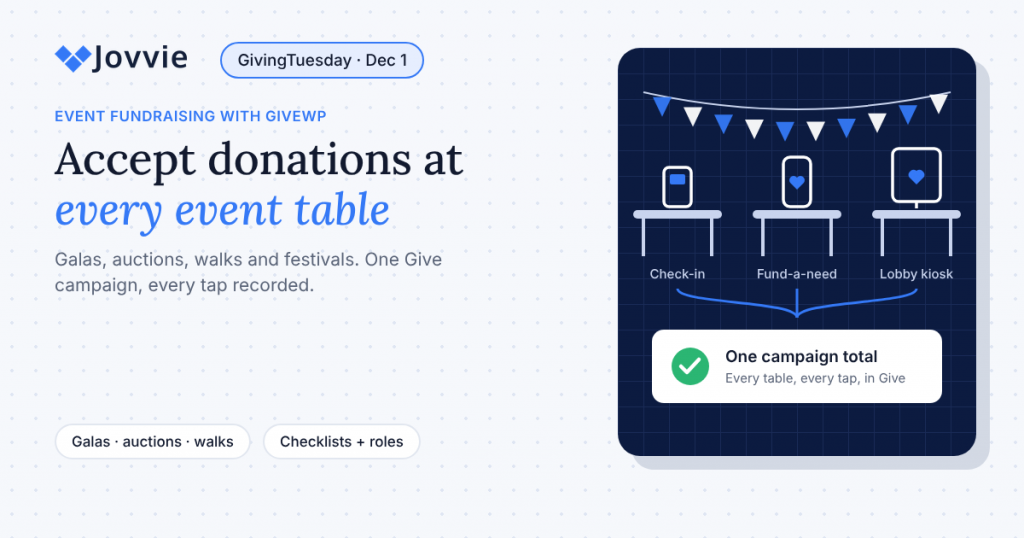
To accept donations at events with GiveWP, run the event as one Give campaign and add tap points wherever supporters are. Phones with Tap to Pay, Stripe card readers or a self-serve kiosk all take cards, Apple Pay and Google Pay on the same Give (formerly GiveWP) form, so every gift at the gala, the auction checkout or the 5K finish line lands in your donor database with a receipt, not on a paper pledge card or in a separate app.
This guide covers how to take card donations at a fundraising event, event by event. It includes a table that maps each event type to the right devices, a pre-event checklist, volunteer roles, how to handle connectivity, and what to do in the 48 hours afterward. Everything here uses Tap To Donate for Give by Jovvie, a free add-on for organizations that already raise money online with Give. If GivingTuesday on Tuesday, December 1, 2026 is your next event, the same setup works for an open house, a watch party or a lobby pop-up.
Key Takeaways
- One campaign, many tap points. Attach every event device to the same Give campaign so the gala table, the auction desk and the website roll up into one live total.
- Match the device to the moment. Phones for roaming volunteers, card readers for staffed tables, kiosks for unattended stations. Most events use two of the three.
- Every gift becomes a donor record. In-person gifts appear in Give alongside online donations with the donor record intact, so receipts and follow-up work like they do online.
- Connectivity is the one hard requirement. There’s no offline mode, so every device needs Wi-Fi or mobile data. Test the venue and bring a hotspot.
- Rehearse in Test Mode. Register devices in Test Mode, run Stripe test cards, then switch to Live Mode the day before.
- The 48 hours after the event decide retention. Fast thank-yous and a monthly-giving invitation turn event donors into supporters.
How do I take card donations at a fundraising event?
You take card donations at a fundraising event by opening your Give donation form on a phone, tablet or a device paired with a Stripe card reader, and letting the donor tap, insert or swipe. With Tap To Donate for Give by Jovvie, the payment runs through your own Stripe account and the gift is recorded in Give, next to your online donations.
The flow at the table looks like this:
- A volunteer opens the event’s Give form, chooses the amount or lets the donor choose, and collects the donor’s name and email.
- The volunteer selects the in-person payment option.
- The donor taps a card, phone or watch on a Tap to Pay phone, or uses a card reader.
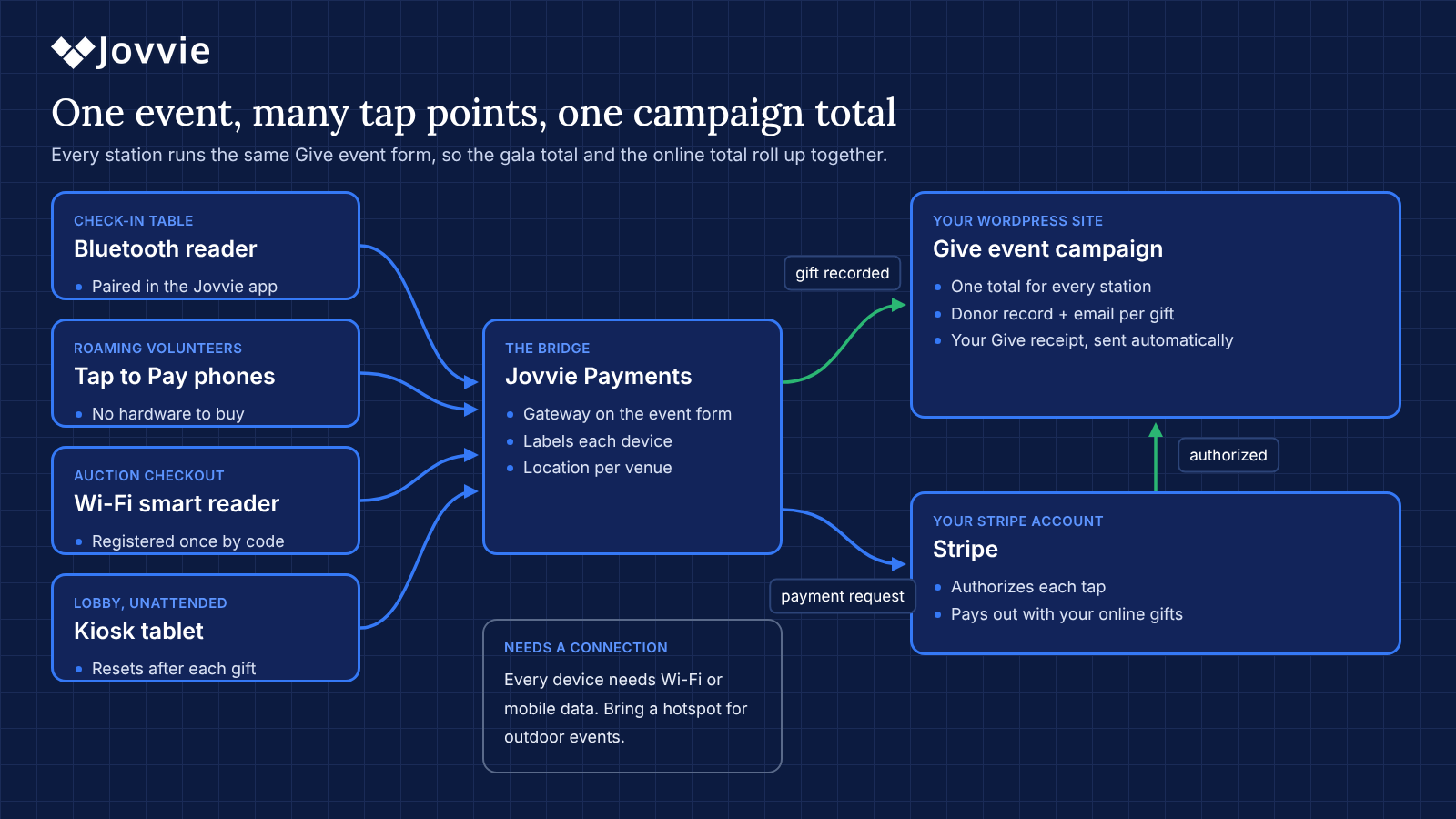
- Stripe authorizes the payment, and Give records the donation in your event campaign, with your usual Give receipt.
What you need, according to the WordPress.org listing and the Jovvie setup documentation:
| Requirement | Detail |
|---|---|
| Give | Give (formerly GiveWP) installed on your WordPress site, with your event form |
| Plugin | Tap To Donate for Give by Jovvie (free) and a free Jovvie account |
| Payments | Your organization’s Stripe account |
| Devices | Tap to Pay on iPhone or Android, Stripe Reader M2 or BBPOS WisePad 3 (Bluetooth), Stripe Reader S700 or BBPOS WisePOS E (Wi-Fi/Ethernet), or a tablet in kiosk mode |
| Internet | Wi-Fi or mobile data on every device taking donations |
| WordPress / PHP | WordPress 4.4+ and PHP 8.0+ |
For the screen-by-screen setup, see our GiveWP Tap to Donate setup guide.
Which setup fits each type of fundraising event?
Each event type has a different flow of people, so the best setup depends on whether donors come to you, you go to them, or nobody is staffing the station. Use this table as a starting point.
| Event type | Where gifts happen | Recommended devices | Staffed? | Tips |
|---|---|---|---|---|
| Gala or dinner | Check-in, fund-a-need, check-out | Stripe Reader M2 or WisePad 3 at check-in and check-out; Tap to Pay phones for table captains during the appeal | Yes | Pre-load the fund-a-need amounts on a dedicated form; keep the appeal fast |
| Live or silent auction | Paddle raise, item checkout | Wi-Fi reader (S700 or WisePOS E) at the checkout desk; Tap to Pay for floor volunteers | Yes | Use a separate Give form or designation for fund-a-need vs item purchases |
| Walk, run or ride | Registration tent, finish line, route stations | Tap to Pay phones; one Bluetooth reader at the main tent | Yes | Plan for weak signal outdoors; bring a hotspot |
| Festival or fair booth | A booth in a busy crowd | Tap to Pay plus one reader for chip cards | Yes | A large sign with a suggested amount speeds the line |
| Concert or performance | Lobby, intermission, merch table | Kiosk in the lobby; Tap to Pay for ushers at intermission | Partly | Make a short, clear appeal from the stage, then point to the lobby |
| GivingTuesday open house or watch party | Welcome table, live-stream moments | Tap to Pay plus a kiosk by the entrance | Partly | Lead with a monthly ask; show the live campaign total |
| Church event or service | Lobby, offering time | Kiosk or S700 in the lobby; Tap to Pay for ushers | Partly | Separate forms or designations per fund |
Which device should you choose for each station?
Choose by how the station works, not by the event’s size:
- Tap to Pay on a phone for roaming volunteers. No hardware to buy, and donors tap a card, phone or watch. It needs an iPhone XS or later, or an NFC-equipped Android phone that meets Stripe’s requirements (Stripe Tap to Pay docs). Our guide to Tap to Pay donations on iPhone and Android covers phone setup.
- A Bluetooth reader for staffed tables. The Stripe Reader M2 or BBPOS WisePad 3 pairs with a phone or tablet in the Jovvie app and accepts chip cards as well as tap.
- A Wi-Fi reader for fixed desks. The Stripe Reader S700 or BBPOS WisePOS E registers to your location once with a one-time code and suits a checkout desk or welcome counter.
- Kiosk mode for unattended stations. A tablet left in a lobby resets the form after each gift, so donors can give with no one present. Our GiveWP donation kiosk guide covers setup and placement.
Stripe Terminal readers are bought from your organization’s own Stripe account. For prices and specifications, see our Stripe Terminal hardware guide. For donation scenarios specifically, BizSwoop’s nonprofit card reader guide maps each reader to an event type.
How do you set up GiveWP for an event?
Set up one Give campaign and one short form for the event, connect Jovvie, register each device, and rehearse in Test Mode. Allow an afternoon the first time; after that, each new event takes minutes.
- Create the event campaign in Give. Name it after the event so the total is easy to report (“Spring Gala 2026”).
- Build a short in-person form. Three to five suggested amounts, a custom amount, name, email, and a monthly option if you have Give’s Recurring Donations add-on. Attach it to the event campaign.
- Install and connect Tap To Donate for Give by Jovvie. Go to Give › Settings › Payment Gateways › Jovvie Payments and select Connect with Jovvie Payments to link your Stripe account.
- Create a location for the venue. Stripe requires every reader to belong to a location. A location per venue keeps payouts and reports clear.
- Register each device in Test Mode. Wi-Fi readers register with a one-time code from the Jovvie dashboard; Tap to Pay and Bluetooth readers pair in the free Jovvie app. Give each one a clear label, such as “Gala table 1” or “Finish line”.
- Enable the Jovvie gateway on the event form. Your online forms and gateways stay as they are.
- Set the app’s Home URL to the event form. In the Jovvie app, set the form’s URL as the Home URL so volunteers land on the right form every time, as described in the Jovvie setup documentation.
- Run test donations, then go live. Use Stripe test cards on every device, confirm the gifts appear in Give, then switch the location to Live Mode the day before the event.
What should be on your pre-event checklist?
Your pre-event checklist should confirm three things: every device works on the venue’s connection, every volunteer knows their station, and every donation goes to the right campaign. Work through it a week before, then again the morning of the event.
One week before:
- [ ] Event campaign and in-person form created; recurring options on if you’ll ask for monthly gifts
- [ ] All devices registered and labeled; test donations run on each one
- [ ] Venue Wi-Fi tested where each station will be; hotspot arranged for weak spots
- [ ] Volunteer roster with a station and device for each person
- [ ] Signs printed: suggested amount, “tap to give”, and a QR code to the same Give form as a backup
- [ ] Chargers, power banks and stands packed
On the day:
- [ ] Location switched to Live Mode
- [ ] Each device charged, connected and opened on the event form
- [ ] One $1 live donation run and refunded from the Stripe dashboard, to confirm the full path works
- [ ] Volunteer briefing done (see roles below)
- [ ] Someone named as the “payments lead” for the whole event
Who should do what on event day?
Give every volunteer one job and one device, and name one person to own payments for the whole event. Clear roles matter more than the number of devices.
| Role | Responsibilities | Device |
|---|---|---|
| Payments lead | Owns setup, switches to Live Mode, fixes connection issues, watches the Give campaign total | Laptop or tablet with Give and the Stripe dashboard open |
| Table or station volunteer | Greets donors, enters name and email, takes the payment | Phone or tablet with a reader |
| Roaming volunteer | Takes gifts in the crowd or during the appeal | Tap to Pay phone |
| Kiosk host (optional) | Checks the kiosk every 30 minutes, helps anyone stuck | None |
| Announcer | Makes the ask from the stage and reads out the running total | The live campaign total |
What should volunteers say?
Volunteers should make one short, specific ask and confirm the details before the tap. A two-line script works for most events:
“Thanks for coming tonight. A gift of $50 covers [concrete outcome]. Would you like to give by card or phone?”
Before the donor taps: “Could you check the amount and our organization’s name on the screen? Your receipt will come by email from us right away.” That line reassures donors and avoids disputes later. To start monthly gifts at the table, our guide to recurring donations in person covers the ask, the form setup and the follow-up.
Be ready for GivingTuesday (December 1). Add in-person giving to the Give forms you already have — free, about five minutes to set up — and test it on your next event.
What do you do about Wi-Fi and mobile data at events?
Plan connectivity like you plan seating: there’s no offline mode, so the device taking the donation needs Wi-Fi or mobile data for Stripe to authorize each payment (WordPress.org listing). If the connection drops, the device can’t take a gift until it’s back.
- Test every station location in advance. Signal in a ballroom corner or a basement can be very different from the lobby.
- Use the venue’s staff network if possible, not the guest Wi-Fi that 300 attendees will join at once.
- Bring a hotspot for outdoor events, tents and route stations, plus a second carrier’s hotspot if you can.
- Keep a QR code backup. A QR code to the same Give form lets a donor finish on their own phone if your device loses signal.
- Keep Wi-Fi readers on the network you registered them with, and check them before doors open.
- Charge and update devices the night before. An operating system or app update on the morning of the event can take a phone or reader out of action at exactly the wrong moment.
- Watch the first few gifts. The payments lead should confirm the first donations from each station appear in the Give campaign, so any problem shows up before the rush.
How do you run the appeal at a gala or auction?
Run the appeal so the gift is taken in the moment, not promised on a card and chased for a week. The fund-a-need (or paddle raise) is usually the biggest single block of giving at a gala, and the classic weak point is the gap between a raised paddle and a completed payment.
A practical flow with Give and Jovvie:
- Prepare a dedicated fund-a-need form in Give with the giving levels the auctioneer will call (for example $1,000, $500, $250, $100, $50) and a custom amount. Attach it to the gala campaign.
- Seat table captains with Tap to Pay phones, already open on that form and signed in to the Jovvie app.
- When a paddle goes up, the captain at that table taps the level and takes the payment there and then, or notes the bidder number if the donor prefers to settle at check-out.
- At check-out, a Wi-Fi reader at the desk handles item purchases and any outstanding pledges on the item or pledge form.
- Announce the running total from the Give campaign. Seeing the number climb in real time is one of the best motivators in the room.
Keep item purchases (auction lots, raffle tickets) on a separate form or designation from pure donations, because they’re treated differently for receipting. Your accountant can confirm how your organization should record the two.
How do you take donations at a walk, run or festival?
At outdoor and moving events, take donations where people stop: registration, the start line, water stations and the finish. Tap to Pay on volunteers’ phones suits these events best, because there’s nothing to carry but the phone.
- Registration tent: one staffed table with a Bluetooth reader, for chip cards and larger gifts.
- Finish line: two or three roaming volunteers with Tap to Pay phones, catching participants and families at the high point of the day.
- Festival booth: a large sign with a single suggested amount (“$20 feeds a family for a day”) and a volunteer at the front of the line, so the tap takes seconds.
- Team fundraising: remind walkers that friends and family can give online on the same campaign, so in-person and online gifts count toward one total.
Battery and signal are the two things that fail outdoors. Give each volunteer a power bank, and check signal along the route the day before.
How do you keep event donations secure?
Keep event donations secure by letting the card data go straight to Stripe and keeping devices under control. Tap to Pay and Stripe readers encrypt card data, so your volunteers and your WordPress site never see or store full card numbers.
- Never write down card numbers. If a card won’t tap, try another card or a phone wallet, or share the QR code to the online form.
- Lock kiosk tablets to the giving app with the device’s built-in single-app mode, and use a secure stand.
- Use labeled devices so you know exactly which station took which gift.
- Make volunteers easy to verify. Name badges and your logo on every sign reassure donors who are cautious about tap-to-pay requests from strangers.
- Keep the Stripe dashboard to one or two people on the day, so refunds and disputes have a clear owner.
How do you measure what an event raised in person?
Measure an event by its Give campaign: the campaign total combines online and in-person gifts for the event, and the donation list shows every gift with its donor, amount and date. Because each in-person form or designation can be specific to a moment (fund-a-need, check-out, lobby kiosk), you can see which part of the night raised what.
Track a few numbers for every event, so the next one improves:
| Metric | Where to find it | Why it matters |
|---|---|---|
| Total raised (online + in person) | Give campaign | The headline result |
| In-person gifts and average gift | Give donations filtered by the event form | Shows whether devices are in the right places |
| New donors | Give donor list for the campaign | Your follow-up and retention pool |
| Monthly gifts started | Give subscriptions created during the event | The long-term value of the event |
| Net deposits | Stripe payouts for the event location | Reconciliation for your finance team |
What happens after the event?
After the event, your donations are already in Give, so the work is reconciliation and follow-up, not data entry. Do these within 48 hours:
- Check the campaign total in Give and compare it with the Stripe payouts for the event location.
- Handle any refunds in the Stripe dashboard. In-person refunds are issued from Stripe, not from inside Give.
- Send a personal thank-you to every event donor, mentioning the event. Give’s receipt went out at the time of the gift; this is the human follow-up. Our guide to capturing donor information at events lays out a full follow-up plan.
- Invite one-time event donors to give monthly, with a link to your online form.
- Share the result (total raised and what it funds) on social media and in your next newsletter.
Because every gift was recorded with a donor record, segmenting “gave at the gala” for follow-up is a filter in Give, not a spreadsheet project.
How much does it cost to take donations at events?
Taking donations at events with Jovvie costs Stripe’s processing rate plus a small platform fee on in-person donations, and any hardware you choose to buy. Tap To Donate for Give by Jovvie is a free plugin with a free Jovvie account and no monthly fees or contracts. A platform fee of 0.5% to 2% applies to in-person donations only, depending on your donation volume, in addition to Stripe’s processing rate (WordPress.org listing). Online Give donations are unaffected.
Hardware is optional. Tap to Pay uses phones you already own; readers are a one-time purchase from your Stripe account. The Liquid Web partner post on tap-to-donate technology explains how the hardware and processing pieces fit together.
When is a different tool a better fit for event fundraising?
A different tool is a better fit if your organization doesn’t run Give on WordPress, or if your event platform already handles payments well. Some honest cases:
- Ticketing-led events. If tickets, tables and bidding already run through an event or auction platform, adding donations there may be simpler for that one event.
- No website. A standalone giving app gets a one-off community event taking cards quickly.
- Mostly cash crowds. Keep a cash box alongside your card devices.
If your fundraising already lives in Give, though, the case for Jovvie is simple: event donors join the same donor database as everyone else, with the same receipts and the same follow-up.
Frequently asked questions
How do I take card donations at a fundraising event?
Open your Give donation form on a phone, tablet or device paired with a Stripe card reader, and let the donor tap, insert or swipe. With Tap To Donate for Give by Jovvie, the payment runs through your Stripe account and the gift is recorded in Give next to your online donations.
How to collect donations for a fundraiser?
Combine online and in-person giving in one campaign: share your online form before the event, then take card donations at the event with phones, readers or a kiosk on the same form. Keep a QR code and a cash box for donors who prefer them.
What is the cheapest way to accept credit card payments at an event?
Tap to Pay on phones you already own needs no card reader. With Jovvie you pay Stripe’s processing rate plus a platform fee of 0.5% to 2% on in-person donations, depending on volume, with no monthly fees.
Can several volunteers take donations at the same time?
Yes. Register each device with its own label under your event location, and every volunteer can take gifts on the same Give form at the same time. All gifts roll up into the same campaign total.
Can donors start a monthly gift at an event?
Yes. Monthly, quarterly and annual recurring donations are supported on in-person transactions, using the recurring options on your Give form (from Give’s Recurring Donations add-on).
What if the Wi-Fi goes down during the event?
There’s no offline mode, so the device can’t take a donation until it reconnects. Bring a hotspot, test each station in advance, and keep a QR code to the same Give form so donors can finish on their own phone.
Do event donors get a receipt?
Yes. In-person gifts are recorded in Give like online gifts, so your Give receipt flow applies. Collect an email address on the event form so donors receive it.
How do I refund an event donation?
Refunds for in-person donations are issued from your Stripe dashboard, not from inside Give.
Should each event have its own Give form?
Usually, yes. A short form per event (or per moment, such as fund-a-need and lobby kiosk) keeps the right campaign attached, makes reporting simple and lets you tailor the suggested amounts. Duplicate last year’s form to save time.
Can we reuse the same devices at every event?
Yes. Registered readers and paired phones stay on your account. Before each event, point the Jovvie app’s Home URL at the new event form, check each device in Test Mode if anything changed, and confirm the location is set to Live Mode.
What’s the best way to accept donations at events for schools and small groups?
Start with Tap to Pay on two or three volunteer phones, one short Give form and a QR code sign. That covers a bake sale, a booster night or a school fair with no hardware cost, and you can add a reader later if chip cards are common.
Take every event gift on the forms you already use
Your next gala, walk or festival doesn’t need a second platform or a stack of pledge cards. Tap To Donate for Give by Jovvie adds Tap to Pay, card readers and kiosk mode to the Give forms you already have — free, about five minutes to set up — so every event gift lands in the same campaign and donor database as your online donations. GivingTuesday is December 1: set it up now and test it at your next event.
Planning devices for a large event? Talk to a Jovvie advisor.
Sources and primary documentation: Tap To Donate for Give by Jovvie on WordPress.org, Jovvie for Give, Jovvie setup documentation, How Tap to Donate Technology Works and What It Costs (Liquid Web), Stripe Terminal documentation, Stripe Tap to Pay documentation, Stripe pricing.
