
You set up a GiveWP donation kiosk by running your Give form on a tablet in Jovvie’s kiosk mode. Tap To Donate for Give by Jovvie lets you leave a tablet, kiosk stand or Stripe Reader S700 unattended in a lobby or at an event; after each donation the form resets automatically so the next donor can step up, and every gift lands in Give (formerly GiveWP) next to your online donations.
A donation kiosk is a self-serve giving station: a screen and a card reader where visitors give without asking anyone for help. This guide covers what you need, how a kiosk compares with a staffed table, which hardware to pair, step-by-step setup, and where to put it, so your lobby, foyer or event entrance can take gifts all day, including on GivingTuesday, Tuesday, December 1, 2026.
Key Takeaways
- Kiosk mode is built for unattended giving. The form resets after each donation, so no staff member has to clear the screen.
- It’s your existing Give form. No separate kiosk platform or donor list; kiosk gifts land in your Give campaign with the donor record intact.
- It works with caching and locked-down hosts. Kiosk mode works with page caching and managed hosts that disable PHP sessions.
- Pair a tablet with a Stripe reader. A tablet on a secure stand plus a Stripe Reader S700 is the setup the plugin’s listing describes.
- There’s no monthly kiosk fee. The plugin and Jovvie account are free; a platform fee of 0.5%–2% applies to in-person gifts only, plus Stripe’s processing rate.
- Placement and signage do most of the work. Put the kiosk where people pause, and say what a gift does in one line.
How do I set up a donation kiosk with GiveWP?
You set up a donation kiosk with GiveWP by installing Tap To Donate for Give by Jovvie, connecting your Stripe account, registering a reader, enabling the Jovvie gateway on a short Give form, and turning on kiosk mode for the device you’ll leave unattended. The WordPress.org listing describes kiosk mode simply: enable it and leave a tablet, kiosk stand or Stripe Reader S700 unattended; after each donation the form resets automatically.
What kiosk mode does, and doesn’t, do:
| Kiosk mode does | Kiosk mode doesn’t |
|---|---|
| Resets the Give form after every donation | Lock the tablet to one app (use the tablet’s own single-app mode) |
| Run on your existing Give form and campaign | Work without internet (there’s no offline mode) |
| Work with page caching and hosts that disable PHP sessions | Secure the hardware physically (use a locking stand) |
| Record each gift in Give and in Stripe | Replace your Give receipts (donors get your usual receipt) |
Should you use a kiosk or a staffed donation station?
Use a kiosk where people pass by on their own time and no one can staff the station, and a staffed station where a conversation helps the gift. Many organizations use both: a kiosk in the lobby all week, and a staffed table at events.
| Factor | Self-serve kiosk | Staffed station |
|---|---|---|
| Best for | Lobbies, foyers, museum entrances, thrift-store counters | Galas, festival booths, check-in desks |
| Staffing | None | One volunteer per station |
| Typical gift | Smaller, spontaneous gifts | Larger, conversational gifts |
| Monthly-gift asks | Possible, but harder without a conversation | Easier: a volunteer can explain |
| Hardware | Tablet, secure stand, countertop reader | Phone with Tap to Pay or a Bluetooth reader |
| Setup effort | Higher once, then low | Low per event |
For a full event setup with multiple stations, see our guide to event fundraising with GiveWP.
What hardware do you need for a GiveWP kiosk?
You need a tablet, a secure stand, a power supply, a reliable internet connection, and a way to take the card. The WordPress.org listing names a tablet, a kiosk stand and the Stripe Reader S700 for kiosk use.
| Component | Options | Notes |
|---|---|---|
| Screen | iPad or Android tablet | Runs the Give form in a browser or the Jovvie app |
| Card acceptance | Stripe Reader S700 (named on the listing for kiosk use) | Countertop smart reader on Wi-Fi or Ethernet; registers with a one-time code |
| Stand | Locking tablet stand or floor kiosk enclosure | Physical security and a comfortable height |
| Power | Mains power to the stand | Kiosks run all day; don’t rely on batteries |
| Internet | Venue Wi-Fi or Ethernet for the reader | Required for every donation |
A few hardware notes:
- iPads can’t act as a Tap to Pay reader. Tap to Pay works on supported iPhones and NFC-equipped Android devices that meet Stripe’s requirements (Stripe Tap to Pay docs), so an iPad kiosk needs a card reader.
- Buy readers from your own Stripe account. Stripe Terminal readers are ordered through your organization’s Stripe Dashboard. Our Stripe Terminal hardware guide compares the readers and prices, and the nonprofit card reader guide maps them to donation scenarios.
- Other readers: if you’re considering a different reader for a kiosk, such as the BBPOS WisePOS E, confirm with Jovvie support first. The listing names the S700 for kiosk use.
How do you set up a GiveWP donation kiosk, step by step?
Set up the kiosk in Test Mode first, then switch to Live Mode once you’ve run a few donations end to end. Allow about an hour the first time, most of it physical setup.
- Install Tap To Donate for Give by Jovvie. In WordPress, go to Plugins › Add New Plugin, search for “Tap To Donate for Give by Jovvie”, install and activate it.
- Connect Jovvie Payments. Go to Give › Settings › Payment Gateways › Jovvie Payments, select Connect with Jovvie Payments, and link your Stripe account through a free Jovvie account. Our GiveWP Tap to Donate setup guide walks through each screen.
- Create a location for the building where the kiosk will stand. Stripe requires every reader to belong to a location (Jovvie setup documentation).
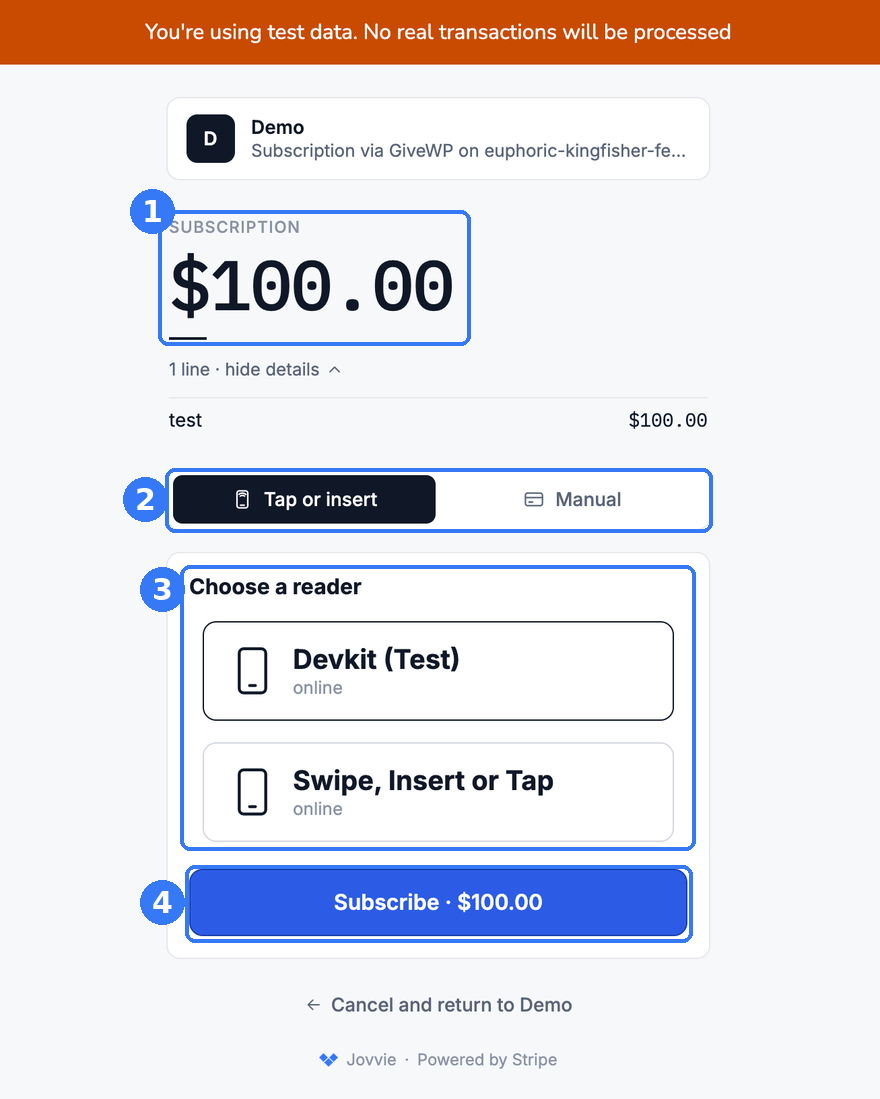
- Register the reader in Test Mode. The S700 shows a one-time code; enter it in the Jovvie dashboard under Register Reader and give it a clear label, such as “Lobby kiosk”.
- Build a short kiosk form in Give. Three suggested amounts, a custom amount, name and email, and one line about the impact. Attach it to the right campaign (for example, your GivingTuesday campaign).
- Enable the Jovvie gateway on that form. Your online forms and gateways stay as they are.
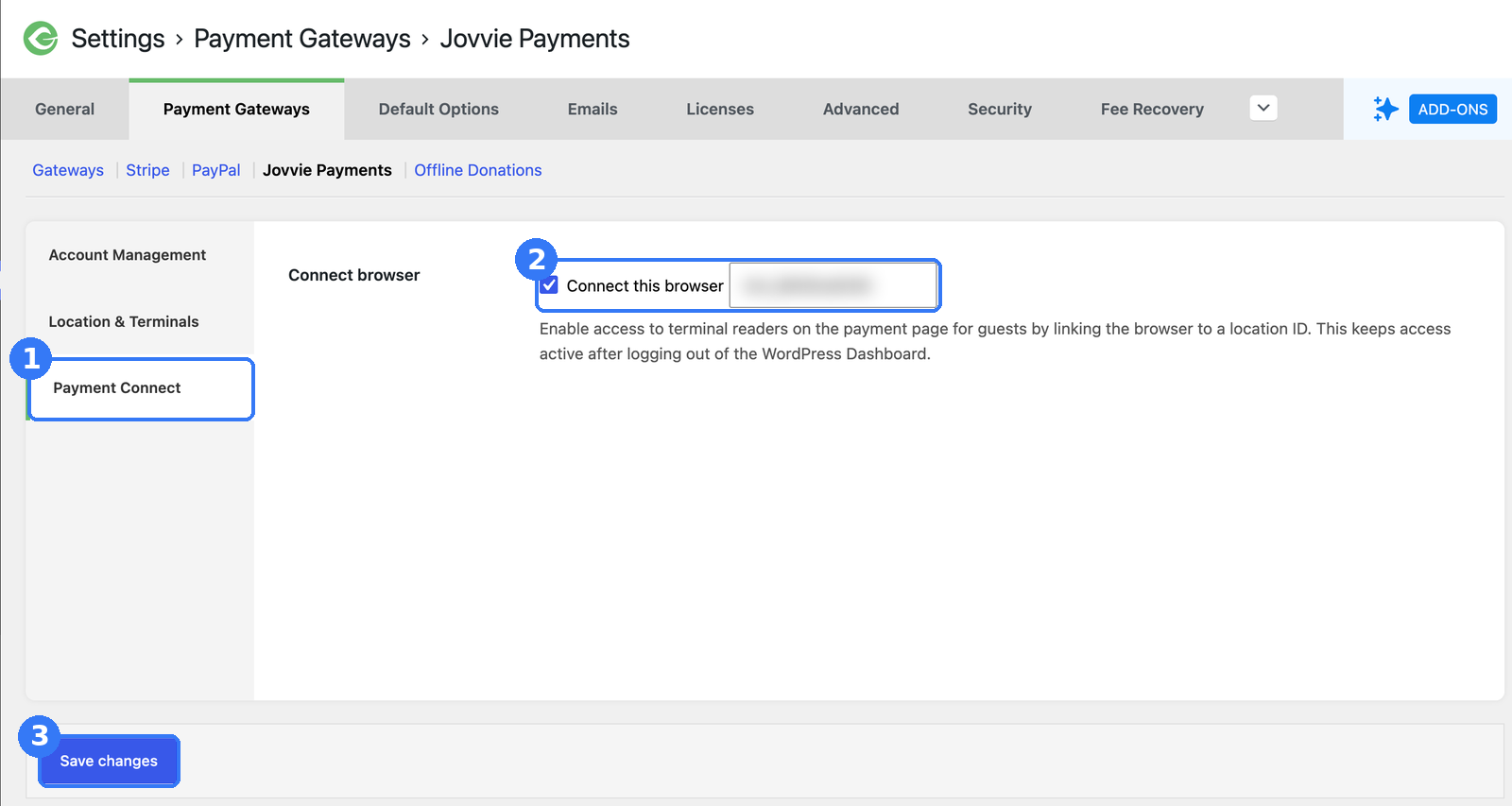
- Connect the kiosk browser. On the device you’ll leave unattended, go to Give › Settings › Payment Gateways › Jovvie Payments › Payment Connect, check Connect this browser, enter the location ID and save, so the kiosk keeps reader access after you log out.
- Lock the tablet to the giving screen. Use Guided Access on iPad or app pinning on Android so donors can’t wander into other apps.
- Test, then go live. Run a few donations with Stripe test cards, confirm each appears in Give and that the form resets, then switch the location to Live Mode.
Does kiosk mode work with page caching and managed hosting?
Yes. According to the WordPress.org listing, kiosk mode works with page caching and managed hosts that disable PHP sessions. The plugin’s changelog notes that version 1.1.3 replaced PHP session storage with a database-backed redirect to restore compatibility with page caching. You don’t need to turn off caching on your donation pages to run a kiosk.
Be ready for GivingTuesday (December 1). A lobby kiosk takes gifts all day from visitors who’d never stop at a table. Set it up on the Give forms you already have — free, about five minutes for the software.
Where should you place a donation kiosk, and what should the sign say?
Place the kiosk where people naturally pause, within sight of staff, close to power and a strong connection. Good spots:
- Lobbies and entrances, where visitors wait or check in.
- Church foyers, near where people gather before and after services.
- Museum and exhibit exits, where visitors have just seen your mission in action.
- Thrift-store and gift-shop counters, where people already have a card in hand.
- Event entrances, especially on GivingTuesday, so arriving guests can give before the program starts.
Signage matters as much as placement. Keep it to three lines:
- What a gift does: “$25 = a week of after-school meals.”
- How to give: “Tap your card or phone below.”
- Reassurance: your logo, and “Receipt emailed from [your organization].”
Add a QR code to the same Give form as a backup, for donors who’d rather give on their own phone or if the kiosk loses its connection.
How do you get more gifts from a donation kiosk?
You get more gifts from a kiosk by making the first screen do the asking. A visitor gives a kiosk a few seconds of attention, so the form has to explain the gift and make it easy.
- Lead with one suggested amount tied to an outcome, and pre-select it.
- Keep the form to one screen if you can: amount, name, email, tap.
- Use a photo or short line about your work on the form header, so the kiosk tells the story a volunteer would.
- Mention a match if you have one (“Every gift doubled until midnight on GivingTuesday”).
- Rotate the message for seasons and campaigns by editing the Give form, not the kiosk.
- Review the numbers monthly. Filter Give donations by the kiosk form to see what it raises, and move it if a spot underperforms.
How do you keep a donation kiosk secure?
Keep a kiosk secure on three levels: the card data, the device and the location. Card data is encrypted by the Stripe reader and goes to Stripe, not through your WordPress site, so your organization never sees or stores full card numbers.
- Device: a locking stand or enclosure, single-app mode, and auto-lock disabled only while the kiosk is supervised.
- Location: within sight of staff or a camera, away from exits where it could be carried off.
- Accounts: don’t leave a WordPress admin session open on the kiosk tablet. Run the donation form logged out.
- Checks: have staff glance at the kiosk a few times a day to make sure it’s on the right form and online.
How does a GiveWP kiosk compare with Donorbox Live Kiosk?
The main difference is where your donors live and how you pay. A GiveWP kiosk with Jovvie runs on the Give forms and donor records you already have, with no monthly fee. Donorbox Live Kiosk is a subscription app that works with Donorbox’s own forms and donor data.
| GiveWP + Tap To Donate for Give by Jovvie | Donorbox Live Kiosk | |
|---|---|---|
| Donor data | In Give on your WordPress site, with your online donors | In your Donorbox account |
| Monthly cost | No monthly fees; free plugin and Jovvie account | Per-device subscription, per Donorbox’s Live Kiosk page |
| Transaction fees | 0.5%–2% on in-person gifts only, by volume, plus Stripe processing | Platform fee plus Stripe processing, per Donorbox’s page |
| Readers | Tap to Pay, Stripe Reader M2, BBPOS WisePad 3, Stripe Reader S700, BBPOS WisePOS E | Stripe M2 (US) or WisePad 3, per Donorbox’s page |
| Best for | Organizations already fundraising with Give | Organizations already on Donorbox |
If your online giving already runs on Donorbox, its kiosk keeps everything in one place. If it runs on Give, a Jovvie kiosk does the same for you, without a second platform. Check Donorbox’s page for its current plans and fees.
Frequently asked questions
What is a donation kiosk?
A donation kiosk is a self-serve giving station, usually a tablet on a stand with a card reader, where visitors can give by card, phone or watch without staff help. With GiveWP, the kiosk runs your Give donation form.
Does GiveWP have a kiosk mode?
Give itself doesn’t include in-person payments. Tap To Donate for Give by Jovvie, a free add-on, adds in-person payments to Give forms, including a kiosk mode that resets the form after each donation.
Can a kiosk take recurring donations?
Recurring donations (monthly, quarterly and annual) are supported on in-person transactions. For an unattended kiosk, keep the form simple and lead with one-time gifts; monthly asks usually work better at a staffed table.
Do I need to turn off caching for a kiosk?
No. Kiosk mode works with page caching and managed hosts that disable PHP sessions, according to the WordPress.org listing.
What if the kiosk loses its internet connection?
There’s no offline mode, so the kiosk can’t take donations until it reconnects. Use a strong Wi-Fi or Ethernet connection, and keep a QR code to your online form on the sign.
How much does a GiveWP kiosk cost?
The plugin and Jovvie account are free, with no monthly fees. A platform fee of 0.5% to 2% applies to in-person donations only, depending on donation volume, plus Stripe’s processing rate. Hardware (tablet, stand and reader) is a one-time cost.
How are kiosk donations refunded?
Refunds for in-person donations, including kiosk gifts, are issued from your Stripe dashboard, not from inside Give.
Turn your lobby into a giving station
A kiosk takes gifts all day from visitors who’d never stop at a table, and with Give it doesn’t need a second platform or a monthly subscription. Tap To Donate for Give by Jovvie adds kiosk mode, Tap to Pay and card readers to the Give forms you already have, so every lobby gift lands in the same campaign and donor database as your online donations. Set it up before GivingTuesday on December 1.
Sources and primary documentation: Tap To Donate for Give by Jovvie on WordPress.org, Jovvie for Give, Jovvie setup documentation, Stripe Tap to Pay documentation, Apple: Use Guided Access, Android: Pin & unpin screens, Donorbox Live Kiosk.
