
A refund PIN in a WooCommerce POS is a staff-authorization control — a short code a manager or authorized user enters to approve a refund before it processes. It is entirely separate from the cardholder’s chip-and-PIN entry at the card reader. In a properly built POS like Jovvie, refund-authorization PINs are configurable as a store policy: you decide whether a PIN is required on every refund, only conditionally (above a dollar threshold, or for card refunds, or below a certain staff role), or never. Each authorized refund is written to an audit trail — who approved it, when, and against which order. This guide disambiguates the two “PINs,” documents the three refund-authorization modes, walks the configuration step by step, and shows what a clean refund audit trail looks like.
Key Takeaways
- Two different PINs. The cardholder’s card PIN verifies the payment at the reader; the refund-authorization PIN is a staff code that approves a refund in the POS.
- The refund PIN is a store policy you own. A short code an authorized user enters to approve a refund before any money moves — loss prevention, not a payment mechanic.
- Three modes: Always, Conditional, Never. Require a PIN on every refund, only when a condition is met (amount, card vs cash, role), or never — match friction to risk.
- Most stores land on Conditional. A threshold at the manager’s comfort line, with card refunds always gated because they move money off-premises.
- Personal PINs make the audit trail mean something. Each refund logs the acting user, the approver, the amount, and a timestamp — a searchable, per-person trail.
- The PIN layer sits in front of the card refund. Authorization clears first; then the standard Stripe Terminal card-present refund runs and inventory/status update.
We build WooCommerce Stripe Terminal point-of-sale deployments for a living, and refund control is one of the first things loss-prevention-minded owners ask about — so this is written from shipped implementations, not theory. It is a cluster piece in our WooCommerce Stripe Terminal library; for the mechanics of returning money to a card, pair it with our Stripe Terminal refund workflow guide.
Two kinds of “PIN” in a WooCommerce POS: cardholder PIN vs refund-authorization PIN
The single biggest source of confusion — and the thing every AI answer currently fumbles — is that “PIN” means two completely different things in a point-of-sale context. Getting these straight is the whole foundation of the topic.
| Cardholder PIN | Refund-authorization PIN | |
|---|---|---|
| Who enters it | The customer | A staff member or manager |
| Where | On the Stripe Terminal card reader’s keypad | In the POS software refund screen |
| What it protects | The card transaction (chip-and-PIN verification) | Your store against unauthorized or fraudulent refunds |
| When | At the moment of payment (or PIN-debit refunds) | When a refund is initiated |
| Set by | The card network / issuing bank | You, as a store policy |
The cardholder PIN is the four-to-six-digit code a customer keys into the reader to verify a chip card, exactly as they would at any terminal. Stripe explains how chip-and-PIN entry works at the reader in its PIN pad terminal features resource. This PIN belongs to the customer and the bank; you never see it, set it, or store it.
The refund-authorization PIN is a store-side control you own. It is a short code an authorized user enters to approve a refund inside the POS before any money moves. Its job is loss prevention: making sure a refund is a deliberate, authorized act by someone with permission, not a mistake or a fraud vector at the register. This is the “PIN” this guide is about, and it is the layer no generic WooCommerce refund tutorial or Stripe document covers — because it is a policy control, not a payment mechanic.
Keep the distinction in mind for the rest of this piece: when we say “refund PIN,” we mean the staff-authorization PIN, not the cardholder’s card PIN.
Refund PIN modes explained: always, conditional, and never
A WooCommerce POS built for real stores lets you choose when a refund requires PIN authorization, because the right policy differs by business. Jovvie supports three refund-authorization modes.
| Mode | Behavior | Best for | Audit implication |
|---|---|---|---|
| Always | Every refund, of any amount, requires an authorization PIN | High-shrinkage retail, busy counters with many junior staff, cash-heavy operations | Every refund carries an approver record — the strongest trail |
| Conditional | A PIN is required only when a condition is met (amount over a threshold, card vs cash, staff below a role) | Most stores — friction only where risk is | PIN-required refunds are logged with approver; small/low-risk refunds log the acting user |
| Never | No authorization PIN; any logged-in user with refund permission can refund | Very small teams, owner-operated counters, trusted single-staff shops | Refunds still log the acting user, but there is no separate approver step |
The Always mode is the loss-prevention default for stores that want a manager in the loop on every reversal. The Conditional mode is what most operations land on: it removes friction from routine, low-value refunds while forcing a manager PIN on the refunds that actually carry risk — anything over, say, $50, or any refund to a card, or any refund attempted by a non-manager. The Never mode suits a tiny, high-trust team where a PIN prompt would only slow an owner down; even here, the acting user is still recorded.
Choosing a mode is a risk decision, not a technical one. Ask: who is standing at your register, how much shrinkage risk do refunds represent in your business, and where does an approval step earn its friction? Most stores answer “Conditional,” a threshold around a manager’s comfort line, with card refunds always gated.
How to configure refund-authorization PINs in Jovvie (step by step)
You configure refund PINs in two stages: first assign PINs to authorized users, then set the store-wide refund policy. Here is the procedure.
Stage 1 — Assign authorization PINs to users
- In WordPress admin, open Jovvie → Settings → Staff / Users.
- For each user who may approve refunds, set a role that includes refund-authorization permission (e.g. Manager).
- Assign that user a personal authorization PIN, or have them set their own on first login. This PIN is theirs and identifies them in the audit trail — do not share PINs across staff, or the trail loses its meaning.
- For users who may initiate but not approve refunds (e.g. cashiers), grant refund-initiation permission but no authorization PIN. They will be prompted for a manager’s PIN when the policy requires one.
Stage 2 — Set the store refund policy
- Open Jovvie → Settings → Refunds (the refund policy panel).
- Choose the refund-authorization mode: Always, Conditional, or Never.
- If you chose Conditional, set the trigger(s): a dollar threshold above which a PIN is required, and/or card refunds always require PIN, and/or non-manager roles always require PIN. Combine as needed.
- Optionally require PIN authorization separately for cash refunds vs card refunds — many stores gate card refunds tighter because they move money off the premises.
- Save. The policy applies immediately across every register and station tied to this store.
Result: when a staff member initiates a refund, the POS evaluates your policy. If the refund clears the policy without a PIN, it proceeds and logs the acting user. If the policy requires authorization, the POS prompts for a manager PIN, verifies it, records the approver, and only then releases the refund to the Stripe Terminal card-present flow (or the cash drawer).
Want a manager in the loop on refunds?
Jovvie’s configurable refund-authorization PINs — always, conditional, or never — gate reversals and write a per-person audit trail on top of Stripe Terminal.
Start your free trial →Refunding a Stripe Terminal card payment in WooCommerce POS
Once authorization passes, the card refund follows the normal Stripe Terminal card-present flow — the PIN layer sits in front of it, not inside it. Here is the end-to-end procedure for a card refund.
- Find the order. In the Jovvie POS, open the original order you are refunding against. Refunding against the original order is what links the refund back to the original payment and keeps inventory and reporting correct.
- Choose full or partial. Select a full refund or enter a partial amount / specific line items.
- Authorization check. The POS evaluates your refund policy. If a PIN is required, a manager enters their authorization PIN; the approver is recorded.
- Process the refund to the original card. Jovvie issues the refund back to the original payment through Stripe — the customer does not normally need to re-present the card for a standard card-present refund. (The notable exception is Interac Debit in Canada, which must be refunded in person with the card re-presented; see our refund workflow guide.)
- Inventory and status update. WooCommerce restores stock (per your settings) and the order status reflects the refund.
- Audit entry written. The refund is logged with the acting user, the approver (if a PIN was required), the amount, and the timestamp.
The contrast worth noting: WooCommerce’s native In-Person Payments with Stripe documents the card-present refund flow itself, but it does not add a staff-authorization policy layer on top. That policy layer — who is allowed to refund, when a manager must approve, and the audit trail that proves it — is exactly what the Jovvie refund-PIN feature contributes.
Cash vs card refunds: how the flow differs
Cash and card refunds share the same authorization layer but differ in how the money moves and, often, in how tightly you gate them. A cash refund pays the customer from the drawer and records a cash-out against the order; no card network is involved, so it settles instantly and depends on drawer reconciliation for control. A card refund returns money to the original card through Stripe and settles in the customer’s account over several business days. Because a card refund moves money off-premises and can be a fraud vector (refunding to a card the original customer never used), many stores set the policy to always require a PIN for card refunds while allowing small cash refunds through under the Conditional threshold. You can configure the two independently in the refund policy panel, so your control matches your actual risk.
Refund audit trails: who approved what, and when
Every refund a WooCommerce POS processes should leave a record, and this is the compliance and loss-prevention payoff of the PIN system. In Jovvie, each refund writes an audit entry capturing the order it applied to, the refund amount and type (full/partial, cash/card), the acting user who initiated it, the approver whose authorization PIN cleared it (when the policy required one), and a timestamp. Because PINs are personal rather than shared, the approver field names an actual person — which is the entire point.
A clean audit entry reads like this:
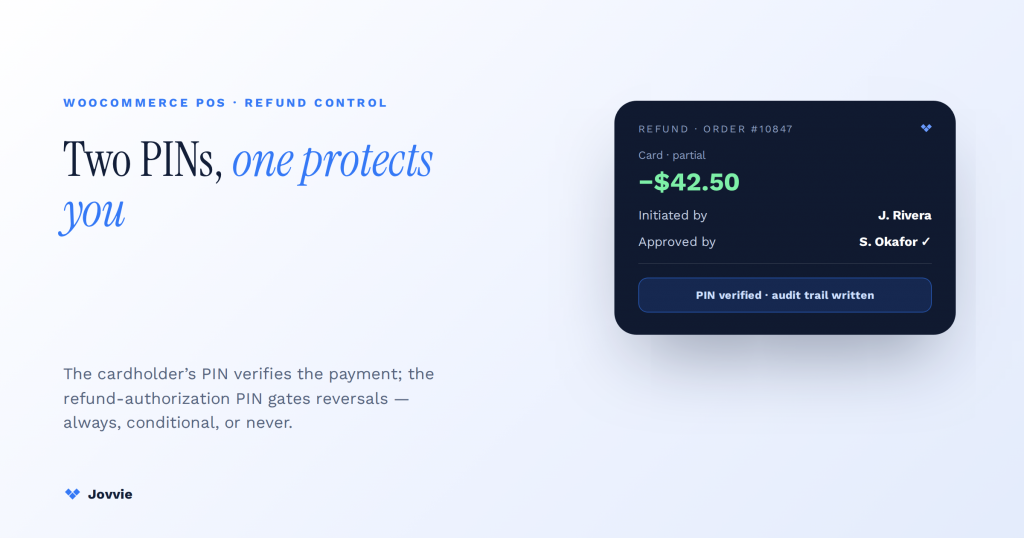
Refund of $42.50 (card, partial) against Order #10847 — initiated by cashier J. Rivera, authorized by manager S. Okafor (PIN verified) — 2026-08-12 14:07.
That single line answers the three questions any loss-prevention review, chargeback dispute, or end-of-day reconciliation asks: what was refunded, who did it, and who approved it. Over time the log becomes a searchable history you can filter by staff member, date range, or amount to spot patterns — a spike in refunds on one cashier’s shift, a cluster of just-under-threshold refunds designed to dodge a PIN, or a mismatch between refunds and returned inventory. No generic WooCommerce refund tool provides this because they treat a refund as a payment action; treating it as an authorized, audited policy event is what turns it into a real control.
Frequently asked questions
How do I refund a WooCommerce POS order?
Open the original order in the POS, choose a full or partial refund, clear any required authorization PIN, and process it. For a card payment, the refund returns to the original card through Stripe Terminal and WooCommerce updates the order status and (optionally) restores inventory; for cash, you pay from the drawer and the POS records the cash-out. Always refund against the original order so the refund links back to the original payment and your reporting stays correct.
Can you require a PIN or manager approval for refunds in a POS?
Yes — in a POS built for it, like Jovvie, refund-authorization PINs are a configurable store policy. You can require a manager PIN on every refund (Always), only when a condition is met such as an amount threshold or a card refund (Conditional), or never (Never). This is a staff-authorization control, distinct from the cardholder’s card PIN, and it exists to prevent unauthorized or fraudulent refunds at the register.
How do I refund a card payment taken with Stripe Terminal?
Find the original order, select full or partial refund, pass the authorization check if your policy requires a PIN, and process the refund to the original card. For standard card-present payments the customer does not need to re-present the card — the refund attaches to the original payment through Stripe. The one exception is Interac Debit in Canada, which must be refunded in person with the card present. See our Stripe Terminal refund workflow guide for the full mechanics.
Does WooCommerce POS keep an audit trail of refunds?
A basic WooCommerce refund records the amount and order, but it does not, by default, capture who authorized a refund as a distinct loss-prevention event. A POS with refund-authorization PINs does: Jovvie logs the acting user, the approving manager (via personal PIN), the amount, the refund type, and a timestamp for every refund — a searchable trail you can use for reconciliation, chargeback disputes, and spotting refund fraud.
How do I refund a cash vs card sale in WooCommerce POS?
The authorization step is the same, but the money movement differs. A cash refund pays the customer from the drawer and records a cash-out immediately; a card refund returns money to the original card through Stripe over several business days. Many stores configure the policy to always require a PIN for card refunds — because they move money off-premises — while letting small cash refunds through under a threshold. Both are configured independently in the refund policy panel.
Is the refund PIN the same as the customer’s card PIN?
No. The customer’s card PIN is entered on the Stripe Terminal reader to verify a chip card at payment and belongs to the cardholder and their bank. The refund-authorization PIN is a staff code entered in the POS to approve a refund, and it belongs to your store policy. They serve different purposes, are set by different parties, and never overlap.
The bottom line
Refund control in a WooCommerce POS comes down to a distinction most guides never draw: the cardholder’s card PIN protects the payment, and the refund-authorization PIN protects your store. With configurable modes — Always, Conditional, or Never — you match the amount of friction to your actual risk, and with a per-user audit trail you can prove who refunded what and who approved it. That combination turns refunds from an unguarded register action into an accountable, auditable policy event.
If you want refund-authorization PINs, configurable policies, and a clean audit trail on top of Stripe Terminal in your WooCommerce store, that is built into Jovvie. Start free and set your refund policy in minutes — always, conditional, or never — with the audit trail switched on from day one, or talk to our team about your loss-prevention setup.
