
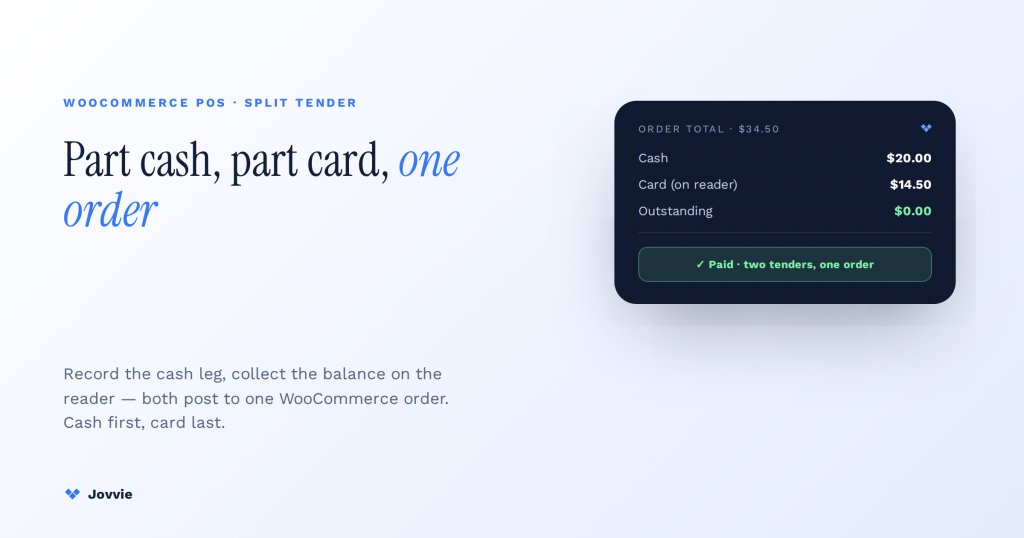
Yes — a WooCommerce POS running Stripe Terminal can take part of an order in cash and the balance on a card as a single order, and it can also split the card balance across two cards. That is a split tender: one customer, one order, more than one payment method. It is a different thing from a marketplace split payment, where one order’s funds are routed to several sellers. This guide is about split tender at the register — taking a cash-plus-card sale on a Stripe Terminal reader inside WooCommerce POS, reconciling both legs to one order, and handling the refund, tip, and failed-card edge cases that the plugin marketing pages never mention.
Key Takeaways
- Split tender, not split payment. One customer pays one order with more than one method (cash + card, or two cards) — not a marketplace routing funds to sellers.
- It’s tender arithmetic, not a Stripe feature. The order stays open until the tenders sum to the total; the card leg is one ordinary Terminal charge for the remaining balance.
- Cash first, card last. Fix the known cash quantity before you authorize the card, so a short-cash customer never forces a refund or overcharge.
- Only the card leg hits Stripe. The cash lives in WooCommerce and your drawer; never expect Stripe card volume to equal WooCommerce sales on a cash day.
- Each leg refunds on its own rail. Card portion reverses to the card via its PaymentIntent; cash portion is handed back from the drawer and logged.
- Tips ride the card leg. On-reader tips attach to the card PaymentIntent, so the Stripe card amount is balance + tip while the order total is items only.
We build Stripe Terminal POS deployments for a living. Jovvie has shipped in-person payment flows on Stripe Terminal hardware for eight years across retail counters, food service, and multi-location operators, we are a Stripe Partner, and we run our own Stripe Connect platform at payments.bizswoop.app. Jovvie runs Stripe Terminal natively inside WooCommerce POS, so the split-tender flow below is the real screen sequence our operators use — not a paraphrase of a feature bullet. This is a cluster piece in our WooCommerce Stripe Terminal library; if you are still standing up the reader itself, start with the WooCommerce Stripe Terminal setup guide and the broader Stripe Terminal POS pillar, then come back here for the split-tender mechanics.
Split payment vs. split tender: which one do you actually mean?
They are two different problems, and the whole SERP blurs them — so settle it in one table before you configure anything.
The phrase “split payment” is genuinely ambiguous, which is why searching it returns marketplace plugins next to POS how-tos. Stripe’s own taxonomy notes that “split payments” can mean multiple payers, multiple sellers, or multiple payment methods from one customer (Stripe: how to implement split payment systems). At a register you almost always mean the last one. Here is the disambiguation:
| Split tender (this guide) | Marketplace split payment | |
|---|---|---|
| Who pays | One customer | One customer |
| What splits | The tender — cash + card, or two cards | The funds — routed to multiple sellers |
| Where it happens | In person, at the POS reader | Online checkout, behind the scenes |
| Stripe primitive | One or more PaymentIntents against one order; cash recorded manually | Stripe Connect Transfers to connected accounts |
| Typical buyer | Retail, food service, service counter | Marketplaces, multi-vendor stores |
| Plugin that fits | WooCommerce POS with Stripe Terminal (Jovvie) | Split Pay / Connect multi-vendor plugins |
If you need the funds from one sale to land in several vendors’ bank accounts, you want Connect and a marketplace plugin — stop reading and go there. If you need a customer standing at your counter to hand you $20 cash and tap a card for the remaining $14.50 on the same receipt, that is split tender, and the rest of this guide is for you.
Can a customer pay part cash and part card on one WooCommerce order?
Yes — you record the cash portion as one tender line and collect the remaining balance on the Stripe Terminal reader as a card PaymentIntent, and both post against the same WooCommerce order.
The model has three moving parts. First, the order total is fixed in WooCommerce POS the moment you ring the sale. Second, each tender you take reduces the outstanding balance: cash is recorded by the operator (you count it, the POS logs the amount), and the card leg is an actual authorization-and-capture on the reader. Third, the order stays open until the sum of the tenders equals the total, at which point WooCommerce marks it paid and prints/records the receipt showing every tender line.
The card leg specifically uses Stripe Terminal’s standard collection flow — the reader creates or confirms a PaymentIntent for the balance amount, the customer taps or inserts, and Stripe captures it (Stripe Terminal: collect a card payment). Nothing exotic happens on Stripe’s side: the card portion is just a normal Terminal charge whose amount happens to be the order total minus the cash already tendered. That is the key insight the plugin pages gloss over — split tender is not a special Stripe feature, it is ordinary tender arithmetic in your POS wrapped around one ordinary Terminal charge.
Two cards on one order works the same way: each card is its own PaymentIntent for its portion of the balance, run one after the other on the reader, and both settle against the single order.
How to run a split-tender sale on a Stripe Terminal reader, step by step
Here is the cash-plus-card flow end to end in Jovvie’s WooCommerce POS. This is the numbered procedure that does not exist anywhere else on the SERP.
- Ring the full order. Add every item to the cart so the POS shows the complete order total — say $34.50. Do not discount to make the math easier; the split happens at tender, not on the line items.
- Open the split/multi-tender panel. At checkout, choose Split payment (rather than a single tender). The POS now shows the outstanding balance and a running list of tenders, starting empty.
- Record the cash leg first. Enter the cash amount the customer hands you — $20. The POS logs a Cash $20.00 tender line and drops the outstanding balance to $14.50. Take the physical cash and make change only if the customer over-tenders cash (see edge cases).
- Collect the card balance on the reader. With $14.50 outstanding, tap Card and send the exact balance to the Stripe Terminal reader. The reader presents $14.50, the customer taps or inserts, and Stripe runs the
PaymentIntentfor that amount (Stripe Terminal: collect a card payment). Wait for the reader’s success confirmation before touching the POS. - Confirm the balance is zero. The POS now shows Cash $20.00 + Card $14.50 = $34.50, outstanding $0.00. WooCommerce marks the order paid.
- Finalize and issue the receipt. Complete the sale. The receipt and the WooCommerce order both list two tender lines. If the reader is configured for tipping, the tip is added to the card leg before capture — decide that before step 4, not after.
For a two-card split, replace step 3 with a first card leg and step 4 with a second card leg; the arithmetic and the order record are identical, just with two PaymentIntents instead of one.
A practical note from the field: always collect cash first, card last when you can. If you take the card first and the customer then comes up short on cash, you are stuck either refunding the card leg or over-charging — both of which create reconciliation cleanup. Taking cash first fixes the known quantity before you authorize anything on the reader.
Taking cash-plus-card at the counter?
Jovvie runs Stripe Terminal natively inside WooCommerce POS, so a split-tender sale reconciles both legs to one order — card in Stripe, cash in the drawer, no double-count.
Start your free trial →How split-tender orders show up in WooCommerce reporting and the Stripe dashboard
A split-tender sale is one WooCommerce order with multiple payment lines, and only the card leg appears in Stripe — the cash leg lives entirely in WooCommerce.
This split of record-keeping is exactly what none of the competing plugin pages explains, so here is the full picture:
- In WooCommerce: the order shows a single order total and multiple tender entries in the order notes/payment metadata — e.g. one cash line and one card line, each with its amount and timestamp. Your WooCommerce sales reports count the full order total as revenue once; they do not double-count because the tenders sum to the total, not add to it. If you run station or per-register reporting, each tender is attributed to the station that recorded it.
- In the Stripe dashboard: you will find only the card leg — a
PaymentIntentfor $14.50 in the example above, not the $34.50 order total. This is correct and expected: Stripe never saw the cash. When you reconcile Stripe payouts to your books, the Stripe side reflects card volume only, and your WooCommerce (or accounting) side carries the cash. Anchor reconciliation to the WooCommerce order for the full picture and to the StripePaymentIntentfor the card portion. - Correlating the two: store the WooCommerce order ID on the Stripe
PaymentIntentmetadata (Jovvie does this automatically) so a card charge in Stripe traces back to its order — essential when a customer disputes only the card leg of a split sale.
The reporting takeaway: never expect your Stripe card volume to equal your WooCommerce sales total on any day you took split tenders or cash. The gap is the cash, and it should reconcile against your cash drawer, not against Stripe.
Edge cases: partial refunds, tips, failed card after cash, and change
Split-tender edge cases are where operators get hurt, because refunds, tips, and failures each touch only one leg — handle each leg on its own rail.
Partial refund of a split-tender order. Refund each tender on its own rail. To return the card portion, issue the refund against that leg’s Stripe PaymentIntent — it reverses to the customer’s card (Stripe Terminal: collect a card payment covers the underlying charge object you refund against). To return the cash portion, hand back cash from the drawer and record a cash refund line in WooCommerce. If you are refunding less than the full order, decide deliberately which tender the refund comes from — most operators refund cash first for small amounts (no processing-fee drag) and refund to card when the customer explicitly wants it back on the card.
Tips on the card leg. A tip added on the reader attaches to the card PaymentIntent, not to the cash. If your reader is configured for on-reader tipping, the customer is prompted during the card leg and the tip is added before capture — so the card charge in Stripe is balance + tip, while the order total in WooCommerce is items only. That is normal; just know the Stripe card amount will exceed the card portion of the order by the tip. For the full tipping configuration, see our Stripe Terminal tipping guide.
Failed card after cash is taken. The most common real-world failure: you have recorded $20 cash, you send $14.50 to the reader, and the card declines. The order is still open with $14.50 outstanding — nothing is lost, because a declined PaymentIntent captures nothing. Retry the card, try a different card, or take the remaining $14.50 in cash and record it as a second cash tender. Do not cancel the whole order; the cash leg is already valid.
Over-tender and change. If the customer hands you $40 cash on a $34.50 order and wants to card the rest, that is not a split — take the full amount in cash and give $5.50 change. Split tender is for when cash does not cover the order. If cash over-covers, the POS should prompt for change, not open a card leg. Watch for staff accidentally opening a card leg after a full cash tender; it is the fastest way to create a $0.00 phantom card charge.
Multi-capture / partial fulfillment. If your operation captures a card authorization in stages (for example, authorize at order, capture on fulfillment), Stripe’s multi-capture lets you capture parts of a single PaymentIntent over time (Stripe: multicapture). This is not split tender — it is one payment method captured in pieces — but it comes up in the same operational conversations, so know the difference: multicapture splits one card charge across time; split tender splits one order across methods.
Frequently asked questions
Can you split a payment between cash and card in WooCommerce POS?
Yes. Record the cash amount as one tender, then collect the remaining balance on the Stripe Terminal reader as a card charge; both post to the same WooCommerce order and the order is marked paid when the tenders equal the total.
Does WooCommerce POS support split tender?
Native WooCommerce historically did not handle in-person split tender well, which is why operators use a POS layer. Jovvie’s WooCommerce POS runs Stripe Terminal natively and supports cash-plus-card and two-card split tenders against a single order.
Can a customer pay with two different cards on one order?
Yes. Each card is its own Stripe PaymentIntent for its portion of the balance, run one after another on the reader; both settle against the one order, exactly like the cash-plus-card flow.
What’s the difference between split payment and partial payment?
Split tender pays one order in full using more than one method at the register. Partial payment (or EMI/installments) pays one order over time in scheduled amounts. They solve different problems; this guide covers split tender.
Why doesn’t my Stripe dashboard total match my WooCommerce sales total?
Because Stripe only sees the card legs. Any cash you took on split-tender or cash-only orders lives in WooCommerce and your cash drawer, not in Stripe. The gap should equal your cash volume.
Take split tenders on your own counter
Jovvie runs Stripe Terminal natively inside WooCommerce POS, including cash-plus-card and two-card split-tender flows with clean reconciliation to a single order. Start free, or talk to our team about your counter’s tender mix.
