
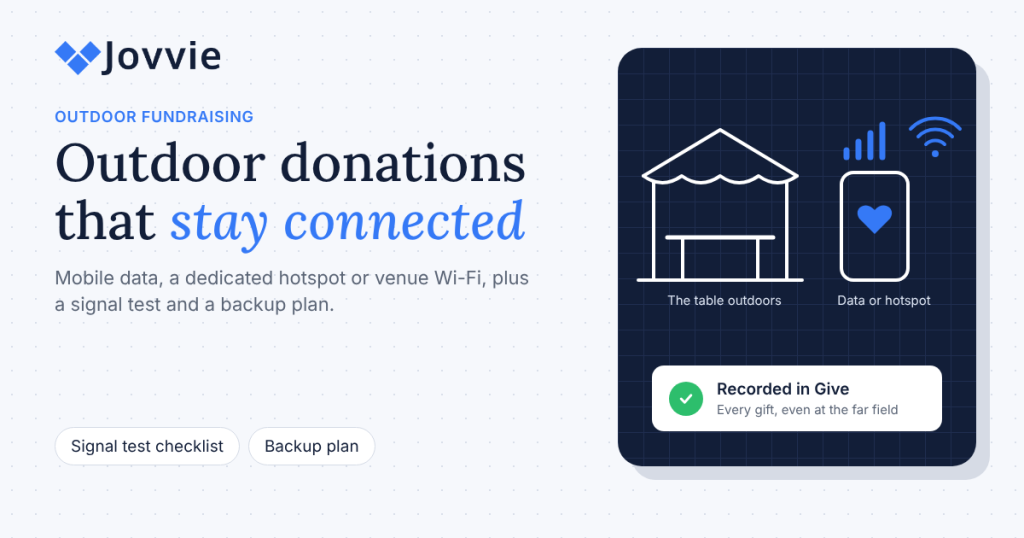
To take card donations at an outdoor event with weak Wi-Fi, give your donation devices a reliable internet connection of their own, usually mobile data or a dedicated hotspot. Every card gift has to be authorized live by Stripe, and Tap To Donate for Give by Jovvie has no offline mode, so an outdoor fundraising card reader is only as good as the signal behind it. Plan the connection, test it on site before doors open, and bring a backup.
Outdoor events are where in-person giving shines: fun runs, farmers’ markets, festivals, tree lightings, parish fairs and parking-lot pop-ups put your cause in front of people who’d never visit your website. They’re also where connectivity fails, because venue Wi-Fi is weak or locked behind a sign-in page, phones fight thousands of others for one cell tower, and the nearest outlet is a long way off. This guide is for event leads and volunteer coordinators at organizations using Give (formerly GiveWP). It covers which connection to use for each device, a pre-event signal test, cold-weather and battery tips, and a backup plan for dead zones.
Key Takeaways
- No connection, no card gift. The donation device needs Wi-Fi or mobile data so Stripe can authorize each payment; Tap To Donate doesn’t work offline.
- Phones carry their own connection. Tap to Pay and Bluetooth readers such as the Stripe Reader M2 use the phone’s mobile data or Wi-Fi, which is often the simplest outdoor setup.
- Smart readers need a password-protected network. Wi-Fi readers like the Stripe Reader S700 and BBPOS WisePOS E need secured Wi-Fi; open guest networks with a sign-in page won’t work.
- A dedicated hotspot beats venue Wi-Fi. One hotspot on a strong carrier, used only by your donation devices, is the most reliable choice for a busy table.
- Test at the exact spot, at event time. Run a live-mode test gift where the table will be, ideally when the crowd is there.
- Bring a second carrier and a QR code. A backup device on a different network and a QR code to your online Give form cover dead zones.
How do I take card donations at an outdoor event with weak Wi-Fi?
You take card donations at an outdoor event with weak Wi-Fi by not depending on that Wi-Fi: connect each donation device to mobile data or a hotspot you control, confirm the signal on site, and keep a backup ready. The device needs an internet connection so Stripe can authorize the payment; the WordPress.org listing is explicit that Tap To Donate doesn’t work offline.
With Jovvie, a volunteer opens your Give form on a phone, tablet or reader, the donor taps, inserts or swipes a card or phone wallet, Stripe authorizes the gift in a second or two, and the donation lands in Give with the donor record, like every other gift. That round trip to Stripe is what needs the connection. It uses little data, so speed matters less than a stable, low-latency link.
The three practical options outdoors:
- Phone mobile data. Tap to Pay on a supported iPhone or Android phone, or a Bluetooth reader paired to the phone, uses the phone’s own connection. Good for one or two volunteers in an area with decent coverage.
- A dedicated hotspot. A mobile hotspot device (or one phone acting as a hotspot) shared by your donation devices. Best for a staffed table or a kiosk with a Wi-Fi reader.
- Venue Wi-Fi or Ethernet. Fine if the venue gives you a secured, reliable network close to your table, or a cable. Test it before you rely on it.
Which connection should each donation device use?
Each device type connects differently, so pick the connection by device. Mobile readers depend on the phone’s connection; smart readers connect to a network themselves.
| Device | How it connects to Stripe | Best outdoor connection | Watch out for |
|---|---|---|---|
| Tap to Pay on iPhone or Android | Phone’s mobile data or Wi-Fi | Phone’s own mobile data | Congested cell towers at large crowds |
| Stripe Reader M2 or BBPOS WisePad 3 (Bluetooth) | Pairs to the phone in the Jovvie app; uses the phone’s connection | Phone’s mobile data | Bluetooth range; interference near other 2.4GHz equipment |
| Stripe Reader S700 or BBPOS WisePOS E (smart reader) | Its own Wi-Fi, or Ethernet with a hub or dock | Dedicated hotspot (password-protected) or wired Ethernet | Open or sign-in-page Wi-Fi isn’t supported |
| Tablet in kiosk mode | Tablet’s Wi-Fi or cellular | Hotspot or tablet cellular | Unattended device away from power |
A few details from Stripe’s Terminal network requirements are worth knowing:
- Mobile readers rely on the phone. The phone “must be connected to the internet,” and the environment must be free of interference that disrupts Bluetooth on the 2.4GHz band.
- Smart readers need a secured network. Wi-Fi networks must use WPA, WPA2 or WPA3 encryption and be password protected. That rules out many free public and venue guest networks, especially those with a click-through sign-in page.
- Smart readers need IPv4 and a stable session. IPv6-only networks aren’t supported, and networks that cut sessions short can drop the reader mid-event.
- Smart readers include diagnostics. The S700 and WisePOS E can run tests for Stripe connectivity and show Wi-Fi signal strength, which is handy on site.
If you’re choosing hardware for outdoor events, our nonprofit card reader guide compares readers in more depth.
Should you use venue Wi-Fi, mobile data or a hotspot?
For most outdoor events, a dedicated hotspot or the phones’ own mobile data is more reliable than venue Wi-Fi. Venue Wi-Fi works when it’s secured, strong at your table and not shared with the crowd; otherwise, bring your own connection.
| Option | Reliability outdoors | Cost | Works with | Use it when |
|---|---|---|---|---|
| Venue Wi-Fi (secured) | Varies; often weak at the edges of a site | Free | All devices | The access point is near your table and you’ve tested it |
| Venue guest Wi-Fi with sign-in page | Poor for payments | Free | Phones only, and only after sign-in | Avoid for payments |
| Phone mobile data | Good with coverage; drops at crowded events | Volunteer or org data plan | Tap to Pay, Bluetooth readers | One or two volunteers moving around |
| Dedicated hotspot | High, if the carrier is strong on site | Device and plan, or one org phone | All devices, including smart readers | A staffed table, kiosk or several devices |
| Two hotspots on different carriers | Highest | Two devices or plans | All devices | Your biggest events and GivingTuesday |
| Wired Ethernet | Highest, where available | Cable and a hub or dock | Smart readers | Covered pavilions, halls or booths with a port |
Three tips that make hotspots work:
- Keep the hotspot for donation devices only. Don’t share the password with volunteers’ personal phones or the music system.
- Place it high and in the open. Inside a metal cash box or a car trunk, signal suffers.
- Know your carriers. Check which networks are strongest at the venue, and if your hotspot and backup phone are on different carriers, a single tower problem won’t stop giving.
Stripe’s own troubleshooting advice notes that “mobile hotspots work well” for testing whether a problem is the network, which is a useful trick on the day too: if a reader struggles on venue Wi-Fi, move it to the hotspot.
Be ready for GivingTuesday (December 1). Winter markets, tree lightings and parking-lot drives are some of the easiest GivingTuesday events to run outdoors. Add in-person giving to the Give forms you already have, free, in about five minutes, then test your hotspot this week.
How do you test the signal before an outdoor event?
You test the signal by running a real end-to-end gift at the exact spot your table will be, on the devices and connection you’ll actually use, as close to event conditions as you can. A signal-bar icon isn’t a test; a completed gift is.
Use this pre-event checklist:
- Set up and test in Test Mode first. In Jovvie, live and test locations are separate, so you can run the full flow with Stripe test cards and no real money (Jovvie setup documentation). Do this at the office a week ahead.
- Visit the site at a similar time of day. Stand where the table, kiosk or route will be. Check the strength of each carrier you plan to use.
- Run a live test gift on site. Make a small real gift on each device and connection, confirm it appears in Give, then refund it from your Stripe dashboard (refunds for in-person donations are issued in Stripe, not in Give).
- Check smart reader diagnostics. On an S700 or WisePOS E, run the built-in diagnostics and confirm the Stripe connectivity test passes.
- Test under load if you can. A field that’s quiet on Tuesday can be saturated on Saturday. If the event is large, test at a busy time or plan on two carriers.
- Test the backup. Switch a device to the backup hotspot or carrier and complete a gift, so you know the switch works.
- Write it down. Note which network each device uses, the hotspot password, and who holds the backup, on a card in the event kit.
On the day, arrive early and repeat step 3 before the first donor shows up.
How do weather, power and batteries affect outdoor donations?
Weather and power cause as many outdoor failures as signal, so plan for cold, heat, rain and long shifts. Readers and phones are designed for indoor-style use, and a few precautions keep them working.
- Cold slows charging. On the Stripe Reader S700/S710, charging slows outside 15°C to 45°C (59°F to 113°F) and stops below 0°C (32°F) or above 60°C (140°F), per Stripe’s device documentation. Keep spare devices warm in a bag and charge them indoors.
- Battery life is finite. Stripe estimates around 15 hours of active use for the S700, but phones running Tap to Pay with screens on all day drain faster. Bring power banks and a charging plan for every device.
- Readers aren’t waterproof. Stripe notes its readers “aren’t liquid-proof.” Use a canopy, keep devices off wet tables, and stop using any device that gets soaked until it has fully dried.
- Sun glare and heat. Shade the table, keep phones out of direct sun, and turn screen brightness up only when needed.
- Keep readers updated. Smart readers receive software updates from Stripe when idle and powered; switch them on and connect them the day before so an update doesn’t start at the gate.
What’s the backup plan if the signal drops?
Your backup plan is a second connection, a second device, and a way for donors to give without a connection at the table. If all three are ready, a dead zone costs you a few minutes, not the event.
- Second carrier. Keep one phone or hotspot on a different network from the primary. Switch devices over if the main connection fails.
- Second device. A volunteer phone with Tap to Pay can take over from a smart reader in seconds, and vice versa.
- QR code to your online Give form. Print a QR code that opens your Give donation form on the donor’s own phone. It uses the donor’s mobile data, and the gift lands in the same Give campaign. It’s priced as an online card payment rather than in person, and it’s slower for donors, so treat it as a fallback rather than plan A.
- Pledge cards, not card numbers. If nothing works, collect a name and email so you can send a link to your online form after the event. Never write down card numbers; it creates PCI risk and isn’t needed.
- Move the table. Sometimes 20 meters toward the parking lot or away from a building is the difference between no signal and full bars.
For canvassing and routes where signal changes street by street, see our guide to door-to-door and peer-to-peer fundraising, which covers walking the route and data plans for canvassers.
Which outdoor events suit which setup?
Match the setup to the event’s size, how much people move around, and how far you are from power and signal. Here’s a quick guide.
| Event | Recommended setup | Connection | Notes |
|---|---|---|---|
| Fun run or walk | Tap to Pay on two or three volunteer phones at start and finish | Phones’ mobile data, one backup hotspot | Crowds spike at the start; place volunteers before and after |
| Farmers’ market or fair booth | Stripe Reader S700 at the table, plus one Tap to Pay phone | Dedicated hotspot or venue Ethernet | Shade and power for the full day |
| Festival or concert | Two smart readers and two phones | Two hotspots on different carriers | Expect congested towers at peak times |
| Tree lighting or winter market (GivingTuesday season) | Tap to Pay phones moving through the crowd, one reader at a warm table | Phones’ mobile data, hotspot at the table | Keep spare devices warm; cold slows charging |
| Parking-lot or drive-through drive | Bluetooth readers paired to phones, passed through car windows | Phones’ mobile data | Tap and phone wallets are quick through a window |
| Sports field fundraiser | Tap to Pay phones in the stands, a kiosk at the gate | Phones’ mobile data; hotspot for the kiosk | Kiosk mode resets the form after each gift |
For planning the rest of the event, from forms per activity to volunteer roles, our event fundraising guide for GiveWP covers galas, auctions, walks and festivals, and the GiveWP donation kiosk guide covers unattended devices.
What does in-person giving outdoors cost?
In-person giving with Jovvie costs the same outdoors as anywhere else: free plugin, free Jovvie account, no monthly fees or contracts, and a platform fee on in-person donations only, 0.5% to 2% depending on your donation volume, in addition to Stripe’s processing rate (WordPress.org listing). Online Give donations, including QR-code gifts on your web form, are unaffected.
The only extra outdoor costs are the connection and the gear: a hotspot device or data plan, power banks, and a canopy. A reader is optional; Tap to Pay works on a supported phone with no reader needed. If you do buy readers, you order them from your organization’s own Stripe account.
Frequently asked questions
Can you accept card donations without Wi-Fi?
Yes, as long as the device has another internet connection, such as mobile data or a hotspot. What you can’t do with Tap To Donate is take card gifts with no connection at all, because Stripe authorizes each payment live.
Does Tap To Donate work offline?
No. The donation device needs Wi-Fi or mobile data so Stripe can authorize the payment. Stripe Terminal offers an offline capability for some custom integrations, but Tap To Donate doesn’t use it; plan a backup connection instead.
Do card readers work on mobile data?
Bluetooth readers such as the Stripe Reader M2 and BBPOS WisePad 3 use the connected phone’s mobile data or Wi-Fi. Smart readers such as the Stripe Reader S700 connect to Wi-Fi or Ethernet themselves, so outdoors you connect them to a password-protected hotspot.
Why won’t my card reader connect to the venue’s guest Wi-Fi?
Smart readers need a password-protected Wi-Fi network using WPA, WPA2 or WPA3 encryption, and they can’t complete a click-through sign-in page. Ask the venue for a secured network, use Ethernet, or bring a hotspot.
How much mobile data does a card donation use?
Very little; each authorization is a small exchange with Stripe. Stability and low latency matter more than speed, so a modest data plan is usually enough, but a congested tower can still stall payments.
What’s the best card reader for outdoor fundraising?
For most outdoor events, Tap to Pay on volunteer phones, because it needs no extra hardware and uses the phone’s own connection. Add a Stripe Reader M2 for chip cards on the move, or a Stripe Reader S700 on a hotspot for a busy table.
What should we do if the signal fails mid-event?
Switch devices to your backup hotspot or a phone on a different carrier, move the table toward better signal if you can, and put out a QR code to your online Give form. Collect names and emails for anyone who’d rather give later.
Get your outdoor giving ready for GivingTuesday
GivingTuesday is December 1, and an outdoor drive at a winter market, a tree lighting or your own parking lot is one of the simplest ways to take part. If you already raise money online with Give, volunteer phones and a reader on a hotspot can take card and wallet gifts outside, start monthly gifts, and send every donation into the same Give campaign and donor records. Tap To Donate for Give by Jovvie is free, takes about five minutes to set up, and works on the Give forms you already have. The plugin and Jovvie account are free with no monthly fees; a platform fee of 0.5% to 2% applies to in-person donations only, depending on your donation volume, in addition to Stripe’s processing rate.
Pick your connection, run one test gift at the venue, and you’ll be ready for the crowd.
Sources and primary documentation: Tap To Donate for Give by Jovvie on WordPress.org, Jovvie for Give, Jovvie setup documentation, How Tap to Donate Technology Works and What It Costs (Liquid Web), Give by Liquid Web, Stripe Terminal documentation, Stripe Terminal network requirements, Stripe Reader S700/S710.
