
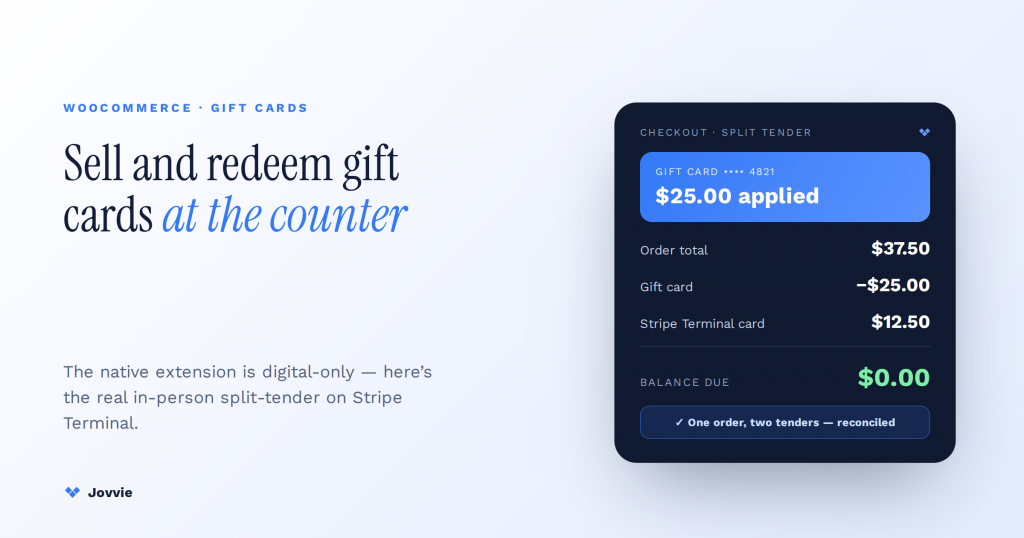
Yes — you can sell and redeem WooCommerce gift cards at a Stripe Terminal register. But the native WooCommerce Gift Cards extension is digital-only, so the real register flow is a split tender: the gift card reduces the order balance in WooCommerce, and Stripe Terminal collects only the remainder as a card-present tap. Jovvie is the WooCommerce POS layer that ties those two steps together at the counter — apply the gift card, adjust the total, take the tap — and records both against one order. Most guides on this query are either WooCommerce’s own product docs (which explain the gift card but never touch a reader) or plugin marketing pages; this is the cashier-level walkthrough neither one writes.
Key Takeaways
- Yes — with a split tender. Apply the gift card to reduce the WooCommerce order total, then take the remaining balance on the Stripe Terminal reader.
- The native extension is digital-only. WooCommerce gift cards are virtual (emailed codes); for physical or plastic cards you add a third-party gift-card plugin.
- Gift cards settle inside WooCommerce, not through Stripe. They aren’t passed to Stripe Checkout — the balance is applied in WooCommerce and only the remainder reaches the reader.
- Partial balances persist. A partly-spent card keeps its leftover balance on the code for next time, and multiple cards can apply to one order.
- Refunds return to each tender. Reverse the card-present portion with a Terminal refund and the gift-card portion back to the card’s balance (no brand-new card is issued).
- A POS layer holds the arithmetic. Jovvie reduces the order, hands the exact remainder to the reader, and records both tenders on one paid order.
We have run WooCommerce point-of-sale on Stripe Terminal for eight years, across retail counters, cafés, pop-ups, and membership organizations. The gift-card question comes up constantly in one of two forms: “a customer wants to buy a $50 gift card for someone — can I sell that at the counter?” and “someone’s standing here with a gift card that doesn’t cover the whole basket — how do I take the difference on the reader without breaking the order?” This guide answers both, plainly, and covers the edge cases — partial balances, refunds back to a gift card, expired cards, and balance checks — that trip up a DIY build.
This is a cluster piece in the WooCommerce pillar. For the full picture of running a register on WooCommerce, start with the Stripe Terminal for WooCommerce complete implementation guide. For related in-person commerce features, see Stripe Terminal + WooCommerce Subscriptions: in-person renewals and Stripe Terminal + WooCommerce Points & Rewards. If you run more than one counter, see Multi-Location POS with the Stripe Terminal Locations API. This piece also builds on our long-standing Stripe Terminal + WooCommerce integration hub.
Can you sell and redeem WooCommerce gift cards at the register? (the short answer)
Yes — you can sell a WooCommerce gift card at the counter and redeem one against an in-person purchase, but you need to understand one structural fact first: a gift card is not a payment method that a card reader “runs.” It is a store-side credit that reduces the order total inside WooCommerce, and Stripe Terminal then charges whatever balance is left on a physical card.
That distinction is the whole game. WooCommerce’s Gift Cards extension is a prepaid store-credit system: a customer buys a gift card, receives a code, and applies that code to a later order, which subtracts the balance from the amount due. Stripe Terminal, by contrast, is a card-present payment rail — chip, swipe, and contactless taps on readers like the S700, S710, WisePOS E, and the Stripe Reader M2. They operate on two different layers. The gift card settles part of the order inside WooCommerce; the reader settles the rest against a real card. A POS layer like Jovvie is what sequences the two into a single, clean checkout at the counter so the cashier isn’t juggling two disconnected systems.
Do WooCommerce gift cards work with Stripe? (and the digital-only catch)
WooCommerce gift cards work alongside Stripe, but not through Stripe — and the native extension has two limits you must design around before you sell your first card at a register.
First, the native WooCommerce Gift Cards extension is digital-only. WooCommerce states this directly in its own documentation: gift card products are virtual, and physical (printed or plastic) gift cards are not supported by the native extension. If you want to hand a customer a physical card at the counter, you either issue a printed code from the digital card, or you use a third-party gift-card plugin (WebToffee, Smart Coupons, WPSwings, and others) that adds physical-card support on top.
Second, native gift cards are not passed to the Stripe Checkout page. This is a documented limitation with an open feature request on WooCommerce.com: when a store uses a redirect-to-Stripe gateway, the gift-card balance isn’t carried onto Stripe’s hosted checkout. For an in-person build this matters less than it sounds — you are not sending anyone to a hosted web checkout at the counter — but it explains why the gift card must be applied inside WooCommerce to reduce the order total, and only the remainder goes to the reader. The gift card never touches Stripe; Stripe only ever sees the leftover card-present charge.
What the native extension does support, per WooCommerce’s Gift Cards store owner’s guide and FAQ, is exactly what you need for a register flow: partial redemption (a card can cover part of an order and keep its remaining balance for next time), refunds back to the gift card (funds can be returned to the card’s balance, though a brand-new card isn’t issued on a refund), and expiration handling. Those three behaviors are the backbone of the register flow below.
Selling a gift card at the counter
You sell a WooCommerce gift card at the counter by adding the gift-card product to the order in your POS and taking payment for it on Stripe Terminal like any other item — the card is funded the moment that in-person payment succeeds.
Selling is the simpler of the two flows, because from the reader’s perspective a gift card is just a product with a price. The nuance is delivery and, if you want to hand over something physical, format:
- Add the gift-card product to the cart in Jovvie. In WooCommerce, the gift card is a product (fixed denominations like $25/$50/$100, or a custom-amount field). Ring it up the way you would any SKU.
- Capture the recipient details if you’re emailing the code. The native extension delivers the gift-card code by email. At a counter, either enter the buyer’s or recipient’s email, or plan to print/write the code for immediate handover.
- Take payment on the Stripe Terminal reader. The buyer taps, inserts, or swipes to pay for the gift card. This is an ordinary card-present PaymentIntent — the gift card is funded only after this charge succeeds.
- Hand over the card. For digital, the recipient gets the emailed code. For a physical/plastic card at the counter, you’ll need a third-party gift-card plugin that supports printed cards, since the native extension is digital-only — print the code onto a carrier or activate a pre-printed plastic card mapped to the generated code.
The one thing to get right operationally: fund on payment, not on order creation. A gift card whose purchase payment failed or was voided should not carry a live balance. Jovvie ties activation to a successful Terminal charge, so a declined tap at the counter never leaves a funded card in circulation.
Redeeming a gift card at a Stripe Terminal register: the split-tender flow
You redeem a WooCommerce gift card at the register by applying the gift-card code to the order first — which reduces the amount due — and then collecting any remaining balance on the Stripe Terminal reader as a card-present tap. This two-step, two-tender sequence is the part no competing guide walks through.
Here is the exact cashier procedure:
- Build the order. Ring up the customer’s items in Jovvie as normal. Say the basket totals $80.00.
- Apply the gift card. Enter or scan the gift-card code. WooCommerce validates the code and subtracts the available balance. If the card holds $50.00, the order’s amount due drops to $30.00. The gift card’s balance is now reduced (or exhausted) inside WooCommerce.
- Read the remaining balance due. The POS now shows $30.00 owed. This is the only amount Stripe Terminal will ever see — the gift card has already settled its portion inside WooCommerce.
- Collect the remainder on the reader. Prompt the customer to tap, insert, or swipe on the Stripe Terminal reader for $30.00. Jovvie creates the card-present PaymentIntent for the remaining balance and captures it.
- Complete the order. On a successful tap, Jovvie marks the WooCommerce order paid. The order record now shows two tenders against one sale: $50.00 gift card + $30.00 card-present. The customer’s gift card retains any leftover balance (in this case $0), and their receipt reflects both.
Three variations of this same flow:
- Gift card covers the whole order. If the card balance meets or exceeds the total, the amount due hits $0.00 and no reader tap is needed — the order completes on gift-card tender alone. Any remaining balance stays on the card.
- Gift card covers part; customer splits the remainder further. The $30.00 remainder can itself be split across a second tender if your workflow allows — e.g., part cash, part card-present tap. WooCommerce tracks the gift-card portion independently; Stripe Terminal only ever handles the card-present slice.
- Multiple gift cards on one order. WooCommerce supports applying more than one gift-card code; each reduces the balance in turn, and Stripe Terminal collects whatever is left after all cards are applied.
The reason this needs a real POS layer and not just a plugin: the gift card lives in WooCommerce and the tap lives in Stripe Terminal, and something has to hold the arithmetic — reduce the order by the gift-card balance, hand the exact remainder to the reader, and reconcile both tenders onto one paid order. That “something” is Jovvie.
Selling gift cards at your counter?
Jovvie runs the gift-card split tender on Stripe Terminal — apply the card, take the remainder on the reader, and record both against one WooCommerce order.
Start your free trial →Partial balances, refunds, and expired cards
You handle partial balances, refunds, and expired cards at the register by leaning on WooCommerce’s native gift-card behaviors — persistent balances, refund-to-card, and expiration flags — and letting the POS surface them to the cashier at the moment of sale.
Partial balances (split tender). As shown above, when a gift card doesn’t cover the full order, its balance is applied in full and the card is either reduced or emptied; Stripe Terminal collects the remainder. When a card is only partially spent, the leftover persists on the code for the next visit — WooCommerce’s FAQ confirms the remaining balance stays on the card. There’s nothing special to configure; the balance simply carries forward.
Refunds back to the gift card. When you refund an order that was paid partly or wholly with a gift card, WooCommerce lets you return funds to the gift card’s balance — but note the documented behavior: refunds to a gift card top up the existing card’s balance; a brand-new gift card is not issued on refund. Operationally, decide your policy up front: refund the card-present portion back to the card via Stripe (a Terminal refund) and the gift-card portion back to the gift-card balance, so each tender is reversed to its own source. Jovvie mirrors the two-tender structure on the refund side, so a mixed-tender sale reverses cleanly rather than dumping everything onto one method.
Expired cards and balance checks. The native extension supports expiration and reminder emails. At the register, an expired card should fail validation when the cashier enters the code — surface the expiry clearly so staff don’t attempt to apply a dead card and then scramble to re-tender. For balance checks, let staff look up a card’s remaining balance by code before ringing anything up (“Can you tell me what’s on this card?” is one of the most common counter questions). WooCommerce tracks the balance per code; the POS just needs to expose a lookup so a cashier can answer without opening the WordPress admin.
Native WooCommerce Gift Cards vs a POS gift-card plugin vs Stripe-side gift cards
The right gift-card layer depends on whether you need physical cards, in-person redemption, and Stripe Checkout compatibility — and the three common options trade off differently. The table below is the decision most store owners are actually making.
| Capability | Native WooCommerce Gift Cards | Third-party POS gift-card plugin (WebToffee, Smart Coupons, WPSwings, WebKul) | Stripe-side gift cards (e.g. Cardivo) |
|---|---|---|---|
| Physical / plastic cards | No — digital-only | Yes (varies by plugin) | Varies — Stripe-native issuance |
| In-person redemption at a Terminal register | Yes, via split tender in a POS | Yes — several are built for WooCommerce POS | Depends on Stripe integration |
| Passed to Stripe Checkout page | No (documented limitation) | Typically no — applied in WooCommerce | N/A — lives on Stripe side |
| Partial redemption / persistent balance | Yes | Yes | Yes |
| Refund back to card | Yes (tops up existing card) | Yes (varies) | Yes (Stripe-side) |
| Expiration handling | Yes | Yes (varies) | Yes |
| Best for | Stores that want first-party WooCommerce gift cards and are fine emailing codes | Stores needing printed/plastic cards or dedicated POS gift-card UX | Stores standardizing gift value on Stripe rather than WooCommerce |
Our honest recommendation, in the spirit of being platform-neutral: if you only need digital gift cards and you’re running WooCommerce POS, the native extension plus Jovvie’s split-tender flow is the cleanest, most first-party path — the gift card is a real WooCommerce object and the reader handles the remainder. If you must hand customers a physical/plastic card at the counter, add a third-party gift-card plugin that supports printed cards; the split-tender mechanics at the register are the same, the plugin just adds the physical format. Choose Stripe-side gift cards only if you’re deliberately standardizing gift value on Stripe across channels rather than inside WooCommerce.
Frequently asked questions
Can I redeem a WooCommerce gift card in store / at the register?
Yes. Apply the gift-card code to the order in your WooCommerce POS, which reduces the amount due, then collect any remaining balance on the Stripe Terminal reader. The gift card settles its portion inside WooCommerce; Stripe Terminal charges the remainder as a card-present tap.
Do WooCommerce gift cards work with Stripe?
They work alongside Stripe, not through it. The gift card reduces the order total inside WooCommerce, and Stripe (via Stripe Terminal at the counter, or a Stripe gateway online) charges only the leftover balance. Note that native gift cards are not passed to the Stripe Checkout page, which is why the balance must be applied in WooCommerce first.
Can I sell physical gift cards in WooCommerce?
Not with the native WooCommerce Gift Cards extension — it is digital-only, delivering codes by email. To sell printed or plastic cards at the counter, use a third-party gift-card plugin that supports physical cards (WebToffee, Smart Coupons, WPSwings, and others). The Stripe Terminal register flow is identical either way.
Can a gift card cover part of a purchase?
Yes. WooCommerce gift cards support partial redemption: the card’s balance is applied to reduce the order total, and any remainder is collected on the Stripe Terminal reader. If the card is only partially spent, the leftover balance persists on the code for future purchases.
How do I check a gift card balance at the POS?
Look up the card by its code before ringing up the sale. WooCommerce tracks the remaining balance per gift-card code; a POS layer like Jovvie exposes a balance lookup at the counter so staff can answer “what’s on this card?” without opening the WordPress admin.
What happens if a gift card is expired?
An expired card should fail validation when the cashier enters the code. The native extension supports expiration and reminder emails, so surface the expiry clearly at the register and re-tender on another method rather than attempting to apply a dead card.
Can I refund to a WooCommerce gift card?
Yes — WooCommerce lets you return funds to the gift card’s existing balance on a refund, though it does not issue a brand-new card. For a mixed-tender sale, reverse the card-present portion via a Stripe Terminal refund and the gift-card portion back to the card, so each tender returns to its own source.
Ready to sell and redeem gift cards at your counter?
Jovvie is the WooCommerce POS built on Stripe Terminal that turns the split-tender flow above into one tap-and-go checkout — apply the gift card, adjust the total, take the remainder on the reader, and record both tenders on one order. Start free (digital cards natively; physical cards with a gift-card plugin layered on), or talk it through with us first.
Primary sources: WooCommerce: Gift Cards · WooCommerce: Gift Cards store owner’s guide · WooCommerce: Gift Cards FAQ · WooCommerce: accept in-person payments with Stripe · WooCommerce: allow gift cards on the Stripe Checkout page (feature request) · Stripe: Terminal.
