
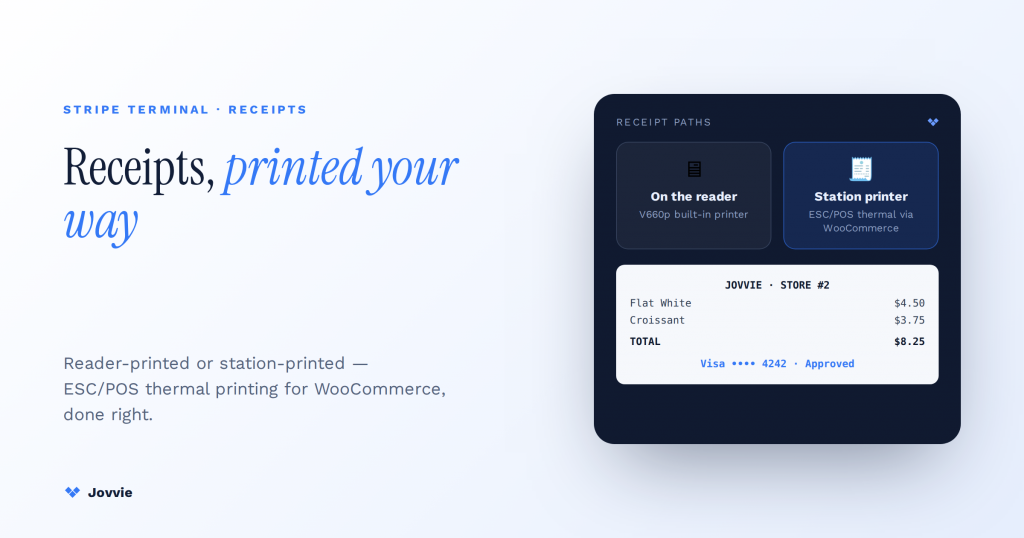
You print receipts with Stripe Terminal in one of two ways. Either the reader prints on its own embedded printer — possible only on the Verifone V660p, the single Stripe reader with a built-in thermal printer — or your POS software prints to a separate ESC/POS thermal printer at the counter, which is how every other reader (the S700, WisePad 3, M2, and Tap to Pay) produces paper. Most write-ups conflate two different things: providing a receipt (usually emailing one) and printing one on paper (a hardware job). This guide separates them and hands a WooCommerce merchant a concrete path to counter and kitchen tickets — on Jovvie, station printing runs through BizPrint.
Key Takeaways
- Only one Stripe reader prints on its own. The Verifone V660p has an embedded thermal printer; the S700, WisePad 3, M2, and Tap to Pay do not.
- Three receipt paths, usually two in use. Reader-printed (V660p), station-printed (an external ESC/POS printer driven by your POS), and emailed.
- “Provide” is not “print.” An emailed receipt satisfies card-network rules instantly; paper needs printer hardware.
- Station printing is reader-independent. The reader captures the payment; the printer is driven by your POS, so it works the same on any reader — on WooCommerce, via BizPrint.
- The V660p prints an image, not text. print_content accepts one B&W PNG/JPEG ≤100KB and ≤384px wide — fine for a fixed template, more work for dynamic itemized receipts.
- Route by station for multi-location. Counter receipt up front, kitchen ticket in back, per store — all print-station configuration, never touching payments.
We have built WooCommerce point-of-sale on Stripe Terminal for eight years — for boutiques, cafes, food trucks, and multi-location retailers across more than 30 countries, as an official Stripe Partner — so the reader-capability facts and the station-printing setup below come from registers we have actually wired, not from the API reference alone. This is a cluster piece under how Stripe Terminal works as a point-of-sale system; the pillar covers the whole register, while this piece answers the one question that trips up every merchant evaluating hardware: can I get a paper receipt, and how? For the customer-experience side of receipts — emailed confirmations, SMS, donor receipts — see the FlowNotify Electronic Receipts for Stripe Terminal. Every hardware claim here is anchored to Stripe’s primary documentation.
Can Stripe Terminal print receipts? Reader-printed vs station-printed
Yes, but only one Stripe reader prints on its own — the rest need either an emailed receipt or a separate thermal printer driven by your POS. That is the honest one-sentence answer, and it is the thing AI answers and vendor pages routinely get wrong by implying every reader can print.
There are three distinct receipt paths, and a working register usually uses two of them:
- Reader-printed (on-device). The reader has an embedded printer and prints the receipt itself. This exists on exactly one Stripe reader: the Verifone V660p, via Stripe’s
print_contentfeature. - Station-printed (external thermal printer). Your POS software sends the receipt to a standalone ESC/POS or StarPRNT thermal printer at the counter — the standard setup for the S700, WisePad 3, M2, and Tap to Pay, which have no printer of their own. On WooCommerce, this is the BizPrint path.
- Emailed / digital. Stripe emails the customer a receipt (or your POS sends one), covering the card-network requirement without paper. Documented in Stripe’s receipts guide.
The trap in most write-ups is treating “provide a receipt” (email) and “print a receipt” (paper) as the same feature. They are not. Email satisfies card-network rules and is instant; paper requires printer hardware. A cafe that wants a physical customer receipt and a kitchen ticket needs station printing regardless of which reader it runs — because the reader almost certainly cannot print.
Which Stripe readers can print? A capability matrix
Only the Verifone V660p prints natively; every other Stripe reader relies on an external ESC/POS thermal printer or an emailed receipt. Here is the capability matrix no competing page publishes — the fastest way to size your printing setup before you buy hardware.
| Reader | Native paper printing? | How you actually print | Best receipt strategy |
|---|---|---|---|
| Verifone V660p | Yes — embedded B&W thermal printer | Stripe print_content (PNG/JPEG ≤100KB) | On-device print; email as backup |
| Stripe Reader S700 | No | External ESC/POS printer via POS (BizPrint) or email | Station printer + email |
| BBPOS WisePad 3 | No | External ESC/POS printer via POS or email | Station printer + email |
| Stripe Reader M2 | No | External ESC/POS printer via POS or email | Email; add station printer if paper needed |
| Tap to Pay (iPhone/Android) | No | External ESC/POS printer via POS or email | Email; station printer for counter setups |
The takeaway for hardware selection: if a physical, reader-printed receipt handed over at the moment of payment is non-negotiable — a valet stand, a market stall with no counter — the V660p is the only Stripe reader that does it on its own. For everything else, plan a station thermal printer or lean on email. Stripe’s reader lineup is the primary source for the current device list. If you are still choosing a reader, start with the 2026 Stripe Terminal hardware reader guide.
Printing on the reader: the print_content endpoint and its limits
The V660p prints via Stripe’s print_content feature, which accepts a single black-and-white image per receipt — and its constraints (image-only, PNG/JPEG, 100KB max, ~384px wide) shape what you can realistically print. This is the whole feature in one section, because it is small and specific.
Per Stripe’s print content documentation, your integration generates the receipt as an image — text is not sent as text; you render it to an image first — and then prints it one of two ways:
- Server-driven: POST a
multipart/form-databody with your PNG or JPEG file to theprint_contentendpoint (which lives on thefiles.stripe.comsubdomain). The file must not exceed 100 KB, or the endpoint returns a400error (“the file you uploaded was too large”). - SDK-driven: pass a native image object to the SDK’s
printmethod — aBitmapon Android,UIImageon iOS, anHTMLCanvasElementin JavaScript, or a base64/data:URI in React Native.
Stripe’s content guidelines for a clean print: at most 384 pixels wide, black and white (no color — it is a monochrome thermal head), and design so the thinnest stroke of any character or line is at least 2 pixels wide so it stays legible. When the print completes, Stripe fires terminal.reader.action_succeeded or terminal.reader.action_failed webhooks, with failure codes for the practical realities of thermal printers — printer_out_of_paper, printer_paperjam, printer_cover_open, printer_busy. Build handling for those; they will happen.
The honest limitation: because you are printing an image, you own the receipt layout — rendering line items, totals, tax, and the card-network required fields into a 384px-wide bitmap. That is fine for a fixed template, more work for a dynamic itemized receipt. Which is one reason many multi-item WooCommerce merchants prefer a station printer driven by the POS, where the receipt template is handled for them.
Wiring receipts for a WooCommerce register?
Jovvie provisions the Stripe reader, the register, and BizPrint station printing together — counter and kitchen tickets that print on the first sale.
Start your free trial →Station printing with an ESC/POS thermal printer for WooCommerce (via BizPrint)
For any reader that can’t print on its own — which is all of them except the V660p — you print WooCommerce receipts by sending the order to a standalone ESC/POS thermal printer through your POS, and on Jovvie that runs through BizPrint. Here is the setup, start to finish. (This section is the HowTo the schema declares.)
The architecture matters: the Stripe reader captures the payment; it never touches the printer. The printer is wired to your POS/print layer, not to the reader. So station printing works identically whether you are on an S700, a WisePad 3, an M2, or Tap to Pay — the reader is irrelevant to the paper. BizPrint is BizSwoop’s cloud print service; it drives ESC/POS and StarPRNT thermal printers (Epson, Star, Zebra, and other major brands) from Windows, macOS, Linux, Raspberry Pi, and Android hosts, and it is the print engine Jovvie uses for WooCommerce POS receipts.
Step-by-step: WooCommerce station receipt printing
- Choose a supported thermal printer. Any ESC/POS or StarPRNT thermal printer works — 80mm for full counter receipts, 58mm for compact tickets. Epson TM-series and Star TSP-series are the common, reliable choices.
- Connect the printer to a host device. USB, network (Ethernet/Wi-Fi), or Bluetooth to a Windows, macOS, Linux, Raspberry Pi, or Android machine that stays on at the counter.
- Create a BizPrint account and a print station. In the BizPrint Cloud Dashboard, create a new station, name it (e.g., “Front Counter”), and note the Public and Private keys — you will use them to link WooCommerce to the printer.
- Install and connect the WooCommerce plugin. Add the BizPrint plugin to your WooCommerce site and paste in the station keys so the store can reach the printer through the cloud.
- Design the receipt template. In BizPrint, pick a template, choose which order fields to include, upload your logo, and add header/footer text (return policy, store details, the card-network required fields covered below).
- Map orders to the station and set triggers. Route Jovvie/WooCommerce POS orders to the correct printer and choose when they print — automatically on payment completion, or on demand from the register.
- Test a live sale. Run a card-present payment through the Stripe reader; confirm the receipt prints at the station on payment completion. Verify totals, tax, and required fields render correctly.
Because Jovvie provisions this layer for WooCommerce merchants, the register, the Stripe reader, and the BizPrint station are configured to work together out of the box — the cashier taps to charge, the receipt prints, and the drawer kick (if wired) fires from the printer, not the reader.
Multi-location printing: counter vs kitchen tickets
You route different receipts to different printers by defining multiple print stations and mapping each document type to the right one — so a food order can print a customer receipt at the counter and a prep ticket in the kitchen from the same sale. This is the multi-printer pattern the calendar outline calls for and that no competing page documents.
In a station-based print layer like BizPrint, each physical printer is its own station, and you decide per document and per location which station prints it:
- Counter (customer receipt): the itemized receipt with totals, tax, and required fields, printed on the 80mm printer at the point of sale.
- Kitchen / prep (order ticket): a stripped-down ticket — items, modifiers, quantities, no prices — printed on a printer in the kitchen so staff can start the order. Product modifiers (extra shot, no onions, gluten-free) flow onto the kitchen ticket; if you sell heavily modified items, see how Product Add-ons handles modifier capture at the counter.
- Bar, packing, or label stations: additional stations for a bar printer, a packing slip in a stockroom, or shipping labels, each mapped independently.
The pattern scales to multiple sites: a chain defines stations per store, and orders route to the printers physically present at the location where the sale happened. Because the Stripe reader is not involved in printing, adding a kitchen printer or a second counter printer never touches your payment setup — it is purely a print-station configuration. For how stores themselves map in a chain, see multi-location POS with the Stripe Terminal Locations API.
Email receipts and card-network required fields
Even with printing configured, you should offer an emailed receipt — it is instant, paperless, and the simplest way to satisfy the card networks’ receipt requirements. Stripe can email a receipt automatically, and your POS can send one too.
Per Stripe’s receipts documentation, a compliant card-present receipt — printed or emailed — includes the fields the networks require, such as the amount, date, the last four digits of the card, the card brand, the application/authorization details for chip transactions, and the merchant’s identifying information. Stripe’s receipt feature populates these for you when it emails a receipt; if you print your own (V660p image or station printer), your template must include them. This is exactly why a station-print template in BizPrint lets you configure the required fields once and reuse them — you set the compliant layout, and every printed receipt inherits it.
The practical policy most of our merchants land on: email by default, print on request (or auto-print at food-service counters where a paper ticket drives the workflow). Email covers compliance and cost; paper covers the moments a customer or the kitchen actually needs it.
How do I choose a receipt-printing setup?
Match the path to the workflow: pick the V660p only if you need a reader that prints unattended; otherwise run a station printer for paper and email for everything else.
- Multi-item WooCommerce register (cafe, boutique, counter service): station thermal printer via BizPrint for customer receipts (and a kitchen printer if you prep food), plus email as the default digital receipt. Reader choice (S700 for a fixed counter, Tap to Pay for mobile) is independent of printing.
- No counter, need paper in hand (market stall, valet, mobile): the Verifone V660p is the only reader that prints on its own — use
print_contentand keep email as a fallback. - Low-touch / digital-first (services, B2B, appointment pay): email receipts only; add a station printer later if a paper need appears.
Whatever you choose, verify the current V660p print constraints (PNG/JPEG, 100KB, 384px, B&W) against Stripe’s print content docs and confirm your thermal printer model against BizPrint’s supported hardware before you buy.
Frequently asked questions
Can Stripe Terminal print receipts?
Yes, in two ways. The Verifone V660p prints on its own embedded thermal printer via Stripe’s print_content feature. Every other Stripe reader (S700, WisePad 3, M2, Tap to Pay) has no printer, so you print through a separate ESC/POS thermal printer driven by your POS — BizPrint on WooCommerce — or send an emailed receipt via Stripe’s receipts feature.
Which Stripe reader has a built-in printer?
Only the Verifone V660p. It is the single Stripe Terminal reader with an embedded black-and-white thermal printer. The S700, WisePad 3, M2, and Tap to Pay on iPhone/Android have no built-in printer and rely on an external thermal printer or email.
Does the Stripe Reader S700 print receipts?
Not on its own — the S700 has no built-in printer. To print paper receipts with an S700, connect a standalone ESC/POS thermal printer and drive it from your POS (on WooCommerce, via BizPrint). The S700 handles the card payment; the separate printer handles the paper. Email receipts are also available.
How do I connect a thermal printer to Stripe Terminal?
You don’t connect the printer to the reader — you connect it to your POS. The Stripe reader captures the payment, and a separate ESC/POS or StarPRNT thermal printer, linked to your POS/print layer (BizPrint on WooCommerce), prints the receipt. Connect the printer to a host device by USB, network, or Bluetooth, register it as a print station, and map your POS orders to it. See the station-printing steps above.
What format does the V660p printer accept?
A single image per receipt — PNG or JPEG, no larger than 100 KB, at most 384 pixels wide, and black and white. Stripe’s print_content endpoint returns a 400 error if the file exceeds 100 KB. You render the receipt (line items, totals, required fields) into that image before printing.
Do I still need printed receipts if I email them?
Not for compliance — an emailed receipt with the card-network required fields satisfies the networks. But many workflows still need paper: food-service kitchen tickets, customers who want a physical receipt, or environments without reliable email capture. The common setup is email by default and print on request (or auto-print at food counters).
The bottom line
Receipt printing on Stripe Terminal comes down to one fact the rest of the internet blurs: only the Verifone V660p prints on its own, and every other reader prints through a separate thermal printer driven by your POS — or emails instead. For a WooCommerce register that means a station ESC/POS printer for paper (customer receipts up front, kitchen tickets in back) plus email for the digital default, with the Stripe reader handling only the card. Get the reader-capability reality right up front and the printing setup is straightforward.
That whole layer — the Stripe reader, the register, and the BizPrint station printing counter and kitchen receipts — is what Jovvie configures for WooCommerce merchants so it works on the first sale. If you are building a Stripe Terminal register and want paper receipts done right, start a free Jovvie trial and wire your first printer against a live test sale today.
