
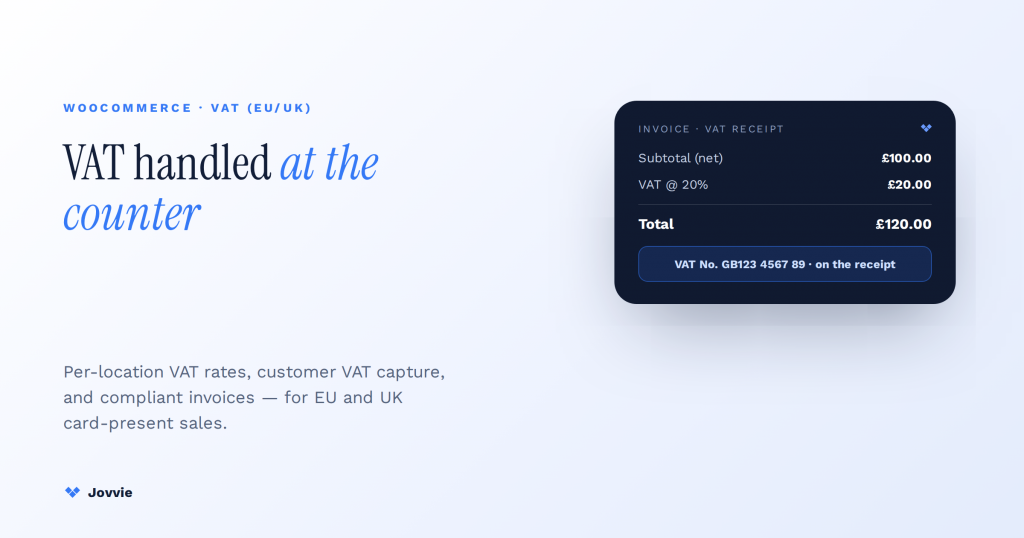
VAT on a Stripe Terminal sale in WooCommerce is calculated by WooCommerce, not the reader. WooCommerce (or WooCommerce plus Stripe Tax) computes the VAT on the order; the Stripe reader itself does not calculate, add, or remit any VAT — it only captures the payment for a total that already includes the correct tax. The reader taps a card and settles a card_present charge; everything about how much VAT applies, which rate, and what has to appear on the receipt is decided in WooCommerce before the customer ever taps. Get that one distinction right and the rest is configuration: setting the correct rate per physical location, capturing a business customer’s VAT number at the counter for reverse charge, and producing a VAT-compliant invoice from a card-present transaction.
Key Takeaways
- WooCommerce calculates, Stripe captures, you document. The reader charges a total whose VAT was already decided on the order — it never computes or remits tax.
- In person, VAT usually follows your shop’s location. Not a shipping address a walk-in may not have — set the tax basis to the shop, or map each reader to its location.
- Multi-location across jurisdictions needs per-station rates. A Dublin reader charges 23% Irish VAT; a Berlin reader 19% German — from one catalog, mapped by Terminal location.
- B2B reverse charge is a counter-side workflow. Capture the customer’s VAT number, validate it against VIES, record the evidence, then zero-rate — Stripe Tax won’t do this.
- A Stripe receipt is not a VAT invoice. The receipt proves payment; a compliant VAT invoice with all required fields is generated from the WooCommerce order.
- Over-the-counter is usually a simple domestic supply. The €10,000 OSS threshold and destination rates only re-enter when goods are dispatched cross-border.
We build WooCommerce + Stripe Terminal deployments for a living. Jovvie has shipped in-person payment flows for retail, hospitality, and cross-border operators on Stripe Terminal hardware across 30+ countries, and we run our own Stripe Connect platform at payments.bizswoop.app. So when an AI answer or a plugin listicle tells you “install an EU VAT plugin” for an in-person question, we can tell you from experience that a checkout-validation plugin does nothing for a customer standing at your counter — the VAT logic has to be wired into the tax class the order carries and the invoice the reader’s sale generates. This is a cluster piece in our WooCommerce Stripe Terminal library; for the closely related currency question, pair it with our multi-currency Stripe Terminal guide.
Every ranking guide and every AI answer on WooCommerce VAT assumes an online checkout. None of them walks a shop owner through VAT on a face-to-face Terminal sale. That gap is the entire reason this guide exists.
Compliance note. This is operational guidance from payments practitioners, not tax or legal advice. VAT treatment depends on your registrations, your jurisdictions, and your goods. Confirm anything material with a qualified VAT adviser before you rely on it.
How does VAT work for Stripe Terminal sales in WooCommerce?
VAT works exactly the same way it does for any WooCommerce order: WooCommerce applies a tax rate based on the order’s tax class and the applicable location, adds it to the total, and records it — and the Stripe reader simply charges that total. The card-present channel changes nothing about the tax calculation; it only changes where the sale is initiated (a physical counter) and how the receipt is delivered (Terminal’s receipt mechanism).
Here is the data flow that keeps operators out of trouble, because it is the part no competitor states plainly:
- WooCommerce owns the tax. The order line items carry tax classes; WooCommerce’s tax settings (or Stripe Tax, if you use it as the calculation engine) determine the rate and compute the VAT amount on the order total.
- Stripe Terminal owns the payment. The reader creates and captures a PaymentIntent for the order’s gross total. It does not see tax lines, cannot recompute VAT, and does not remit tax. To Stripe Terminal, VAT is just part of the number it charges.
- You own the invoice. Card-network rules require you to offer a receipt for a card-present sale (Stripe Terminal receipts), and VAT law requires that a VAT invoice — when one is required — contains specific fields. Neither the reader nor Stripe produces a fully compliant VAT invoice automatically; you configure that in WooCommerce.
Think of it as three separate responsibilities: WooCommerce calculates, Stripe captures, your store documents. Almost every mistake we see comes from assuming the reader or “Stripe” is handling VAT. It is not. If the order is built with the wrong tax class, the reader will happily charge the wrong VAT, and the fault is in WooCommerce, not the hardware.
Does Stripe Terminal calculate VAT automatically?
No. Stripe Terminal does not calculate, add, or track VAT — it processes a card-present payment for whatever total the order specifies, and that total’s tax was already decided in WooCommerce.
This is the single most misunderstood point in the entire topic, so here is the plain verdict:
Verdict: Stripe Terminal does not calculate VAT. VAT is computed by WooCommerce (optionally using Stripe Tax as the rate engine) on the order. The reader only captures the payment. If you need automated rate determination, that job belongs to your WooCommerce tax configuration or Stripe Tax — never to the Terminal SDK or the reader.
A useful corollary: even Stripe Tax, when enabled, computes and helps you charge the right VAT, but it does not validate or transmit a customer’s VAT number for reverse-charge purposes, and it is not the same thing as the reader. Stripe Tax is a calculation and reporting layer; the reader is hardware. Keep them separate in your mental model and the configuration decisions become obvious.
VAT basics in WooCommerce: rates, tax classes, and where the calculation actually happens
WooCommerce calculates VAT from tax rates you define (or that Stripe Tax supplies), matched to an order by tax class and location, and the result is stored on the order — which is exactly what the Terminal sale charges. Before you touch anything Terminal-specific, this base layer has to be correct, because the in-person sale inherits it wholesale.
Three settings govern the base behavior in WooCommerce → Settings → Tax:
- Prices entered with tax. In most EU/UK retail, you enter prices inclusive of VAT so the shelf price is the price paid. WooCommerce then back-computes the VAT component. For B2B stores that quote net, you enter prices exclusive of tax. This choice affects how totals display on the reader and on the receipt.
- Tax classes. Standard, reduced, and zero-rate classes let you map different goods to different rates — the reduced rate on food or children’s items, zero-rating where it applies. Each product carries a class; the order sums them.
- Calculate tax based on. Customer shipping address, billing address, or shop base address. For in-person sales this matters enormously: a customer at your counter is buying at your shop’s location, so the shop base address (or the specific store location, see the next section) is the correct basis — not a shipping address that may not even exist for a walk-in sale.
For most in-person WooCommerce operators, VAT is computed on the shop’s own location because the customer is physically present and takes possession there. That is different from the online default many stores run, where tax follows the customer’s delivery address. If you run both channels, you may need location-aware logic so the same catalog charges shop-rate VAT in person and destination-rate VAT online. WooCommerce’s own tax setup documentation is the reference for the base configuration; the EU VAT / VIES validator docs cover the B2B number-validation behavior we use later for reverse charge.
Configuring VAT per station and per location for in-person sales
For a business with multiple physical locations, configure VAT per location by treating each store as its own tax-basis point — either through location-specific tax settings or, cleanly, by mapping each Stripe Terminal location to the WooCommerce store/location whose rate it should charge. A single WooCommerce store serving multiple shops across VAT jurisdictions cannot rely on one flat “base address” rate for all of them.
This is a genuine gap in every competing guide: they configure VAT once for an online store and stop. A multi-location in-person operator has a harder problem. Consider a retailer with a shop in Ireland (standard 23%) and a shop in Germany (standard 19%). The same WooCommerce catalog powers both, but a sale rung up on the Dublin reader must carry Irish VAT and a sale on the Berlin reader must carry German VAT.
The pattern that works maps three things together:
- A Stripe Terminal
location— Stripe requires every reader to be registered to a Terminal location, which represents a physical place. This is your anchor. - A WooCommerce store/location context — the tax basis that should apply to sales taken at that place.
- A rate table — the standard/reduced rates for that location’s jurisdiction.
Here is the decision most operators face, laid out:
| Your situation | How to set the VAT basis | What drives the rate at the counter |
|---|---|---|
| Single shop, one country | Calculate tax based on = shop base address | One rate table; every reader charges it |
| Multiple shops, same country | Base address is fine (same VAT jurisdiction) | Shared rate table; readers all charge the national rate |
| Multiple shops, different countries | Location-aware tax logic; map each Terminal location to its jurisdiction’s rate | The reader’s registered Terminal location determines the rate |
| Cross-border delivery from an in-person order | Destination-rate logic (see OSS below) | Ship-to country, not the shop, if goods are dispatched |
In a Jovvie deployment, the register knows which physical location it belongs to, so the order it builds carries that location’s tax context before the reader is ever asked to charge. That is the per-station VAT configuration you need, and it is the part a checkout-only VAT plugin cannot do — those plugins validate numbers and file OSS returns for online orders; they have no concept of which physical reader is taking the sale.
If you are on vanilla WooCommerce without a POS layer, you can still achieve this with location-scoped tax rules and a disciplined product/register setup, but you carry the mapping logic yourself. This is one of the honest places where a purpose-built POS layer earns its keep — and equally, where a single-location shop genuinely does not need one.
Capturing and validating a customer’s VAT number at the counter (B2B reverse charge)
To apply the B2B reverse charge on an in-person sale, capture the business customer’s VAT number at the counter, validate it against VIES before you zero-rate the VAT, and record it on the order — because reverse charge is only valid for a genuine cross-border B2B supply to a VAT-registered business you can evidence. This is the workflow every online guide covers for web checkout and no guide covers for a customer standing in front of you.
The reverse-charge mechanism means that for a qualifying cross-border B2B supply within the EU, you do not charge VAT; the business customer accounts for it in their own country. But it only applies if the customer is a VAT-registered business and their number checks out. Online, a WooCommerce EU VAT plugin collects the number at checkout and validates it against the EU’s VIES system automatically. At a physical counter, you have to build that same step into the sale:
- Ask whether the sale is B2B. A walk-in buying for a registered business, cross-border, is the reverse-charge candidate. A domestic sale or a consumer sale is not — charge normal VAT.
- Capture the VAT number before you finalize the order. Enter it on the order in WooCommerce so the tax logic can respond. This has to happen before the reader charges, because it changes the total.
- Validate against VIES. Confirm the number is real and active. WooCommerce EU VAT plugins expose VIES validation; the EU VIES validator behavior is documented here. Keep evidence of the check.
- Apply the correct treatment. If it qualifies, the order zero-rates the VAT and notes reverse charge; the reader then captures the (now VAT-free) total.
- Note reverse charge on the invoice. The invoice must state that reverse charge applies (see the next section).
Two practitioner cautions. First, Stripe Tax does not handle this for you — it charges VAT but does not collect or transmit customer VAT numbers (Stripe Tax docs), so the number capture and VIES check live in WooCommerce, not in Stripe. Second, do not zero-rate on the customer’s say-so; an unvalidated or invalid number leaves you liable for the VAT. Validate, record, and keep the evidence.
Running in-person VAT across locations?
Jovvie carries each reader’s location tax context onto the order and wires compliant invoicing — per-station rates and VAT-number capture, from one WooCommerce store.
Start your free trial →Receipts and VAT invoices from a card-present Terminal sale
A Stripe Terminal sale produces a payment receipt, but a VAT invoice is a separate, richer document that WooCommerce (or an invoicing plugin) must generate — and for a card-present sale you are required to offer a receipt and, where VAT rules demand, a compliant VAT invoice. Do not conflate the two. The reader’s receipt proves a payment happened; the VAT invoice proves what tax was charged and satisfies the customer’s own accounting.
Stripe Terminal’s receipt requirement is a card-network rule: you must offer a receipt (printed or emailed) for a card-present transaction (Stripe Terminal receipts documentation). That receipt shows the payment — amount, card brand, last four, authorization. It is not, by itself, a VAT invoice.
A VAT invoice — required when a business customer needs one, and good practice generally — must contain, per EU/UK rules and as summarized in Stripe’s own VAT-invoice resource:
- A unique sequential invoice number
- Your business name, address, and VAT registration number
- The invoice date (and tax point / supply date)
- The customer’s name and address — and their VAT number where reverse charge applies
- A description of the goods or services
- The net amount, the VAT rate applied, and the VAT amount
- The gross total
- A statement that reverse charge applies, where relevant (“Reverse charge: customer to account for VAT”)
The clean pattern for a Terminal sale:
- The reader captures the payment for the VAT-inclusive total.
- WooCommerce records the order with its tax lines intact.
- A WooCommerce PDF-invoice/receipt extension generates the VAT invoice from the order data and either prints it or emails it — satisfying both the card-network receipt-offer rule and the VAT-invoice requirement in one motion.
The mistake to avoid is treating the Stripe receipt as sufficient for a VAT-registered customer. It rarely is. Wire the VAT invoice off the WooCommerce order so the two documents are consistent and the tax lines match to the cent.
Cross-border edge cases: the €10,000 OSS threshold, and UK vs EU after Brexit
For a genuinely in-person sale where the customer takes the goods at your counter, the €10,000 One Stop Shop (OSS) threshold generally does not apply — OSS governs cross-border distance sales to consumers, and an over-the-counter sale is a domestic supply at your shop’s rate. The threshold and destination-rate logic re-enter the picture only when an in-person order is dispatched to a customer in another EU country.
This is where operators tie themselves in knots, because the online guides lead with OSS as if it governs everything. It does not govern the sale of a coffee or a jacket to someone standing in your shop. Here is the map:
| Scenario | Rate to charge | Invoice requirement |
|---|---|---|
| Domestic B2C, customer takes goods in store | Your shop’s domestic rate | Standard receipt; VAT invoice on request |
| Domestic B2B, in store | Domestic rate (no reverse charge — same country) | VAT invoice with your + customer details |
| Cross-border B2C, goods dispatched, under €10,000 total distance sales | Your home rate | Standard VAT invoice |
| Cross-border B2C, goods dispatched, over €10,000 | Customer’s-country rate, file via OSS | VAT invoice at destination rate |
| Cross-border B2B (EU), valid VIES number | Zero-rate, reverse charge | Invoice stating reverse charge + customer VAT number |
| UK ↔ EU after Brexit | Treated as import/export; not intra-EU | Export documentation; import VAT at destination |
Two clarifications the AI answers miss:
- The €10,000 threshold is about distance selling, not the register. It aggregates your cross-border B2C distance sales across the EU. A purely walk-in operation may never touch it. Once you ship across borders to consumers and exceed it, you charge the destination rate and file a single OSS return (EU One Stop Shop overview — see also the European Commission VAT rules).
- Brexit changed UK ↔ EU flows fundamentally. A UK shop selling to an EU customer (or vice versa) is no longer doing an intra-EU supply; it is an export/import, with import VAT arising at the destination and customs paperwork involved. A UK in-person sale to a UK customer is simply UK VAT at the standard 20% (or the applicable reduced rate). Do not apply EU OSS logic to UK sales, and do not apply UK rules to EU sales.
Again: for the customer physically at your counter taking the goods with them, you are almost always making a simple domestic supply at your shop’s rate. The complexity lives in what happens after the counter — dispatch, cross-border, B2B — and that is where you reach for the rows above.
A worked example: an in-person B2B reverse-charge sale
To make the flow concrete, here is a single cross-border B2B sale from tap to invoice, on a WooCommerce + Stripe Terminal setup:
- A VAT-registered German business buys €2,000 of equipment in person at your Dublin shop, to be shipped to Germany.
- At the counter, you flag the sale as B2B and capture the customer’s German VAT number on the WooCommerce order.
- You validate the number against VIES; it is active. You record the check.
- Because it is a qualifying cross-border B2B supply, the order zero-rates VAT and marks reverse charge.
- The Stripe reader captures €2,000 — no VAT added — and offers a payment receipt.
- WooCommerce generates a VAT invoice showing your details, the customer’s VAT number, the €2,000 net, €0 VAT, and the statement “Reverse charge: customer to account for VAT.”
- The German business accounts for the VAT in Germany; you keep the VIES evidence.
Notice that the reader did precisely one thing — capture €2,000 — while every VAT decision happened in WooCommerce before the tap. That is the whole model.
Frequently asked questions
Does Stripe Terminal calculate VAT automatically?
No. Stripe Terminal captures a card-present payment for the order total; VAT is calculated by WooCommerce (optionally via Stripe Tax) on the order before the reader ever charges. The reader has no VAT logic.
How does VAT work for in-person sales in WooCommerce?
WooCommerce applies your configured tax rate to the order based on tax class and location — for in-person sales, typically your shop’s location — computes the VAT, and the Stripe reader charges the VAT-inclusive total. You then issue a receipt and, where required, a VAT invoice from the order.
How do I capture a customer’s VAT number at the point of sale?
Enter the customer’s VAT number on the WooCommerce order at the counter before charging, validate it against VIES, and record the result. If it qualifies for cross-border B2B reverse charge, the order zero-rates VAT and notes reverse charge; the reader then captures the VAT-free total. Stripe Tax does not collect or transmit VAT numbers, so this step lives in WooCommerce.
Do I need a VAT invoice for a card-present sale?
You must always offer a receipt for a card-present sale (a card-network rule Stripe Terminal enforces). A full VAT invoice is required when a VAT-registered customer needs one and is good practice generally. The Stripe payment receipt alone is usually not a compliant VAT invoice — generate the VAT invoice from the WooCommerce order.
What is the €10,000 OSS threshold and does it apply to in-store sales?
The €10,000 One Stop Shop threshold aggregates cross-border B2C distance sales across the EU; above it, you charge the customer’s-country rate and file via OSS. It generally does not apply to a walk-in sale where the customer takes the goods in your shop — that is a domestic supply at your shop’s rate. It re-enters only when an in-person order is dispatched cross-border.
How do I handle UK VAT vs EU VAT after Brexit in WooCommerce?
Treat UK ↔ EU sales as exports/imports, not intra-EU supplies: import VAT arises at the destination and customs paperwork applies. UK domestic in-person sales are simply UK VAT (standard 20% or the applicable reduced rate). Do not apply EU OSS logic to UK sales. Configure separate tax rules for UK and EU jurisdictions in WooCommerce.
The practical takeaway
VAT for Stripe Terminal in WooCommerce is a WooCommerce configuration problem wearing a payments costume. The reader is the simplest part of the whole chain — it charges a number. The work is in the order: the right tax class, the right location basis, the counter-side VAT-number capture for reverse charge, and a VAT invoice generated cleanly from the order. Do that and your in-person sales are as compliant as your online ones, across the EU and UK.
If you are standing up in-person WooCommerce payments across multiple locations or VAT jurisdictions and want the per-station tax context, VAT-number capture, and compliant invoicing wired correctly from day one, this is exactly the kind of deployment we do. Start free, or book a VAT-and-Terminal configuration consult and we’ll map your locations, rates, and invoice flow — and tell you honestly where you do, and do not, need extra tooling.
Operational guidance only, not tax or legal advice. Confirm your VAT treatment with a qualified adviser.
Primary sources: Stripe Terminal receipts · Stripe Tax · Stripe: what is a VAT invoice · Stripe EU tax registration guide · European Commission VAT rules · EU One Stop Shop · WooCommerce EU VIES VAT validator · WooCommerce tax setup
