
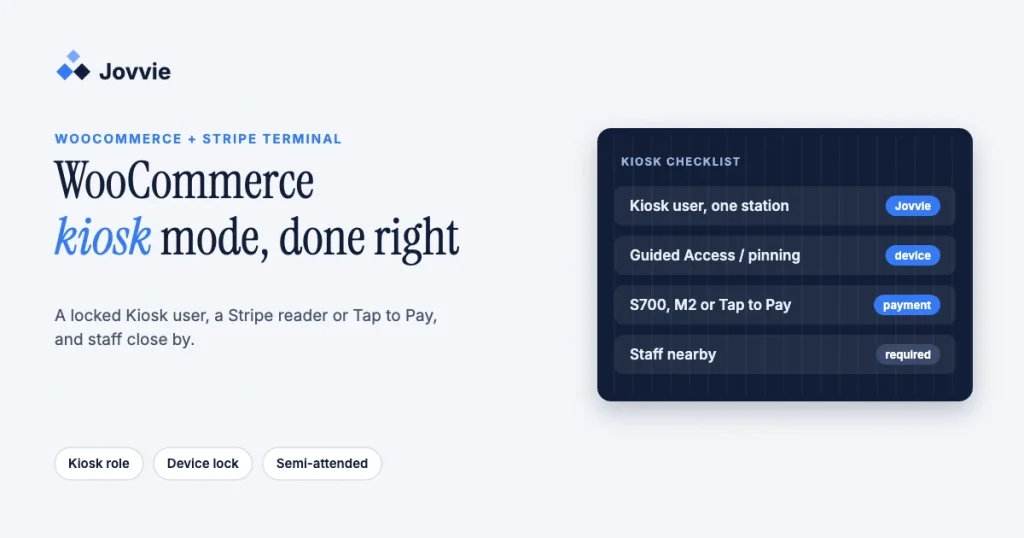
To run a self-service kiosk on WooCommerce with Stripe Terminal, you need a POS plugin that adds a kiosk mode, because WooCommerce has no in-store checkout of its own and Stripe Terminal is a payment layer, not a screen customers can order from. With Jovvie, you turn on kiosk mode, sign the kiosk device in as a restricted Kiosk user, lock the tablet to the Jovvie app, and pair a Stripe reader or use Tap to Pay. Kiosk orders land in the same WooCommerce orders and inventory as your online store. One rule matters before you buy anything: Stripe’s standard readers and Tap to Pay are approved for attended and semi-attended use, so a kiosk needs staff somewhere nearby.
Jovvie is our product. It has been a WooCommerce point of sale since 2016 and is an official Stripe Partner, so this guide reflects how kiosk mode actually works in Jovvie today. The Stripe rules and device requirements below were re-checked against Stripe’s documentation in November 2026.
Key Takeaways
- WooCommerce needs a POS plugin for kiosk mode. Jovvie adds a kiosk self-checkout on top of your existing WooCommerce catalog, stock and orders.
- Use the Kiosk user role. Jovvie’s Kiosk role can only open the POS stations shared with it and has limited functionality, so customers can’t reach admin tools.
- Lock the device as well as the app. Use Guided Access on iPad or screen pinning or a kiosk launcher on Android so customers can’t leave the POS.
- Staff must be nearby. Stripe’s readers and Tap to Pay support attended and semi-attended setups; the Verifone UX700 is the only device Stripe offers for fully unattended payments.
- Tap to Pay doesn’t run on iPad. It needs an iPhone XS or later, or a supported Android device on Android 13 or later; most tablet kiosks pair a Stripe reader instead.
- Card data stays out of WooCommerce. The reader encrypts the card, and Stripe says Terminal-only merchants can validate PCI with SAQ C.
How do you set up a self-service kiosk on WooCommerce with Stripe Terminal?
You add a POS plugin with a kiosk mode, create a kiosk station and user, lock down the device, and connect a Stripe reader or Tap to Pay. In Jovvie, the steps are:
- Install Jovvie on your WooCommerce store from the WordPress plugin directory and connect your Stripe account. Your products, stock, taxes and customers are used as they are.
- Add a station for the kiosk. In Jovvie, each counter, cart, kiosk or event booth can be its own station with its own card readers and settings. See per-station configuration.
- Create a Kiosk user. In WordPress, add a user and choose the Kiosk POS role, then share only the kiosk station with that user (Jovvie multiple-users docs).
- Turn on kiosk mode for the station, so customers ring up their own orders.
- Pick and connect payment hardware: a Stripe smart reader, an M2 paired to the Jovvie app, or Tap to Pay on a supported phone or Android device.
- Lock the device to the Jovvie app or browser window, mount it, and test a full order and a refund (refunds stay with staff).
Why does WooCommerce need a POS plugin for kiosk mode?
WooCommerce is an online store, and Stripe Terminal is a set of readers and SDKs, so neither provides the in-store ordering screen, the reader connection and the write-back to WooCommerce orders. A POS plugin supplies all three. With Jovvie, a kiosk sale updates the same stock your website sells from, so there is no second catalog or sync job. Our WooCommerce POS with Stripe Terminal setup guide covers the base install.
How do you restrict what customers can do on a kiosk?
You sign the kiosk in as a restricted Kiosk user, not as a cashier or manager. Jovvie has four POS user types: Administrator, Manager, Cashier and Kiosk. A Kiosk user can only access the POS stations shared with it and gets limited POS functionality, while cashiers and managers sign in with their own login and passcode.
- Share only the kiosk station with the Kiosk user, so the device can’t open other counters.
- Keep refunds and other sensitive actions with staff. Our guide to refund PINs in a WooCommerce POS explains how to require authorization.
- Set up the menu for self-service. Clear categories and simple product options reduce the number of taps per order.
- Print receipts automatically by pairing the kiosk with BizPrint, if customers expect a paper receipt.
Can a Stripe Terminal kiosk be fully unattended?
Not with Stripe’s standard readers or Tap to Pay. Stripe’s support guidance says its pre-certified readers and Tap to Pay support attended and semi-attended environments, and it counts a self-service kiosk with roaming employees nearby, but not one per kiosk, as semi-attended. Its examples include self-checkout and ticketing kiosks.
For truly unattended locations with no staff on site, Stripe says the Verifone UX700 “is the only unattended device offered through Terminal.” Stripe’s unattended readers guide adds that unattended payments need a Location marked as unattended, are generally available in the US with previews elsewhere, and require you to meet card-network rules on signage and receipts. If you need that setup, ask a Jovvie advisor about UX700 support before you order.
Turning a WooCommerce store into a self-checkout?
Jovvie adds kiosk mode, Kiosk users and Stripe Terminal readers or Tap to Pay to your existing store, and every sale settles in your own Stripe account.
Start your free trial →Which hardware does a WooCommerce kiosk need?
You need a screen for ordering and a way to take cards. The main choice is whether the customer pays on a separate Stripe reader or on the device itself.
| Kiosk build | How cards are taken | Payment hardware cost (US) | Best for |
|---|---|---|---|
| Tablet + Stripe Reader S700 or S710 | Customer-facing smart reader with chip, tap and swipe | $299 per reader (S710 cellular: +$10/month) | Busy, permanent self-checkout |
| Tablet + Stripe Reader M2 | Small Bluetooth reader paired to the Jovvie app | $59 | Low-cost kiosks with chip and tap |
| Jovvie running on the reader | Jovvie app runs directly on an S700, S710 or T600 (Stripe Apps on Devices) | $299 (S700/S710) or $329 + $39 Reader Hub (T600) | One-device countertop kiosk |
| Android device with Tap to Pay | Tap to Pay on a supported Android tablet or kiosk device | No reader; Tap to Pay adds 10¢ per payment | Contactless-only counters |
| iPhone with Tap to Pay | Tap to Pay on iPhone XS or later | No reader; Tap to Pay adds 10¢ per payment | Staffed pop-ups more than self-service |
Reader prices are from Stripe Terminal; add your own tablet and a stand or enclosure. US processing is 2.7% + 5¢ per card-present payment. Three practical points:
- Tap to Pay is contactless only. Customers tap a card, phone or watch; there is no chip slot. If many of your customers still insert cards, use a reader.
- Tap to Pay on iPhone doesn’t run on iPad. Stripe lists an iPhone XS or later. On Android, Stripe’s device list includes some tablets and kiosk devices, and requires Android 13 or later, Google Play services and an unrooted device.
- Bluetooth readers need the app. The M2 connects through the Jovvie iPhone, iPad or Android app; smart readers connect over the internet.
Our Stripe Terminal pricing for WooCommerce guide covers fees in more detail.
Can customers order from their own phones instead?
Yes, as a complement to a kiosk. Because your catalog is WooCommerce, customers can scan a QR code that opens your online store, order on their own phone and pay through your normal online checkout. That removes hardware per station and absorbs rushes, but those orders are online payments at online rates, not Terminal payments. Jovvie also supports QR code payments for orders started at the POS. Many stores run one tablet kiosk for walk-ups and QR ordering for peaks.
How do you secure a self-service kiosk?
Secure it in three layers: lock the device, restrict the POS user, and keep card data on Stripe’s hardware.
- Lock the device. On iPad, Apple’s Guided Access keeps the device in one app. On Android, use screen pinning or a kiosk launcher or device-management tool. Mount the tablet in a locking stand or enclosure.
- Restrict the POS. Sign in as the Kiosk user, share only the kiosk station, and keep refunds and settings behind staff logins.
- Keep staff in sight. Semi-attended is a Stripe requirement for standard readers, and it also deters tampering.
- Keep card data off your systems. Stripe readers and Tap to Pay encrypt the card at capture, so WooCommerce and the kiosk app never see a full card number. Stripe says merchants who collect card data only through Terminal can validate PCI with SAQ C (Stripe Terminal and PCI compliance). Confirm your own obligations with your acquirer.
For donation kiosks, the same approach works with Give forms; see our GiveWP donation kiosk guide. If your kiosk might lose internet, read Stripe Terminal offline mode first.
Frequently asked questions
Can WooCommerce run in kiosk mode?
Not on its own. WooCommerce is an online store; a POS plugin such as Jovvie adds a kiosk self-checkout that uses your existing WooCommerce products, stock and orders.
How do you set up a self-service kiosk with WooCommerce and Stripe?
Install Jovvie, add a station for the kiosk, create a Kiosk user and share only that station with it, turn on kiosk mode, connect a Stripe reader or Tap to Pay, and lock the device to the app.
Can a Stripe Terminal kiosk run with no staff on site?
Not with standard readers. Stripe’s readers and Tap to Pay support attended and semi-attended setups, such as kiosks with staff roaming nearby. For fully unattended locations, Stripe offers the Verifone UX700.
Can I use Tap to Pay on an iPad kiosk?
No. Tap to Pay on iPhone needs an iPhone XS or later. For an iPad kiosk, pair a Stripe reader such as the M2 or S700. Some Android tablets and kiosk devices support Tap to Pay on Android.
How do I lock a tablet into kiosk mode?
Use two layers: Jovvie’s Kiosk user restricts what the POS can do, and the device lock keeps customers inside the app. Use Guided Access on iPad, or screen pinning or a kiosk launcher on Android.
Is a WooCommerce kiosk PCI compliant?
Card data is encrypted by the Stripe reader or Tap to Pay and never reaches WooCommerce or the kiosk app. Stripe says merchants who collect cards only through Terminal can validate with SAQ C. Confirm your own obligations with your acquirer.
Ready to add a self-checkout to your WooCommerce store?
Jovvie ships kiosk mode, Kiosk users and Stripe Terminal support on the Basic plan, and runs on the tablet, phone or Stripe reader you choose. Start a free trial, or talk to a Jovvie advisor about the right hardware for your counter.
Sources: Attended, semi-attended and unattended environments · Support unattended readers · Tap to Pay on iPhone · Tap to Pay on Android · Stripe Terminal pricing · Stripe Terminal and PCI compliance · Apple Guided Access.
