
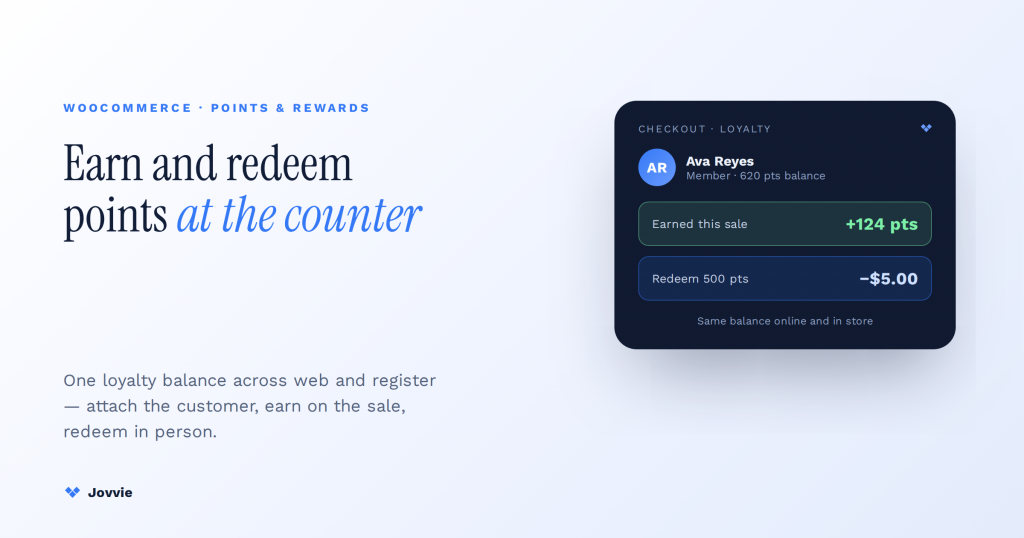
Yes — you can earn and redeem WooCommerce Points & Rewards in person on a Stripe Terminal register. The one requirement: the in-person sale must be attached to a WooCommerce customer account, because points accrue against a customer record, not an anonymous cash-drawer sale. Points & Rewards is checkout-oriented — it awards points when an order is placed and applies them as a discount before payment — so the register flow is to load or create the customer, let points accrue on the card-present sale, and, when redeeming, apply points as a cart discount first so the balance the customer taps on Stripe Terminal is already reduced. Jovvie is the WooCommerce POS layer that ties the customer record, the points discount, and the tap into one counter transaction, so a shopper’s online and in-store points live on a single profile. Every top result on this query ties Points & Rewards to the web, not a card reader; this is the in-person walkthrough none of them writes.
Key Takeaways
- Yes — with the customer attached. An in-person sale earns or redeems points only when it’s tied to a WooCommerce customer account at the counter.
- Points live on the customer, not the transaction. No customer, no points — load or create the account before taking the card.
- Redeem is a cart discount, then the reader. Apply points to reduce the WooCommerce total; Stripe Terminal charges only the remainder.
- Earn and redeem rates are separate, with guardrails. Set the earn rate, redemption value, a minimum, a maximum discount, and partial redemption once — they apply online and in store.
- One program, one balance, every channel. Points earned online are spendable in store and vice versa, because both write to the same customer profile.
- Handle the edge cases first. Refunds reverse points through the original order; guest sales earn nothing; split tender applies store credits before the reader; log staff overrides.
We have run WooCommerce point-of-sale on Stripe Terminal for eight years, across retail counters, cafés, membership organizations, and pop-ups, and the loyalty question arrives in two shapes: “a regular is standing at the counter — how do they earn points on this in-store purchase?” and “someone wants to spend their points against today’s basket — how do I take the rest on the reader?” This guide answers both, and covers the edge cases the WooCommerce outline demands — refunds reversing points, guest checkouts, staff overrides, and split tender — that a DIY build gets wrong. It builds on the current Stripe momentum, too: Stripe reports Tap to Pay on iPhone is growing roughly 30% month over month, so more WooCommerce merchants are running card-present sales than ever, and more of them want loyalty to follow the customer to the counter.
This is a cluster piece in the WooCommerce pillar. For the full picture of running a register on WooCommerce, start with the Stripe Terminal for WooCommerce complete implementation guide. Its closest sibling is Stripe Terminal + WooCommerce Gift Cards at the register — gift cards and points are the two store-credit systems you’ll run side by side. See also Stripe Terminal + WooCommerce Subscriptions: in-person renewals, and if you run more than one counter, Multi-Location POS with the Stripe Terminal Locations API. This piece also builds on our long-standing Stripe Terminal + WooCommerce integration hub.
Can you earn and redeem WooCommerce points in person?
Yes — but the load-bearing fact is that points belong to a customer, not to a transaction, so an in-person sale only earns or redeems points when it is attached to a WooCommerce customer account at the counter.
WooCommerce Points & Rewards, per its official documentation, does two things: it awards points when an order reaches a configured status (usually processing or completed), and it lets a customer redeem accumulated points as a cart discount before they pay. Both of those hang off a customer profile. Online, that profile is the logged-in account. At a physical counter there is no login step, so the POS has to supply the customer — you either pull up a returning shopper or create a new account on the spot — before the sale can earn or spend points. Get that one step right and everything else follows; skip it and you’ve rung up an anonymous sale that earns nothing and can redeem nothing.
Stripe Terminal’s role is unchanged: it is the card-present rail — chip, swipe, and contactless taps on readers like the S700, WisePOS E, and the Stripe Reader M2 — that collects whatever balance is due after any points discount is applied. The points never touch Stripe; they reduce the order total inside WooCommerce, and the reader charges the remainder. A POS layer like Jovvie is what sequences the three moving parts — customer, points, tap — into a single clean checkout so the cashier isn’t stitching together two disconnected systems while a line forms.
Earning points on a Stripe Terminal sale: attaching the customer at checkout
A customer earns points on an in-person Stripe Terminal sale when you attach their WooCommerce account to the order before you take the card, so the points-earning rule fires against their profile the moment the order is placed.
The mechanics of how many points are set once, in the extension’s settings, and apply everywhere — online and in store. WooCommerce Points & Rewards uses a Points Earned conversion rate (for example, 1 point per $1 spent), configurable globally, per product, or per category. Because that rule is order-based, a card-present order placed through your POS earns exactly the way a web order does — provided the order carries a customer. Here is the counter procedure:
- Load or create the customer in Jovvie. For a returning shopper, search by name, email, or phone and load their WooCommerce account — their existing points balance comes with them. For a new shopper, create the account at the counter in a few seconds; the account is what the points attach to.
- Ring up the basket. Add items as normal. The points-earned calculation follows your configured rate and any per-product or per-category overrides.
- Take payment on the Stripe Terminal reader. The customer taps, inserts, or swipes. This is an ordinary card-present PaymentIntent captured on the device.
- Points accrue when the order hits the earning status. Points & Rewards awards points when the order reaches the status you configured (commonly completed for an in-person sale that’s fulfilled immediately). Because the order is tied to the customer, the points land on their profile — visible next time they shop, online or in store.
The single operational rule to enforce: no customer, no points. Train cashiers to attach the account before payment, not after — retrofitting a customer onto a closed cash sale is fiddly and, for guest checkouts, may not backfill points at all. Jovvie prompts for the customer as part of the checkout flow precisely so this step isn’t skipped in a rush.
Redeeming points at the counter: partial vs full redemption, thresholds, and caps
You redeem WooCommerce points at the register by applying the customer’s points as a cart discount first — which reduces the amount due — and then collecting the remaining balance on the Stripe Terminal reader as a card-present tap.
Redemption is governed by four settings you control in the extension, and understanding them is what keeps the counter flow predictable:
- Redemption Conversion Rate — the value of points when spent, set independently of the earn rate. For example, “100 points = $1 discount” (enter
100and1). Earn and redeem rates are deliberately separate so you can tune program economics. - Minimum Points for Redemption — the floor a balance must reach before points can be spent. Leave it blank to disable.
- Maximum Points Discount — a cap on how much of the cart points may cover, expressed as a fixed amount (e.g.
$20) or a percentage of the cart subtotal (e.g.50%). This is what stops a big balance from zeroing out an order. - Partial Redemption — when enabled, the customer chooses how many of their available points to apply rather than being forced to spend the whole balance. This is essential at a counter, where a shopper often wants to spend some points and pay the rest on card.
Here is the exact cashier procedure, using round numbers:
- Build the order and attach the customer. Say the basket totals $80.00 and the loaded customer holds 5,000 points at a rate of 100 points = $1 (a $50 redeemable value), with Maximum Points Discount set to
50%. - Apply points as a discount. The 50% cap limits today’s redemption to $40.00, so the customer spends 4,000 points. With partial redemption on, they could instead choose to spend fewer. The order’s amount due drops to $40.00.
- Collect the balance on Stripe Terminal. The customer taps to pay the remaining $40.00. The card-present charge is captured on the reader; the points discount already lives inside WooCommerce.
- Points balance updates. The 4,000 spent points are deducted from their profile; the ~1,000 unused points remain for next time — in store or online.
This split of “points discount inside WooCommerce, remainder on the reader” is the exact flow every competing guide omits. It’s also the flow AI answers get wrong, because they assume an online checkout where the customer clicks “redeem” themselves. At a counter, the cashier drives it, and the POS has to expose the redeem control in the checkout screen — which is what Jovvie does.
Online vs in-person: how each Points & Rewards setting behaves
Every core Points & Rewards setting is a single global rule that behaves consistently online and in person — the only difference is who triggers it. The table below is the summary a store owner can act on:
| Setting | What it controls | Online checkout | In-person (Stripe Terminal via Jovvie) |
|---|---|---|---|
| Points Earned conversion rate | Points awarded per dollar (global / per-product / per-category) | Awards on the web order | Awards on the card-present order — if a customer is attached |
| Redemption Conversion Rate | Cash value of points when spent | Customer applies at web checkout | Cashier applies in the POS checkout screen |
| Minimum Points for Redemption | Balance floor before points can be spent | Enforced at web checkout | Enforced in the POS — cashier sees redeem unavailable below threshold |
| Maximum Points Discount | Cap on points-covered portion of cart | Caps the web discount | Caps the counter discount; remainder goes to the reader |
| Partial Redemption | Spend some vs all points | Customer chooses amount | Cashier enters amount the customer wants to spend |
| Earning order status | Order status that triggers the award | Usually processing/completed | Usually completed for an immediately-fulfilled counter sale |
The takeaway: you do not maintain two loyalty programs. You configure one, and the in-person channel inherits it. The POS’s job is to expose the earn and redeem behavior at the counter — not to re-implement the rules.
Running loyalty at the counter?
Jovvie loads the WooCommerce customer, applies the points discount, and takes the remainder on Stripe Terminal — one loyalty balance across web and register.
Start your free trial →One customer, every channel: the unified web + POS loyalty record
The point of running loyalty in person is that points earned online are spendable in store and points earned in store are spendable online, because both accrue against one WooCommerce customer record.
This is where a WooCommerce-native POS earns its keep. WooCommerce Points & Rewards already stores the balance on the customer’s user profile. If the in-person channel writes to that same profile — rather than to a separate POS ledger — the customer’s balance is genuinely unified: buy online, earn points; walk into the shop next week, spend them at the counter; the balance updates in one place. Jovvie loads the returning WooCommerce account at the register (and creates new ones on the spot), so the counter is reading and writing the same profile the website uses. There is no sync job, no nightly reconciliation, no “in-store points” bucket to merge later — it is one record because it was one record the whole time.
That single-record design is also the answer to the question AI assistants currently can’t answer. Ask ChatGPT, Claude, Perplexity, or Gemini whether WooCommerce loyalty works in person and you’ll get an online-checkout description; none of them explains the cross-channel record because the extension’s own docs are written for the web. The unified profile is exactly the gap, and it’s the Jovvie wheelhouse.
Edge cases: refunds, returns, split tender, and guest checkouts
The edge cases are where in-person loyalty either holds together or falls apart, so handle these four before you turn the program on at the counter.
Refunds and returns reversing points. When you refund a card-present order, the points earned on that order should be clawed back, and any points redeemed on it should be returned to the customer’s balance. Points & Rewards ties point adjustments to order status changes, so a properly processed refund can reverse the earned points; the redeemed-points return depends on how the refund is recorded. The rule to enforce at the counter: process returns through the POS against the original order so both the Stripe Terminal refund and the points adjustment happen together — never as a fresh negative sale, which leaves points stranded.
Split tender (points + card, or points + gift card + card). A single basket often draws on more than one tender: points cover part, a gift card covers part, and Stripe Terminal collects the rest. The sequence matters — apply store-side credits (points discount, then gift card) inside WooCommerce first so the order’s amount due is final, then run the single remaining balance on the reader. Points are earned on the net amount paid according to your configuration, so decide up front whether points accrue on the pre- or post-discount total and set the rule once.
Guest checkouts. A sale with no attached customer earns and redeems nothing — by design, because there’s no profile to hold the balance. If a shopper wants points, the cashier creates or loads an account first. Treat “guest” as an explicit choice (a genuinely anonymous cash sale), not a default the cashier falls into by skipping the customer step.
Staff overrides. Occasionally a manager needs to redeem below a minimum threshold, comp points as a goodwill gesture, or manually adjust a balance after a dispute. Decide who can do this, log it, and keep it in the POS so the audit trail lives with the order. Uncontrolled manual balance edits are the fastest way to lose trust in a loyalty program’s numbers.
Setting up Points & Rewards for in-person use (step by step)
Setting up in-person loyalty is a one-time configuration in the WooCommerce Points & Rewards extension plus your POS, after which every card-present sale can earn and redeem automatically. Here is the sequence:
- Install and configure WooCommerce Points & Rewards. From the Points & Rewards product page, install the extension and open WooCommerce → Points & Rewards → Settings.
- Set the Points Earned conversion rate. Decide points per dollar (e.g. 1 point per $1). Add per-product or per-category overrides if some items earn differently.
- Set the Redemption Conversion Rate. Decide the cash value of points (e.g. 100 points = $1). Keep earn and redeem rates aligned with your margin.
- Set guardrails. Enter a Minimum Points for Redemption if you want a floor, and a Maximum Points Discount (fixed or percentage) so a large balance can’t zero out an order. Enable Partial Redemption so counter customers can spend part of a balance.
- Set the earning order status. For immediately-fulfilled counter sales, awarding on completed is usually right.
- Connect Jovvie to WooCommerce and pair your Stripe Terminal reader. Jovvie reads and writes the same WooCommerce customer profiles, so points are unified across web and counter. Pair your reader (S700, WisePOS E, or Stripe Reader M2) to capture card-present PaymentIntents.
- Train the counter on the customer-first rule. Load or create the customer before payment on every sale that should earn or redeem. Run a test sale end to end: earn on a purchase, then redeem on the next.
Once configured, the settings do the work. The cashier’s only added step versus a plain sale is attaching the customer — which is the whole point.
Frequently asked questions
Can you redeem WooCommerce points at a physical store or POS?
Yes. Points redeem as a cart discount that reduces the order total inside WooCommerce; the customer then pays the remaining balance on a Stripe Terminal reader. The redemption is subject to your Minimum Points for Redemption and Maximum Points Discount settings, and with Partial Redemption enabled the customer can spend only part of their balance. A WooCommerce-native POS like Jovvie exposes the redeem control at the counter so the cashier can apply it before taking the card.
How do customers earn loyalty points in person?
Points are awarded on the order when it reaches your configured earning status, so an in-person sale earns points as long as a WooCommerce customer account is attached to it at checkout. Load a returning customer or create a new account before payment, ring up the basket, and take the card on Stripe Terminal — the points land on that customer’s profile.
Does WooCommerce Points & Rewards work with a POS?
The extension itself is checkout-oriented and doesn’t drive a card reader, so it works with a POS through a WooCommerce-native layer that reads the same customer records and exposes earn/redeem at the counter. Jovvie provides that layer and pairs with Stripe Terminal for the card-present payment, so one loyalty balance covers both web and in-store.
How do I set how many points customers earn per dollar?
In WooCommerce → Points & Rewards → Settings, set the Points Earned conversion rate (for example, 1 point per $1 spent). You can override it per product or per category. The rate applies to every channel, so in-person card-present sales earn on the same rule as online orders.
Are points earned online spendable in store, and vice versa?
Yes, because points accrue against one WooCommerce customer profile. If your POS writes to the same profile the website uses — as Jovvie does — a balance earned online is redeemable at the counter and a balance earned in store is redeemable online, with no separate ledger to reconcile.
What happens to points when I refund an in-person order?
Process the refund through the POS against the original order so the Stripe Terminal refund and the points adjustment happen together: points earned on the order are reversed, and points redeemed against it are returned to the customer’s balance. Recording a return as a fresh negative sale instead of a refund on the original order is what strands points.
Run one loyalty program across web and counter
WooCommerce Points & Rewards was built for online checkout, but the program lives on the customer record — which means it can run at the counter too, the moment your POS attaches the customer and exposes earn and redeem at the register. Jovvie is the WooCommerce-native POS that does exactly that: it loads returning accounts, creates new ones on the spot, applies the points discount, and takes the remaining balance on Stripe Terminal — all against one unified profile so online and in-store loyalty are genuinely the same balance.
If you’re ready to run one loyalty program across web and counter, start a free Jovvie trial and connect it to your existing WooCommerce store and Stripe Terminal reader — or talk it through with us first.
