
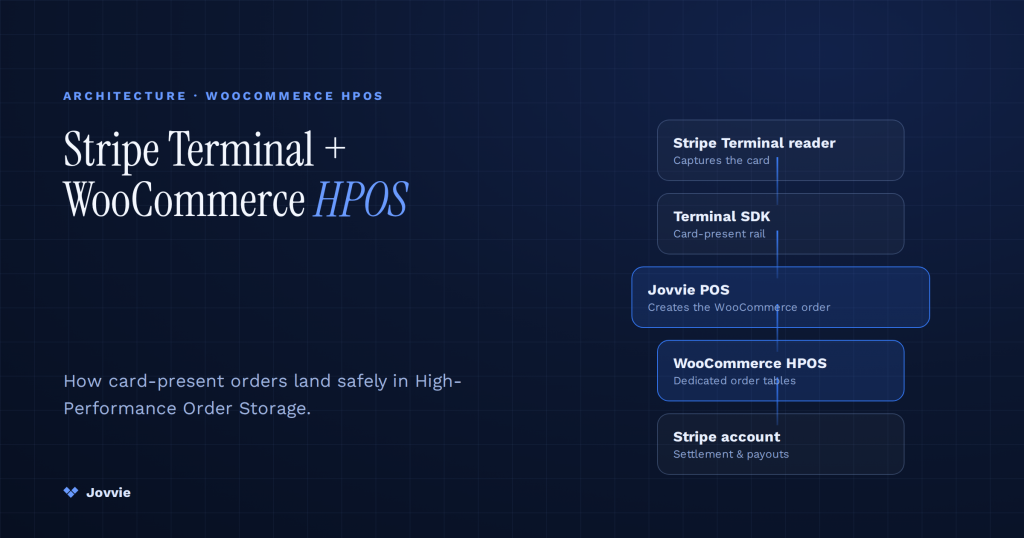
Yes — Stripe Terminal works with WooCommerce High-Performance Order Storage (HPOS), as long as the point-of-sale plugin that drives your reader has declared HPOS compatibility; Jovvie has, so a Jovvie-powered Stripe Terminal register reads and writes orders correctly whether your store keeps orders in the legacy wp_posts tables or in the new dedicated HPOS order tables. The card reader itself never touches your database — Stripe Terminal handles the payment, and your POS plugin handles the order — so “HPOS compatibility” is really a question about the POS layer, not about the hardware or about Stripe.
Key Takeaways
- Yes — Stripe Terminal works with WooCommerce HPOS, as long as your POS plugin has declared HPOS compatibility.
- HPOS stores orders in dedicated tables for speed; Terminal only processes the card, and the POS creates the order HPOS governs.
- Jovvie declares HPOS compatibility the official way (FeaturesUtil::declare_compatibility), so it is verifiable and safe.
- Check compatibility in WooCommerce’s feature screen — it names any plugin that has not declared support.
- If a plugin is not compatible, WooCommerce refuses the HPOS switch rather than risking your data.
- Migrating to HPOS with Jovvie needs no register downtime.
We have built WooCommerce point-of-sale on Stripe Terminal for eight years, across boutiques, cafes, pop-ups, and multi-location retailers in more than 30 countries, and HPOS is the compatibility question we now field most from stores planning an upgrade. The worry is understandable: WooCommerce changed where it stores the single most important object in your business — the order — and merchants reasonably want to know their register will not break mid-shift. The short version is that it will not, provided every plugin that touches orders has declared compatibility. This note explains what HPOS is, why it matters more for a busy in-person store than for a quiet online one, how Jovvie declares compatibility, and exactly how to confirm the whole stack is safe on your store in about 30 seconds.
This is a cluster piece in the WooCommerce pillar. For the full picture of running a register on WooCommerce, start with the complete Stripe Terminal for WooCommerce implementation guide. If you are weighing reader hardware, see the 2026 Stripe Terminal hardware guide. For the throughput side of a high-volume counter, see WooCommerce + Stripe Terminal performance tuning.
Does Stripe Terminal work with WooCommerce HPOS?
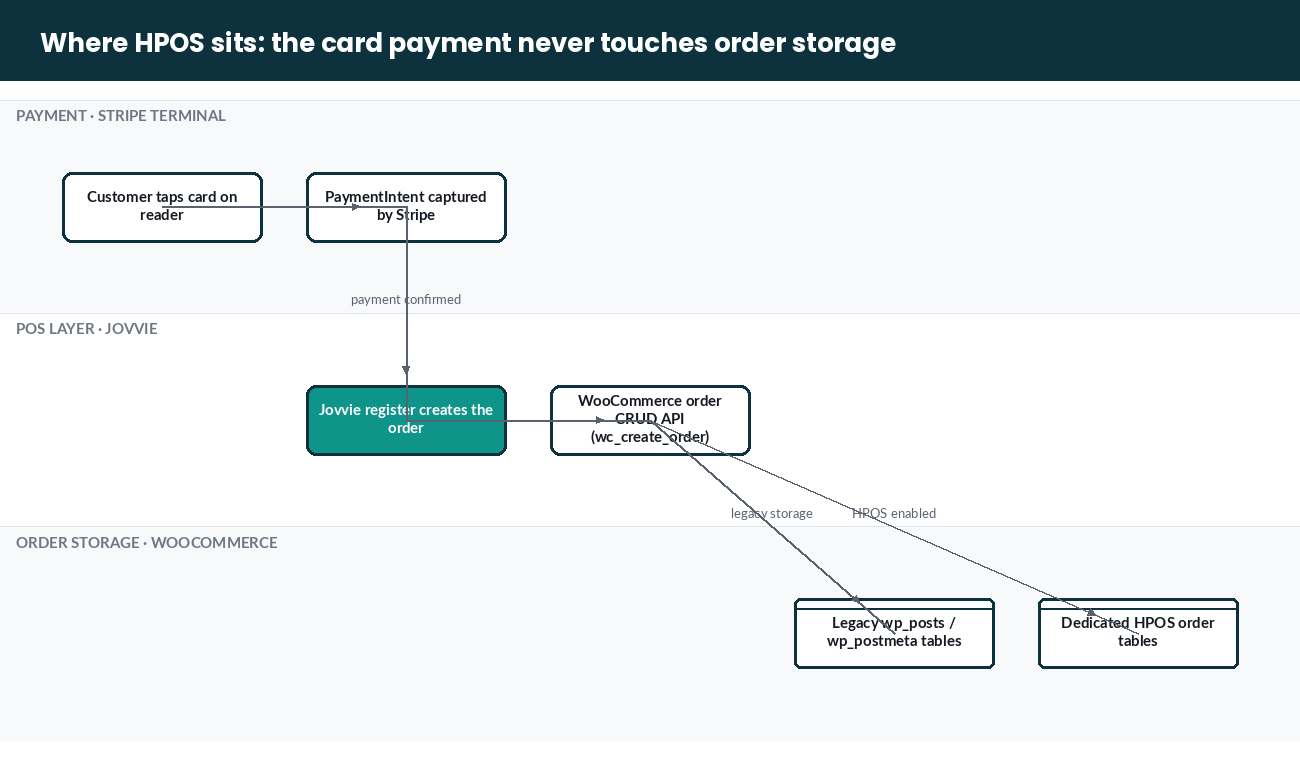
Yes. Stripe Terminal works with WooCommerce HPOS because Terminal only processes the card-present payment — the order record that HPOS governs is created by your POS plugin, and a compatible POS plugin like Jovvie writes to whichever storage engine your store has enabled.
It helps to separate the three moving parts, because they get blurred together under one search:
- Stripe Terminal is Stripe’s card-present payment product — the reader, the Terminal SDK, and the PaymentIntent it captures. It has no opinion about WooCommerce’s database at all.
- HPOS (High-Performance Order Storage) is WooCommerce’s order-storage engine. It moves orders out of the shared WordPress
wp_postsandwp_postmetatables into dedicated order tables. It is documented in the official WooCommerce HPOS overview. - Your POS plugin — Jovvie, in our case — is the layer that turns Terminal into a working register: product lookup, cart, tax, tendering, receipt, and, critically, order creation in WooCommerce. That last step is the only one that touches HPOS.
So the compatibility question resolves cleanly. Stripe Terminal is HPOS-neutral. HPOS is a storage decision. The one component that must be HPOS-aware is the POS plugin, because it is the thing writing orders. If your POS has declared compatibility, the register behaves identically on HPOS and on legacy storage.
Compatibility at a glance
The table below summarizes where each WooCommerce architectural feature stands for a Jovvie + Stripe Terminal register.
| WooCommerce feature | What it changes | Jovvie + Stripe Terminal status |
|---|---|---|
| High-Performance Order Storage (HPOS) | Orders live in dedicated tables, not wp_posts | Declared compatible — reads/writes orders through the WooCommerce CRUD API |
| Legacy post-based storage | Orders in wp_posts / wp_postmeta | Fully supported — the default before HPOS |
| Compatibility (sync) mode | Both stores kept in sync during migration | Supported — register works while data syncs |
| Cart & Checkout Blocks | Block-based front-end checkout | Compatible — in-person checkout runs through the POS, not the web checkout |
| Product Block Editor | Block-based product editing in admin | Compatible — Jovvie reads the standard product data |
The pattern to notice: nothing in the Stripe Terminal payment path is affected by any of these choices. Everything that could be affected lives in the WooCommerce data layer, and Jovvie talks to that layer through WooCommerce’s own order API rather than reaching into database tables directly — which is exactly why it does not matter which tables those are.
What is High-Performance Order Storage, and why does it matter for a POS?
High-Performance Order Storage is a WooCommerce feature that stores orders in dedicated, purpose-built database tables instead of the shared WordPress wp_posts and wp_postmeta tables, and it matters more for a point-of-sale store than for a typical online store because a register writes orders in fast, concurrent bursts.
Before HPOS, every WooCommerce order was a WordPress “post,” sharing the same two tables as your blog posts, pages, revisions, and every plugin that stashes metadata there. That worked, but it meant order queries competed with everything else in those tables, and order metadata was spread across millions of wp_postmeta rows. HPOS replaces that with tables designed for orders — narrower, indexed for the queries a shop actually runs, and isolated from unrelated post data. WooCommerce made HPOS the default for new stores as of WooCommerce 8.2, described in the platform update announcement.
For an online store, the benefit is real but gradual — faster order-admin screens, cleaner reporting, better behavior as the order table grows into the hundreds of thousands. For a point-of-sale store the benefit is sharper, for a specific reason: a register creates orders in tight, concurrent bursts. Saturday lunch rush, three lanes open, a line out the door — that is many order writes per minute, each one needing to complete fast so the next customer can tap their card. Dedicated order tables with proper indexes handle that write pattern noticeably better than the shared, heavily contended wp_posts table. The busier your counter, the more HPOS earns its name. This is why we recommend HPOS for any Jovvie deployment doing meaningful in-person volume.
How do you check whether your Stripe Terminal POS is HPOS compatible?
You check HPOS compatibility from WooCommerce → Status → the “Order data storage” section and the plugin-compatibility list, which takes about 30 seconds and tells you both which storage engine is active and whether any installed plugin is blocking HPOS.
Follow these steps:
- In WordPress admin, go to WooCommerce → Settings → Advanced → Features. This is the control panel WooCommerce documents in its enable-HPOS guide.
- Look at the ”Order data storage” option. It shows whether you are on “WordPress posts storage” (legacy) or “High-performance order storage,” and whether compatibility mode (“keep both synchronized”) is on.
- Note the incompatible-plugins warning. If any active plugin has not declared HPOS compatibility, WooCommerce lists it here and will not let you switch to HPOS-only until it is resolved. If Jovvie is active, it will not appear in this list — because it declares compatibility (see the next section).
- Cross-check under WooCommerce → Status → System status if you want the same information in the diagnostic report you would send to support.
If the incompatible-plugins list is empty and you can toggle HPOS on without a warning, your whole stack — including your Stripe Terminal POS — is HPOS-safe. If a plugin appears there, that plugin is the blocker, not Stripe Terminal and not your reader.
How does Jovvie declare HPOS compatibility?
Jovvie declares HPOS compatibility the way WooCommerce specifies — by calling FeaturesUtil::declare_compatibility() for the custom_order_tables feature during the before_woocommerce_init hook — which is what puts Jovvie in WooCommerce’s “compatible” list and keeps it out of the incompatible-plugins warning.
The declaration WooCommerce looks for is the standard one from its HPOS recipe book:
add_action( 'before_woocommerce_init', function () {
    if ( class_exists( \Automattic\WooCommerce\Utilities\FeaturesUtil::class ) ) {
        \Automattic\WooCommerce\Utilities\FeaturesUtil::declare_compatibility(
            'custom_order_tables',
            __FILE__,
            true
        );
    }
} );
Two things make this a real compatibility guarantee rather than a checkbox. First, the declaration is only honest if the plugin actually reads and writes orders through WooCommerce’s order CRUD API — wc_get_order(), wc_create_order(), $order->save() — instead of running direct SQL against wp_posts/wp_postmeta. Jovvie does the former, which is why the same code path works unchanged on either storage engine. Second, the official Stripe payment gateway for WooCommerce also declares HPOS support, so the payment side you rely on for online transactions is covered as well. Between a HPOS-declared POS and a HPOS-declared gateway, the in-person and online halves of your store are both accounted for.
This is the trust point worth stating plainly: you do not have to take “it’s compatible” on faith. You can confirm the declaration is registered by checking that Jovvie is absent from the incompatible-plugins list in the step above — WooCommerce only omits a plugin from that list when it has received the declaration.
Want a Stripe Terminal POS that’s already HPOS-ready?
Jovvie declares full HPOS compatibility, so you can enable High-Performance Order Storage without breaking in-person payments.
Start your free trial →How do you migrate an existing store to HPOS without breaking in-person payments?
You migrate safely by enabling compatibility (sync) mode first, letting WooCommerce copy existing orders into the new tables while keeping both stores synchronized, then switching to HPOS as the source of truth once the sync is complete — a sequence that lets your Stripe Terminal register keep taking payments the entire time.
For a store that is already trading in person, the order of operations matters. Here is the sequence we use:
- Back up first. A full database backup before any storage change is non-negotiable for a live store.
- Update everything. Update WooCommerce, Jovvie, the Stripe gateway, and every other active plugin, then confirm the incompatible-plugins list is empty (see the verification steps above). Resolve any listed plugin before going further.
- Enable compatibility/sync mode. In Settings → Advanced → Features, turn on HPOS with the “keep both synchronized” option. WooCommerce now writes to both the legacy and HPOS tables and backfills existing orders. Your register keeps working normally during this phase, because both stores stay current.
- Let the sync finish. WooCommerce reports sync progress; on large stores it can run in batches over hours. New in-person orders created by Jovvie during this window land in both stores, so nothing is lost.
- Switch to HPOS as the source of truth, and keep compatibility mode on for a short observation period. Watch a few live transactions end-to-end — tap, capture, order created, receipt — before turning sync off.
- Disable sync mode once you are confident, so you get the full performance benefit of writing to the order tables only.
The key reassurance for a POS operator: at no point in this sequence does the reader stop working or does a captured payment fail to become an order. The migration happens underneath the order API that Jovvie already uses, so from the cashier’s point of view nothing changes.
What happens if a plugin isn’t HPOS compatible — and how do you fix it?
If a plugin has not declared HPOS compatibility, WooCommerce protects you by refusing to switch to HPOS-only storage and naming the offending plugin in the incompatible-plugins list, so the failure mode is a blocked upgrade, not corrupted orders.
This is deliberately conservative behavior on WooCommerce’s part. Rather than let an unaware plugin read stale data from the wrong tables, WooCommerce keeps you in a safe state until the conflict is resolved. To fix it: update the named plugin to a version that declares compatibility; if no compatible version exists, contact that plugin’s author or replace it; and in the meantime, stay in compatibility (sync) mode, which keeps both stores populated so even a not-yet-aware plugin still finds order data where it expects. Only switch to HPOS-only once the list is clear. Because Jovvie and the official Stripe gateway both declare compatibility, neither of them will ever be the plugin holding up your migration — the blocker, when there is one, is almost always an older extension elsewhere in the stack.
Frequently asked questions
Is HPOS enabled by default in WooCommerce?
Yes, for new stores. WooCommerce made High-Performance Order Storage the default for newly created stores as of WooCommerce 8.2. Existing stores that predate that change keep their legacy post-based storage until an administrator enables HPOS, which is why an established shop may still be on wp_posts today.
Do I have to migrate to HPOS to use Stripe Terminal with Jovvie?
No. Jovvie and Stripe Terminal work on both legacy post-based storage and HPOS. Migrating is a performance and future-proofing decision, not a requirement for taking in-person payments. That said, for a high-volume counter we recommend HPOS because of the concurrent-write benefit described above.
Will switching to HPOS interrupt my register during business hours?
It does not have to. Using compatibility (sync) mode, WooCommerce migrates order data in the background while both stores stay synchronized, so the register keeps creating orders throughout. We still recommend scheduling the initial sync for a quieter period and watching a few live transactions before disabling sync mode.
How do I know a plugin is HPOS compatible?
Check WooCommerce → Settings → Advanced → Features. Any active plugin that has not declared compatibility is listed as incompatible there, and WooCommerce blocks the HPOS switch until it is resolved. A plugin that is absent from that list has declared compatibility.
Should I keep compatibility mode on after migrating?
Only temporarily. Compatibility (sync) mode writes to both the legacy and HPOS tables, which is exactly what you want during and just after migration for safety. Once you have confirmed everything works on HPOS, disable sync mode so writes go only to the dedicated order tables and you get the full performance benefit.
Does HPOS change anything about how Stripe Terminal processes a card?
No. Stripe Terminal’s payment flow — connecting to the reader, creating and capturing the PaymentIntent — is entirely separate from where WooCommerce stores the resulting order. HPOS changes the storage engine for orders; it does not touch the payment path.
The bottom line for WooCommerce POS operators
HPOS and Stripe Terminal are compatible, and with Jovvie the compatibility is declared, verifiable, and safe to migrate into without pausing your register. Stripe handles the card, Jovvie handles the order through WooCommerce’s own API, and HPOS simply makes that order write faster on a busy counter. The one habit worth keeping is the 30-second check: before any storage change, confirm the incompatible-plugins list is empty, and you know the whole stack is safe.
If you are planning an HPOS migration on a store that already takes — or is about to take — in-person payments, we can walk the sequence with you and check your specific plugin stack before you flip the switch. Book a migration planning call with the Jovvie team and we will make sure your register never misses a beat.
Primary sources: WooCommerce HPOS overview · Enable HPOS · HPOS recipe book (declaring compatibility) · Platform update: HPOS default since 8.2 · Stripe gateway for WooCommerce · Stripe Terminal docs
Run Stripe Terminal on WooCommerce with Jovvie
Jovvie is the WooCommerce-native point of sale built on Stripe Terminal — take in-person payments, sync every sale to your store, and keep one system of record. Start free, no credit card required.
