
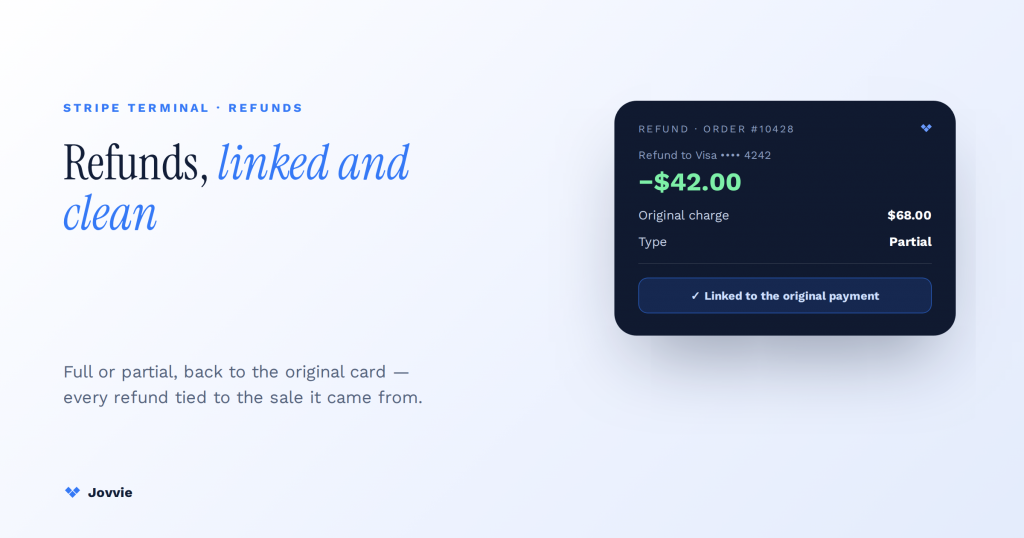
A Stripe Terminal refund returns money to the original payment. You issue it from the Stripe Dashboard, through the API, or from your POS order screen, refunding either the full amount or a partial amount back to the same card. For most card-present payments the card does not need to be present; the refund attaches to the original PaymentIntent or charge and lands back on the customer’s card in five to ten business days. The one large exception, which almost no guide and no AI answer covers, is Interac Debit in Canada: those refunds must be done in person with the cardholder re-presenting their card, and cannot be issued from the Dashboard or the API at all. This guide is the operator-facing playbook for all of it — refund types, partial-refund mechanics, linking back to the original payment, the Interac and PIN-debit rules, the edge cases that trip up store staff, and how the whole thing works from a WooCommerce POS.
Key Takeaways
- Refund the payment, not the card. You reference the original PaymentIntent or charge ID — there is no way to credit an arbitrary card.
- Full or partial, one or many. Refund any amount up to the total, in multiple pieces, until the running sum reaches the original.
- Standard cards need not be present. Visa, Mastercard, Amex, and Discover refunds run from the Dashboard, API, or POS after the fact.
- Interac Debit is the big exception. Canadian Interac refunds must be done in person with the cardholder re-presenting the card — never from the Dashboard or API.
- Cancel is not refund. Cancel an uncaptured authorization to release the hold; refund a captured payment to return money.
- A WooCommerce POS makes it one click. Jovvie stores the PaymentIntent on the order and calls the Refunds API for you, syncing status and stock.
We build Stripe Terminal POS deployments for a living. Jovvie has shipped in-person payment flows for retail, full-service and quick-service dining, salons, pop-ups, and multi-location service businesses on Stripe Terminal hardware, and we run our own Stripe Connect platform at payments.bizswoop.app. So the refund mechanics below are not a docs paraphrase — they are what we configure and support on real readers, including the debit rules that cause a line at the counter when staff do not know them in advance. This is a cluster piece in our Stripe Terminal POS library; if you are still standing up your register, start with how Stripe Terminal works as a point of sale and come back here for the refund flow.
How do I issue a refund through Stripe Terminal?
You refund the original payment — not the card directly — by referencing its PaymentIntent or charge and specifying how much to return.
A Stripe Terminal payment creates a PaymentIntent (and an underlying charge) the moment it is captured. A refund is a separate object that points back at that payment and moves money the other way. You can create it three ways, and for a standard card-present payment (Visa, Mastercard, Amex, Discover run as credit or as signature debit) any of the three works without the customer or their card being present:
- Stripe Dashboard — open the payment, click Refund, enter the amount (full or partial), and confirm. This is the everyday path for a store manager handling a return after the fact.
- Refunds API — create a refund programmatically against the
payment_intentorcharge, optionally passing anamountfor a partial refund (Stripe Refunds API). This is what your POS or ERP calls under the hood. - From your POS order screen — in a WooCommerce POS like Jovvie, you refund from the order itself and the plugin calls the Refunds API for you, so inventory and order status stay in sync (covered in the WooCommerce section below).
The money returns to the original payment method. There is no way to redirect a refund to a different card — Stripe returns it to the exact card that paid, which is a fraud-control feature, not a limitation you can configure around.
The important fork happens here: most card-present refunds do not require the card, but in-person refunds — Interac Debit in Canada, and other PIN-debit networks that mandate it — do. That distinction is the whole difference between “process it from the back office” and “the customer has to come back.” The decision table below makes it explicit.
Refund types at a glance: full, partial, and cancel vs refund
Use this table to pick the right action before you touch a reader or the Dashboard — the wrong choice either fails or moves the wrong amount.
| Situation | What you do | Card present? | Where |
|---|---|---|---|
| Return the entire sale | Full refund of the PaymentIntent | No (standard cards) | Dashboard, API, or POS |
| Return part of the sale | Partial refund with an amount | No (standard cards) | Dashboard, API, or POS |
| Payment authorized but not yet captured | Cancel the PaymentIntent — do not refund | No | Dashboard or API |
| Payment captured, needs reversing | Refund the PaymentIntent | No (standard cards) | Dashboard, API, or POS |
| Interac Debit (Canada) | In-person refund on the reader | Yes — required | Reader only (SDK), never Dashboard/API |
| Other PIN-debit that mandates in-person | In-person refund on the reader | Yes — required | Reader only (SDK) |
The two rows people conflate are cancel and refund, so they get their own section next.
Cancel vs refund: the distinction that saves you a chargeback headache
Cancel a payment that has not been captured yet; refund a payment that has.
Stripe payments can be split into two steps — authorize (hold the funds) and capture (actually take them). If a payment is still only authorized and you have not captured it, you should cancel it, which releases the hold with no money ever having moved (Stripe: refund and cancel payments). If you instead “refund” a payment that was authorized-but-not-captured, you are refunding money you never collected. If a payment is already captured — which is the default for most POS flows, where authorize and capture happen together at the counter — then a refund is the correct action.
Why it matters at the register: a canceled authorization simply disappears from the customer’s statement (or drops off in a day or two as a pending hold), while a refund appears as a distinct credit line that arrives days later. Telling a customer “you’ll see a refund in about a week” when you actually canceled an uncaptured hold creates a support call when the credit never shows up — because there was nothing to credit.
Full vs partial refunds: how the amount works and how to refund more than once
A partial refund returns any amount up to the original total, and you can issue multiple partial refunds until the sum reaches that total.
For a partial refund you specify an amount in the smallest currency unit — cents for USD, pence for GBP, so a $12.50 refund is 1250 (Stripe Refunds API). Leave the amount off and Stripe refunds the full remaining balance. The rules that catch operators out:
- You can refund in multiple pieces. Refund $5 today and $7.50 next week against a $12.50 charge and Stripe tracks the running total. What you cannot do is refund more than the original payment — attempts beyond the remaining refundable balance are rejected.
- Currency and card must match the original. A refund goes back in the same currency, to the same card, as the payment. You cannot refund a EUR charge in USD or send it to a different card.
- Application fees on a Connect platform refund proportionally by default. If you run on Stripe Connect and took an application fee, a partial refund reverses a proportional slice of that fee unless you tell it otherwise — relevant if Jovvie or another platform sits between you and Stripe. See our companion piece on Stripe Terminal application-fee economics for how that reconciles.
A worked example: a customer bought three $20 items ($60 total, captured on an S700). One item comes back. You issue a $20 partial refund against that PaymentIntent. The order still shows $40 net collected, the customer sees a $20 credit in about a week, and $40 remains refundable if they return the rest later.
Linking a refund back to the original payment (PaymentIntent or charge ID)
Every refund must reference the original payment by its PaymentIntent ID or charge ID — there is no standalone “credit a card” action.
This is the mechanical heart of a Stripe refund and the reason “just put $20 back on any card” is not a thing Stripe will do. You pass either the payment_intent (the pi_... ID) or the charge (the ch_... ID) to the refund, and Stripe validates that the refund does not exceed what that payment collected (Stripe Refunds API). In the Dashboard this is invisible — you are already looking at the payment when you click Refund, so the link is implicit. In an API or POS integration it is explicit: your system stored the PaymentIntent ID when the sale happened, and it hands that ID back to the refund call.
Practically, this is why POS hygiene matters. If your register does not persist the PaymentIntent ID against the order, a later refund becomes a hunt through the Dashboard by amount and timestamp. A WooCommerce POS like Jovvie stores that ID on the order automatically, so the refund is a one-click action from the order screen rather than a reconciliation exercise.
Running returns through a WooCommerce register?
Jovvie refunds from the order screen — partial amounts, status sync, restock, and the in-person Interac path — so staff never touch a PaymentIntent ID.
Start your free trial →Interac and PIN debit: why some refunds must happen in person (and on which readers)
Interac Debit payments in Canada must be refunded in person, with the cardholder re-presenting their card to a reader — you cannot refund them from the Dashboard or the API.
This is the single most important rule in this guide and the one every competitor tutorial and AI answer omits. Per Stripe’s documentation, Interac Debit is a card-present-refund payment method: the cardholder has to be physically present and tap or insert the same card again, and there is no Dashboard or API path to refund it (Stripe Terminal refunds; Stripe Terminal regional considerations, Canada). If a Canadian customer paid by Interac Debit and wants their money back, they have to come back to the store.
In-person Interac refunds are supported on these readers:
- BBPOS WisePad 3
- BBPOS WisePOS E
- Stripe Reader S700 / S710
- Tap to Pay on iPhone
- Tap to Pay on Android
To build the in-person refund experience, the Terminal SDK exposes collectRefundPaymentMethod and confirmRefund, and a dedicated refund object; these methods exist specifically for payment methods that require in-person refunds like Interac Debit (Stripe card-present refunds reference). If you operate in Canada or in a dual US/Canada market, wire this flow and train staff on it before go-live — “we can’t refund your debit card unless you bring it in” is a conversation best had once, in a poster at the counter, not repeatedly at the register.
For the broader question of PIN handling and debit authorization on Terminal, see our WooCommerce-side companion on refund and PIN authorization policies. Note that Stripe supports PIN debit on Terminal in relevant regions (Stripe: PIN debit support); the in-person-refund requirement is specific to networks like Interac, not to every debit transaction.
Edge cases: expirations, mismatches, timing, and reconciliation
Most refund problems are one of five predictable edge cases — knowing them turns a support ticket into a shrug.
- Uncaptured authorizations expire. An authorization you never captured releases on its own (typically within a week, network-dependent). If a customer disputes a “charge” that was only ever an authorization, check whether it was captured before you refund — you may have nothing to refund. Cancel it if it is still open.
- Currency or card mismatch. Refunds only go back to the original card in the original currency. If that card is now closed or expired, the issuing bank normally routes the refund to the customer’s new card on the same account; if it cannot, the refund can fail and the funds return to you to resolve directly with the customer.
- Refund timing. A refund is near-instant on Stripe’s side but takes five to ten business days to appear on the customer’s statement, because the timeline is controlled by the card networks and the issuing bank, not by you. Set that expectation out loud.
- Reconciliation catches unintended authorizations. Reconcile refunds against payouts on your backend regularly. This is how you catch a double-charged customer, an authorization that should have been canceled, or a partial refund that never fully processed — before the customer does.
- Already-refunded or over-refunded attempts. Trying to refund more than the remaining refundable balance is rejected. If a refund “won’t go through,” check whether a partial refund already consumed part of the balance.
Issuing a refund from a WooCommerce POS (the Jovvie workflow)
In a WooCommerce POS, you refund from the order screen and the plugin handles the Stripe API call, the amount, and the order-status sync for you.
This is where jovvie.com/’s lane matters, because a store operator does not think in PaymentIntents — they think in orders. In a Jovvie-powered WooCommerce POS, an in-person Terminal sale writes back to WooCommerce as an order with the Stripe PaymentIntent ID attached. To refund:
- Open the order in WooCommerce (or in the Jovvie POS order history).
- Choose Refund, and either refund the full order or enter line-item / partial amounts.
- Confirm. Jovvie calls the Stripe Refunds API against the stored PaymentIntent, so you never copy an ID by hand.
- The order status updates to Refunded (or Partially Refunded), and — if you run inventory sync — stock can be restored on the returned items.
For a standard card payment that is the entire flow, no reader required. For an Interac Debit order in Canada, the WooCommerce refund still needs the in-person step on the reader — the order screen initiates it, but the cardholder must re-present the card, per the rule above. That is a workflow to design deliberately: your return desk needs the reader within reach, not just a back-office computer.
Frequently asked questions
How do I refund a Stripe Terminal payment?
Open the original payment in the Stripe Dashboard (or your POS order), click Refund, enter the full or partial amount, and confirm. For standard card payments the customer’s card does not need to be present; the refund returns to the original card in five to ten business days.
Can you do a partial refund on Stripe Terminal?
Yes. Specify an amount in the smallest currency unit (cents for USD) up to the original total, and you can issue multiple partial refunds against the same payment until their sum reaches that total. Leave the amount off to refund the full remaining balance.
How long does a Stripe refund take to appear?
Stripe processes the refund almost immediately, but it takes five to ten business days to show on the customer’s statement because the card networks and the issuing bank control that timeline — not the merchant.
Can you refund an Interac (debit) payment through Stripe Terminal?
Only in person. Interac Debit refunds in Canada require the cardholder to re-present their card at a supported reader (WisePad 3, WisePOS E, Reader S700/S710, or Tap to Pay on iPhone/Android). They cannot be issued from the Stripe Dashboard or the API.
What’s the difference between canceling and refunding a Stripe payment?
Cancel a payment that was authorized but never captured — it releases the hold and no money moves. Refund a payment that was already captured — it returns money that was collected. Using the wrong one either refunds funds you never took or leaves a captured charge in place.
Run your Stripe Terminal refunds through WooCommerce
Running returns through a WooCommerce register? Jovvie handles the full Stripe Terminal refund flow — partial refunds, order-status sync, inventory restock, and the in-person Interac path — from the order screen, so your staff never touch a PaymentIntent ID.
Jovvie handles the full Stripe Terminal refund flow from the WooCommerce order screen — partial refunds, order-status sync, inventory restock, and the in-person Interac path. Start free, or talk to an advisor about wiring your return desk.
Sources: Stripe Terminal refunds · Stripe: refund and cancel payments · Stripe Refunds API · Stripe in-person refund_payment endpoint · Stripe Terminal regional considerations (Canada) · Stripe PIN debit support · Stripe card-present refunds reference
