
Sell tickets at the door with Event Tickets.
Box Office for Event Tickets by Jovvie adds Tap to Pay and Stripe card readers to Tickets Commerce, the checkout built into Event Tickets. Door sales are normal ticket orders, and inventory stays in step with what you sell online.
Free plugin and free Jovvie account. Requires Event Tickets with Tickets Commerce; The Events Calendar is optional. Payments go to your own Stripe account.


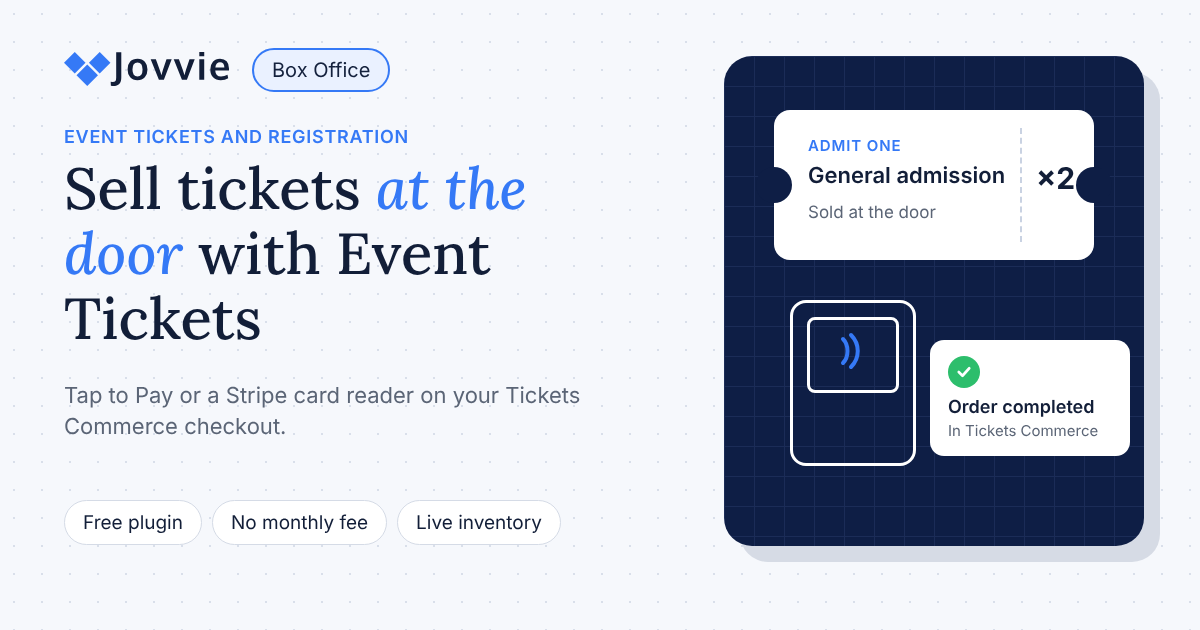
One ticket inventory, online and at the door.
Staff add tickets on your Tickets Commerce checkout and click Purchase Tickets. Jovvie opens its payment page, staff choose a reader, and the buyer taps, inserts or swipes their card, or pays with Apple Pay or Google Pay.
Event Tickets completes the order when Stripe confirms the payment, so door sales and online sales draw from the same ticket count.
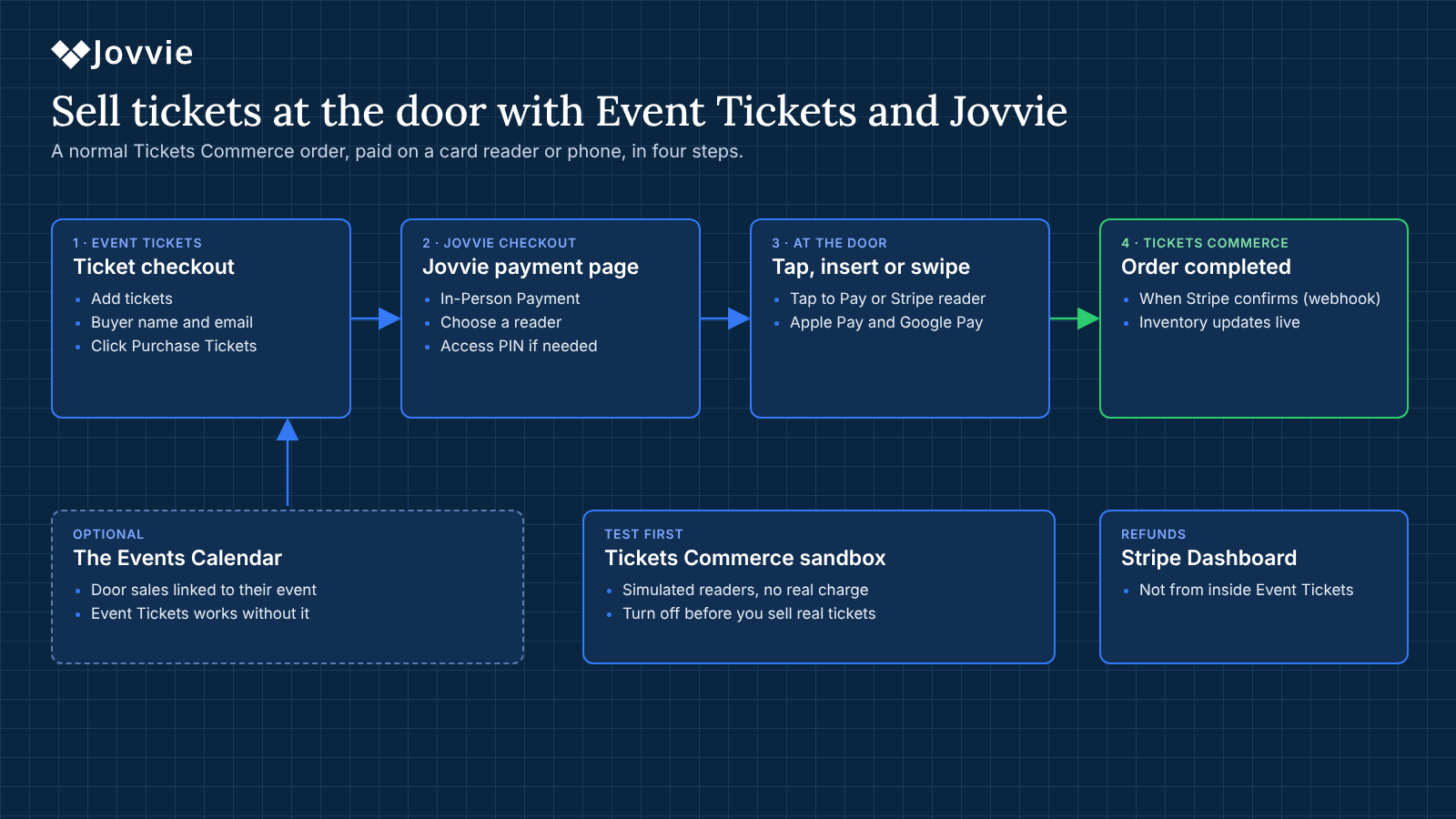
Four steps to your first door sale
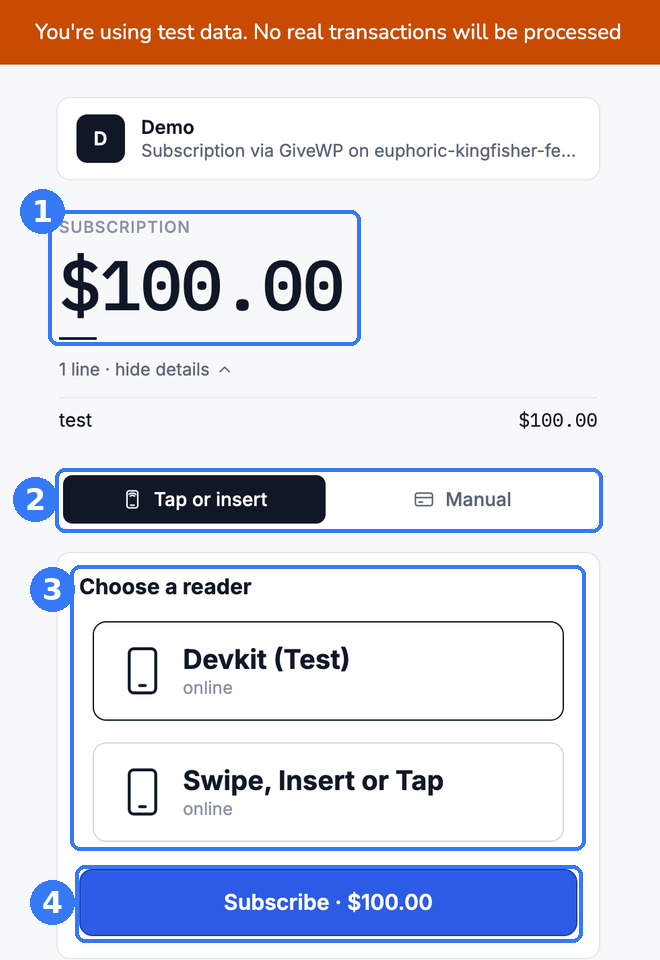
Phones for the line, readers for the box office.
| Device | Hardware | Connects by | Best for |
|---|---|---|---|
| Tap to Pay | iPhone XS or later; NFC Android | Free Jovvie app, no reader | Working the line, pop-up entrances |
| Bluetooth reader | Stripe Reader M2, BBPOS WisePad 3 | Paired in the Jovvie app | Will-call tables, chip and PIN |
| Countertop reader | Stripe Reader S700, T600; BBPOS WisePOS E | Wi-Fi or Ethernet, one-time code | Box office windows |
| Verifone readers | P630, UX700, V660p, M425 | Jovvie app on the reader, or a one-time code | Larger venues on Verifone |
On the T600, S700, S710 and Verifone readers, the Jovvie app can run on the reader itself through Stripe Apps on Devices. Reader availability varies by country.
Free to install. A small fee on door sales only.
No monthly fee. Online ticket sales are unaffected.
What you need
- WordPress 6.2+ and PHP 7.4+
- Event Tickets and Registration with Tickets Commerce as your ticket checkout
- The Events Calendar (optional)
- A Stripe account in a supported country
- Wi-Fi or mobile data on the device taking payment
- Stripe payment confirmations (webhooks) confirmed by Jovvie support
Taking donations at the same event?
Tap To Donate for Give adds in-person donations to your Give forms, on the same readers. See the Give integration or all Jovvie Checkout integrations.
Frequently asked questions
Can The Events Calendar sell tickets at the door?
Yes, with Event Tickets and Registration and Box Office for Event Tickets by Jovvie. Staff sell on the Tickets Commerce checkout and take the card on a Stripe reader or Tap to Pay.
Do I need The Events Calendar?
No. Event Tickets is required; The Events Calendar is optional. When it’s installed, door sales are linked to their event.
Does it work with tickets sold through WooCommerce?
No. It adds an in-person payment option to Tickets Commerce only. For WooCommerce orders, use Jovvie Checkout for WooCommerce.
When is the ticket order completed?
When your site receives Stripe’s payment confirmation (a webhook), not when the browser returns. Ask Jovvie support to confirm webhooks are set up for live and test mode before your first event.
How much does it cost?
The plugin and Jovvie account are free, with no monthly fee. A platform fee of 0.5% to 2% applies to in-person payments only, plus Stripe’s processing rate.
How do I refund a door sale?
In your Stripe Dashboard.
Does it work without internet?
No. The device needs Wi-Fi or mobile data so Stripe can authorize each payment.
Last updated: November 4, 2026
Open the doors with card payments ready.
Install the free plugin, connect Stripe and sell your first ticket at the door.