
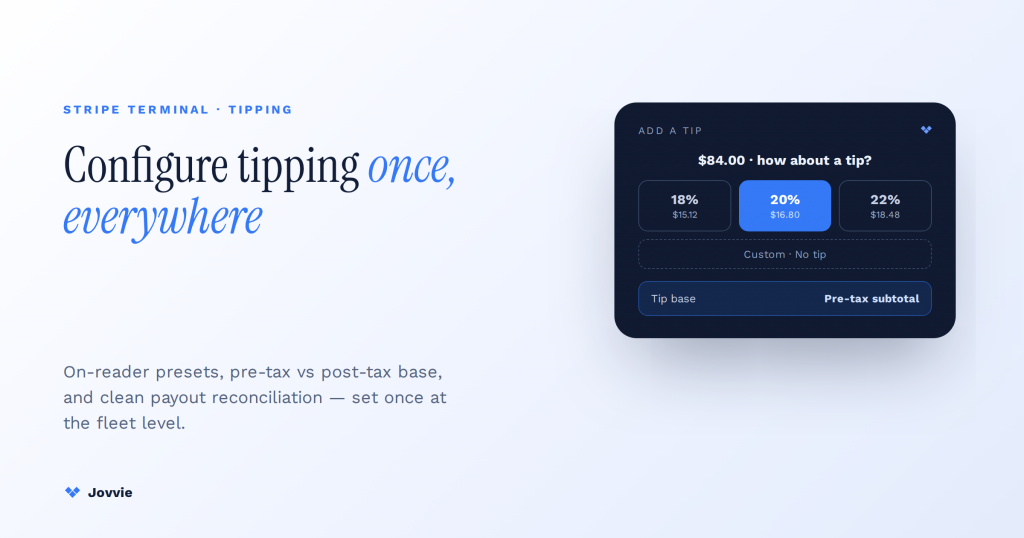
You configure tipping on a Stripe Terminal POS in the Stripe Dashboard, not on the reader itself. You set a tipping “configuration” (tip mode, currency, and either preset percentages or fixed amounts), assign it account-wide or per location, and Stripe pushes it to your readers within about ten minutes. The buttons your customer taps are the last mile of a decision you make once in the dashboard (or through the Terminal configuration API) and reuse across every reader at a location. This guide walks the setup end-to-end, then goes where the docs stop: the pre-tax versus post-tax tip base that trips operators up, the compliance implications nobody documents, and how tips actually reconcile and pay out inside a WooCommerce POS.
Key Takeaways
- It’s a dashboard configuration, not a reader chore. Set a Terminal tipping configuration once and assign it account-wide or per location; readers sync within about ten minutes.
- On-reader vs on-screen. On-reader (Stripe’s prompt) is fastest to stand up; on-screen (your POS) is the only path to a pre-tax base or tip-out control.
- The default base is post-tax. On-reader suggestions compute on the post-tax total with no toggle; a pre-tax base requires controlling the prompt on-screen.
- Three presets, plus custom and no-tip. Use percentages for higher tickets, fixed amounts for low-ticket counter service, and a smart threshold to switch between them.
- Compliance lives above the reader. Suggested-tip framing, pooling/tip credit, and per-employee records are POS/payroll jobs — Terminal only captures the tip as data (not legal advice).
- Stripe owns the money; the POS owns the meaning. Tips settle with the sale; attribution, per-shift reporting, and tip-out happen in your WooCommerce POS.
We build Stripe Terminal POS deployments for a living. Jovvie has shipped in-person payment flows for full-service dining, quick-service counters, salons, and multi-location service businesses on Stripe Terminal hardware, and we run our own Stripe Connect platform at payments.bizswoop.app. So the tipping mechanics below are not a docs paraphrase — they are what we configure on real readers, including the settings that cause payroll headaches when they are set wrong. This is a cluster piece in our Stripe Terminal POS library; if you run a dining room, pair it with our deeper Stripe Terminal for restaurants guide on tipping, splits, and tabs, which covers the front-of-house side this piece deliberately leaves alone.
How do I configure tipping on a Stripe Terminal POS?
You configure it once in the Stripe Dashboard as a reusable tipping configuration, then assign it to readers — you do not set tips on each reader by hand.
Stripe Terminal treats tipping as part of a configuration object, not a device setting. A configuration holds your tipping rules — the tip mode, the currency, and your suggested amounts (percentages or fixed values) — and you attach it either to your whole account (the default) or to a specific Terminal location, which then overrides the account default for the readers registered there (Stripe fleet configurations overview). Change the configuration once and every reader that inherits it updates on its next sync, typically within about ten minutes. This is why “how do I turn on tipping” is really a dashboard question, not a reader question.
There are two places a customer can actually be prompted for a tip, and they are configured differently:
- On-reader tipping — the tip prompt appears on the Stripe reader’s own screen (an S700, WisePad 3, or a Tap to Pay device) after the amount is presented. This is the built-in Terminal feature and the one this guide focuses on (Stripe on-reader tipping docs).
- On-screen (in-app) tipping — the tip prompt appears in your POS software before you hand the reader to the customer or before the charge is created. Here your POS, not Stripe’s reader firmware, owns the tip UI and the tax-base logic.
The rest of this guide assumes on-reader tipping unless a section says otherwise, because that is where Stripe’s configuration model lives and where most operators start.
The dashboard setup, step by step
Here is the on-reader tipping setup in the Stripe Dashboard, start to finish. This is the numbered procedure the AI answers gesture at but rarely get completely right.
- Open Terminal settings. In the Stripe Dashboard, go to More → Terminal, then choose Configurations (or open a specific Location if you want location-level tipping that overrides the account default).
- Edit the tipping section. Find the Tipping row in the configuration and open it. If you are working at the account level you are editing the default that every location inherits until it sets its own.
- Turn tipping on and pick the currency. Enable tipping and select the currency. Tipping amounts are currency-specific — this matters if you operate in more than one country, because a reader charges in its location’s local currency (see our companion piece on multi-currency Stripe Terminal in WooCommerce).
- Choose your suggestions: percentages or fixed amounts. Enter up to three suggested values. You can use percentages (for example 15%, 18%, 20%) or fixed amounts (for example $1, $2, $3). Fixed amounts are common for low-ticket counter service where a percentage of a $4 coffee reads as trivial.
- Decide on smart tipping (the threshold). Set a “smart tip” threshold if you want the reader to switch automatically between percentage suggestions on larger tickets and fixed-amount suggestions on small ones. Below the threshold the reader shows fixed amounts; at or above it, it shows percentages (Stripe on-reader tipping docs).
- Review, confirm, and apply. Save the configuration. Assign it to the location or leave it as the account default. Stripe pushes the change to affected readers on their next sync — plan for roughly ten minutes, not instant.
- Verify on the hardware. Run a $0.50 test charge on an actual reader to confirm the prompt, the presets, and the tax base render the way you expect before a customer ever sees them.
Two things people miss here. First, an empty or misconfigured configuration means no tip prompt appears — silence, not an error. Second, the on-reader default calculates suggested tips on the post-tax total, and there is no on-reader checkbox to change that; changing the base is an on-screen (in-app) decision, which is the subject of a load-bearing section below.
On-reader vs on-screen tipping: which to use and how to set each up
Use on-reader tipping for standard card-present service where you want Stripe to own the prompt; use on-screen tipping when your POS needs to control the tip UI, the tax base, or the tip-out logic.
The choice is not cosmetic — it changes where the tax base is decided and who owns the tip data first. On-reader tipping is faster to stand up (it is pure dashboard configuration) but gives you the post-tax default with no toggle. On-screen tipping lives in your application, so you can expose choices Stripe’s reader firmware does not — most importantly an “exclude tax when calculating suggested tips” option — at the cost of building or running a POS that implements it.
| Dimension | On-reader tipping | On-screen (in-app) tipping |
|---|---|---|
| Where the prompt shows | Stripe reader’s screen | Your POS app, before the reader |
| Where it’s configured | Stripe Dashboard configuration | Your POS software |
| Suggested-tip tax base | Post-tax by default, no toggle | You choose (pre-tax or post-tax) |
| “Exclude tax from tip” option | Not available on-reader | Available (POS-controlled) |
| Preset % / fixed / smart threshold | Yes | Yes (POS-defined) |
| Propagation time for changes | ~10 minutes to readers | Instant (app deploy) |
| Best for | Standard counter/table service | Operators who need tax-base or tip-out control |
| Primary source | On-reader tips | Collecting tips overview |
For most operators the honest answer is on-reader tipping for speed, moving to on-screen only when the pre-tax base or staff tip-out becomes a real requirement. If you run Jovvie on top of Terminal, the POS handles the on-screen path for you, so “build a POS” is not actually on your to-do list.
Preset vs custom tip percentages (and how smart-tip thresholds work)
Presets are the three suggested buttons; custom is the “enter your own” option; smart-tip thresholds let the reader swap between percentage and fixed suggestions based on the ticket size.
You get up to three preset suggestions plus a custom-entry path and a no-tip option. The design decision is what those three presets are and whether they change with ticket size:
- Presets as percentages (15/18/20) work for table service and higher tickets, where a percentage feels proportionate.
- Presets as fixed amounts ($1/$2/$3) work for low-ticket counter service, where “20% of $4” looks like a rounding error and suppresses tips.
- Smart-tip thresholds give you both: below a threshold you set (say $10), the reader shows fixed amounts; at or above it, it shows percentages. This is the setting that lets one configuration serve both a $4 espresso and a $60 tab sensibly (Stripe on-reader tipping docs).
Keep the presets to three and resist inflating them. Suggested-tip framing has real wage-and-hour and customer-perception consequences, which is the next section.
Pre-tax vs post-tax tip base: the setting most operators get wrong
On-reader tipping calculates suggested tips on the post-tax total by default and gives you no on-reader toggle to change it; if you need suggestions calculated on the pre-tax subtotal, you have to control the tip UI on-screen in your POS.
This is the single most confusing tipping decision and the one every competitor and AI answer skips. The distinction matters because a suggested “20%” tip is a materially different dollar amount depending on the base. On a $100 pre-tax check with 9% sales tax, the customer sees a $109 total. A 20% suggestion computed post-tax offers $21.80; computed pre-tax it offers $20.00. Across a busy service, that gap adds up, and — more importantly — tipping on tax invites customer pushback and, in some jurisdictions and contracts, complaints about the fairness of suggested-tip framing.
Here is the practical rule:
- On-reader tips are post-tax. Stripe’s reader firmware computes suggested tips on the transaction amount presented to the reader, which is the post-tax total. There is no on-reader “exclude tax” checkbox (Stripe on-reader tipping docs).
- On-screen tips can be pre-tax. When the tip prompt lives in your POS, the POS decides the base. This is where the “exclude tax when calculating suggested tips” option exists — some single-platform integrations expose it as an explicit checkbox, which is why on-screen is the answer for operators who need a pre-tax base.
- The workaround, if you must stay on-reader: present the pre-tax amount to the reader for tip calculation and add tax after, or move the tip decision into the POS entirely. Both require your software to own the flow — which, again, a POS like Jovvie does for you.
If your accountant or your state’s tip-credit rules require suggested tips on the pre-tax subtotal, do not assume the reader can do it. Confirm your path (on-screen or a pre-tax presentment flow) before you deploy, not after payroll flags it.
Need tipping reconciled to your team, not just collected?
Jovvie configures tipping on Stripe Terminal and attributes every tip by staff, shift, and daypart in WooCommerce — pooling and tip-out included.
Start your free trial →Tipping compliance: pooling, wage rules, and record-keeping (not legal advice)
Tipping configuration is also a compliance decision — how you frame suggestions, pool tips, and keep records intersects with wage-and-hour law, and the reader settings are only the visible tip of it. This section is general information, not legal advice; confirm specifics with your own counsel or payroll provider.
Three areas that reader configuration touches and that the docs ignore entirely:
- Suggested-tip framing. In the US, tips must be voluntary. Overly aggressive presets, a hard-to-find no-tip option, or defaulting a tip can create exposure. Keep the no-tip path obvious and your presets reasonable. This is a configuration choice, not a legal footnote.
- Tip pooling and tip credit. If you pool tips or take a tip credit against minimum wage, who is eligible to share and how the pool is calculated are governed by federal (FLSA) and state rules. Stripe Terminal captures the tip as raw data on the charge; it does not pool, allocate, or route tips to staff. That logic lives in your POS or payroll system, and getting the eligibility rules wrong is a wage-and-hour risk, not a payments bug.
- Record-keeping. You need durable records of tips collected, by employee and by shift, to support payroll tax reporting and tip-credit compliance. The Stripe Dashboard shows tips at the transaction level; turning that into per-employee, per-shift records is a POS/reporting job.
The takeaway: the reader collects the tip, but compliance lives above the reader. Decide your pooling and record-keeping model before you scale, and make sure whatever POS or payroll stack you run can produce the per-employee reporting your jurisdiction requires.
How tips reconcile and pay out in a WooCommerce POS
In a WooCommerce POS built on Stripe Terminal, the tip is captured on the Stripe charge, then your POS reads it back, attributes it to the order and the staff member, and feeds your reporting and tip-out — Stripe stores the amount, the POS does the routing.
This is the operator question no source answers: the money is collected, so where does it go and how does staff get paid? The flow, in order:
- Capture. The customer taps a tip on the reader; Stripe adds it to the
PaymentIntentand settles tip plus sale into your Stripe balance as one charge. - Attribution. Your WooCommerce POS records the tip against the order, the register/station, and — if you track it — the server or stylist who rang the sale. Stripe does not know your staff; the POS supplies that mapping.
- Reporting. Tips roll up by employee, shift, and daypart in the POS’s reporting, which is the shape payroll actually needs. The Stripe Dashboard alone gives you transaction-level tips, not staff-level totals.
- Tip-out / payout. Pooling and tip-out calculations run in the POS or your payroll system based on the attributed records. This is where your compliance model from the previous section is actually executed.
The line is consistent with how Terminal works everywhere: Stripe owns the money; the POS owns the meaning. If you want tips to reconcile cleanly to staff without stitching Stripe exports together in a spreadsheet, that reporting has to live in the POS layer. That is exactly the layer Jovvie provides on top of Stripe Terminal — WooCommerce-native, no engineering required.
Configuration API: setting tipping programmatically (developer appendix)
If you manage many locations or provision readers automatically, set tipping through the Terminal configuration API instead of the dashboard.
You create or update a terminal.Configuration with a tipping block that carries per-currency suggested percentages and a smart-tip threshold, then attach it to locations the same way the dashboard does (Terminal configuration API reference). On mobile SDKs, the equivalent is the TippingConfiguration object (see Stripe’s Android TippingConfiguration SDK reference), which lets an in-app flow set eligible amounts and the tax base at charge time — the on-screen path that unlocks a pre-tax base. For a fleet, define one configuration per currency/policy and assign it, rather than editing readers individually; that is what the configuration model is for (fleet configurations overview).
Frequently asked questions
How do I turn on tipping on a Stripe reader?
You do not turn it on at the reader — you enable it in the Stripe Dashboard under Terminal → Configurations, edit the Tipping section, choose a mode and suggested amounts, then save. Stripe pushes the change to your readers on their next sync, usually within about ten minutes (Stripe on-reader tipping docs).
Does Stripe Terminal calculate tips before or after tax?
On-reader suggested tips are calculated on the post-tax total by default, and there is no on-reader toggle to change it. To calculate suggestions on the pre-tax subtotal, you have to control the tip prompt on-screen in your POS, where an “exclude tax when calculating suggested tips” option is available (collecting tips overview).
Can I set custom tip percentages on Stripe Terminal?
Yes. You can set up to three preset suggestions as percentages or fixed amounts, plus a custom-entry option and a no-tip option, and you can use a smart-tip threshold so the reader shows fixed amounts on small tickets and percentages on larger ones (Stripe on-reader tipping docs).
How long does it take for Stripe tipping settings to apply to the reader?
Changes propagate to affected readers on their next sync, typically within about ten minutes — not instantly. Run a small test charge on the hardware to confirm the new prompt before serving customers.
Where do tips go, and how does staff get paid out?
Stripe captures the tip on the charge and settles it into your Stripe balance with the sale. Attributing tips to staff, reporting by shift, and running tip-out or pooling all happen in your POS or payroll system — Stripe stores the amount but does not route it to employees.
Configure tipping once, get it right everywhere
Tipping on Stripe Terminal is a dashboard configuration, not a per-reader chore — but the settings that matter most (post-tax vs pre-tax base, pooling, and per-staff payout) live above the reader, in your POS. If you want tipping configured correctly and reconciled cleanly to your team on WooCommerce, that is what Jovvie does on top of Stripe Terminal, without engineering.
If you want tipping configured correctly and reconciled cleanly to your team on WooCommerce, that is what Jovvie does on top of Stripe Terminal, without engineering. Start free, or talk it through with us first.
Primary sources: Stripe fleet tipping, on-reader tips, collecting tips overview, on-receipt tips, fleet configurations overview, Terminal configuration API, and the Stripe Android TippingConfiguration SDK reference.
